Setting app languages independently on Samsung Galaxy A36 5G
Using different languages for apps on Samsung Galaxy A36 5G, how to set each app on your phone to a different language, how to use every app in a separate language on Samsung Galaxy A36 5G, Setting app languages independently on Samsung Galaxy A36 5G.
Samsung Galaxy A36 5G offers you a unique experience by allowing you to set a different language for each app, even if your phone’s system language is different. If your phone is set to English, you can still choose another language for any app you want—or even multiple apps in different languages. This feature gives you full control to make every app work in the language you prefer. Imagine reading “Twitter” in Arabic, using “Instagram” in English, and browsing “Google Maps” in French—all with just a few taps. With this Android feature, you no longer need to install custom language packs, nor will you face inaccurate or incorrect translations. Choose whatever suits you best for each app. This feature is perfect if you are learning a new language or working in a multilingual environment. Some apps even perform better in their original language (such as banking or educational apps).
How to set a different language for each app?
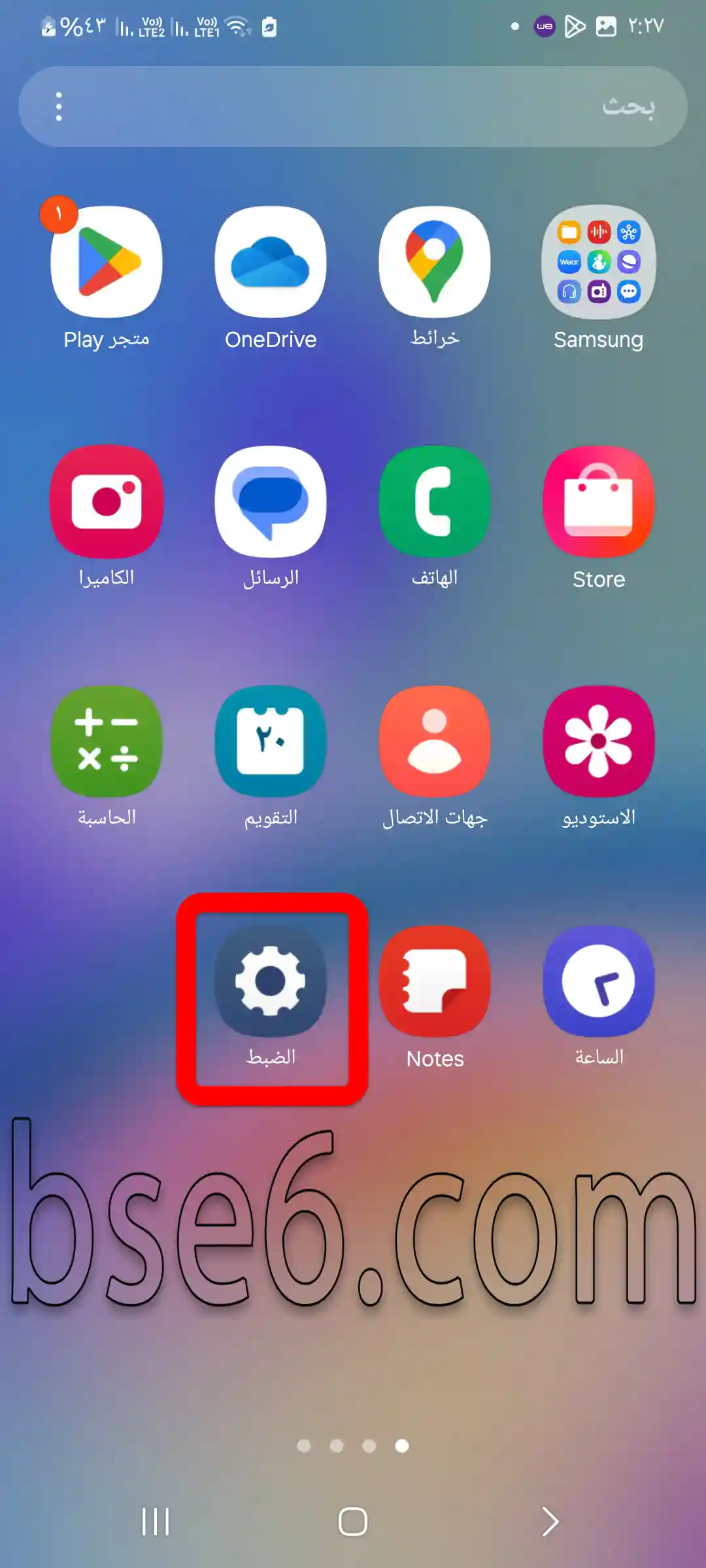
1- Go to “Settings”.
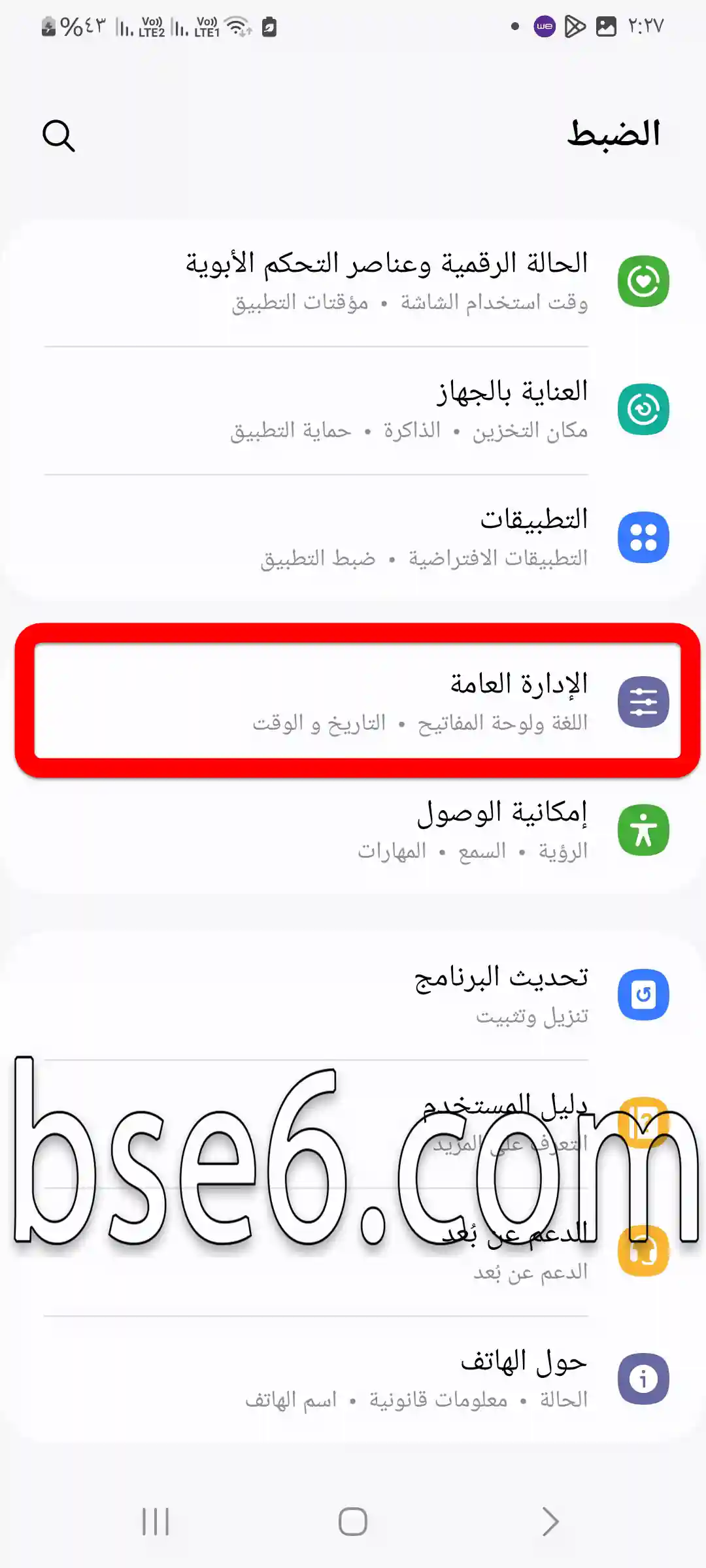
2- Tap on “General management”.
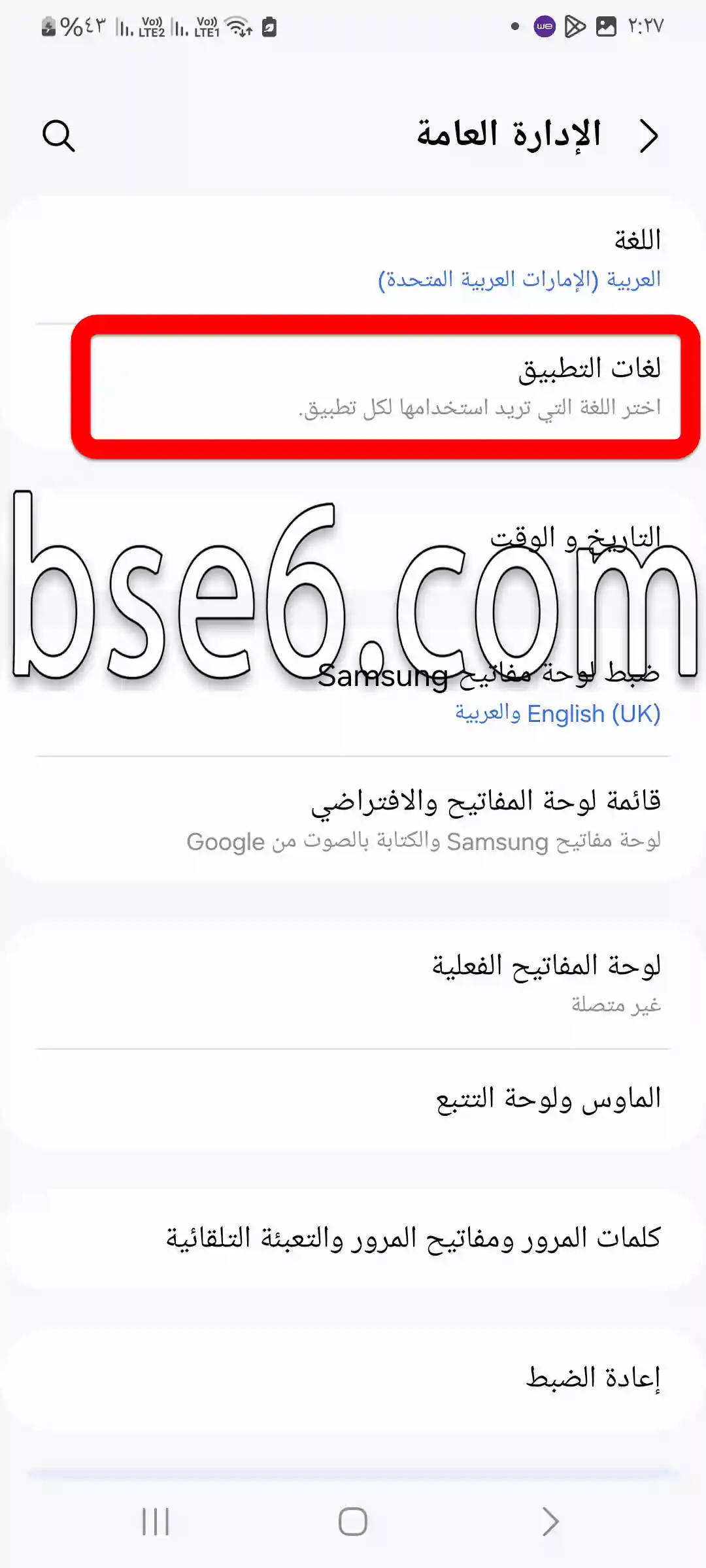
3- Select “App languages”.
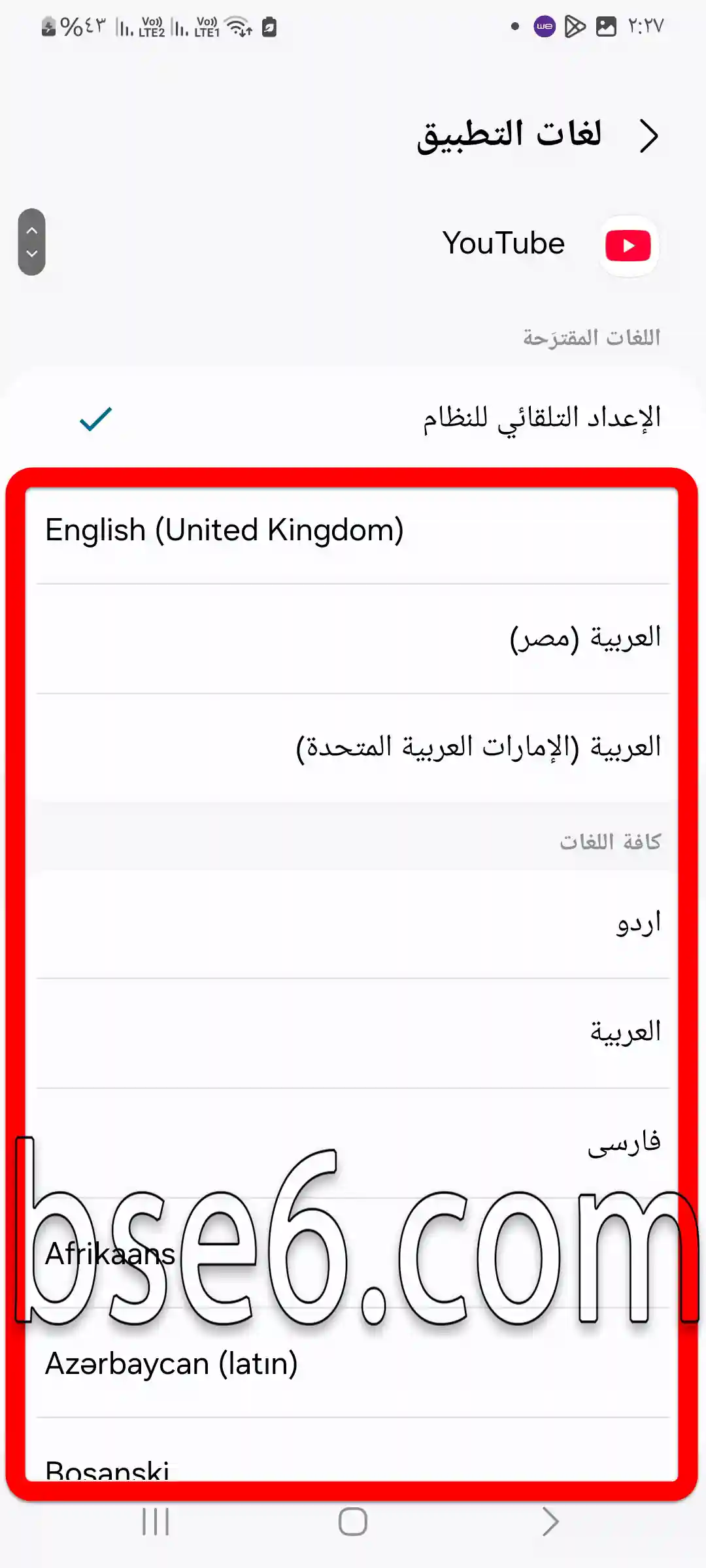
4- Choose the app you want to change its language.
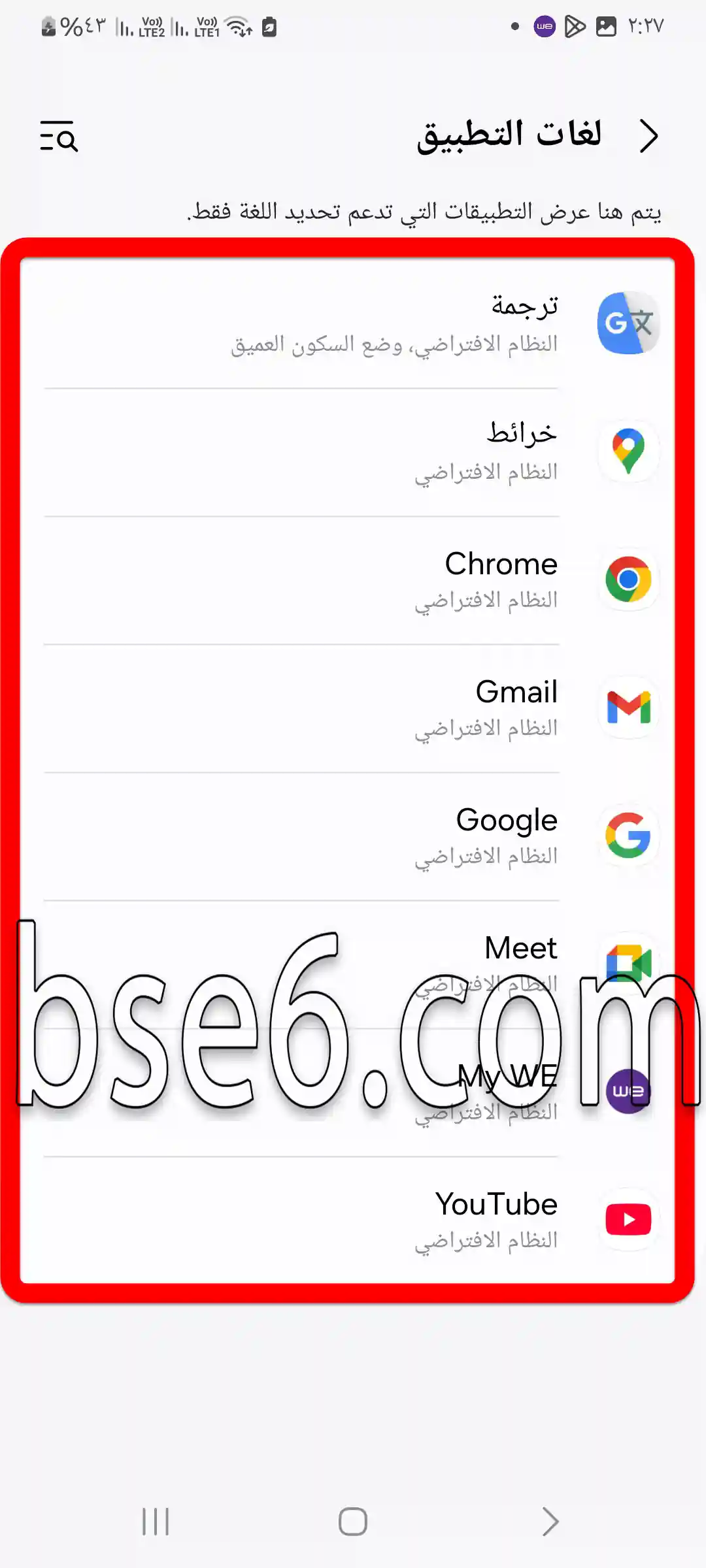
5- Select the language you want — the app will immediately switch to the chosen language even if it differs from your phone’s system language.