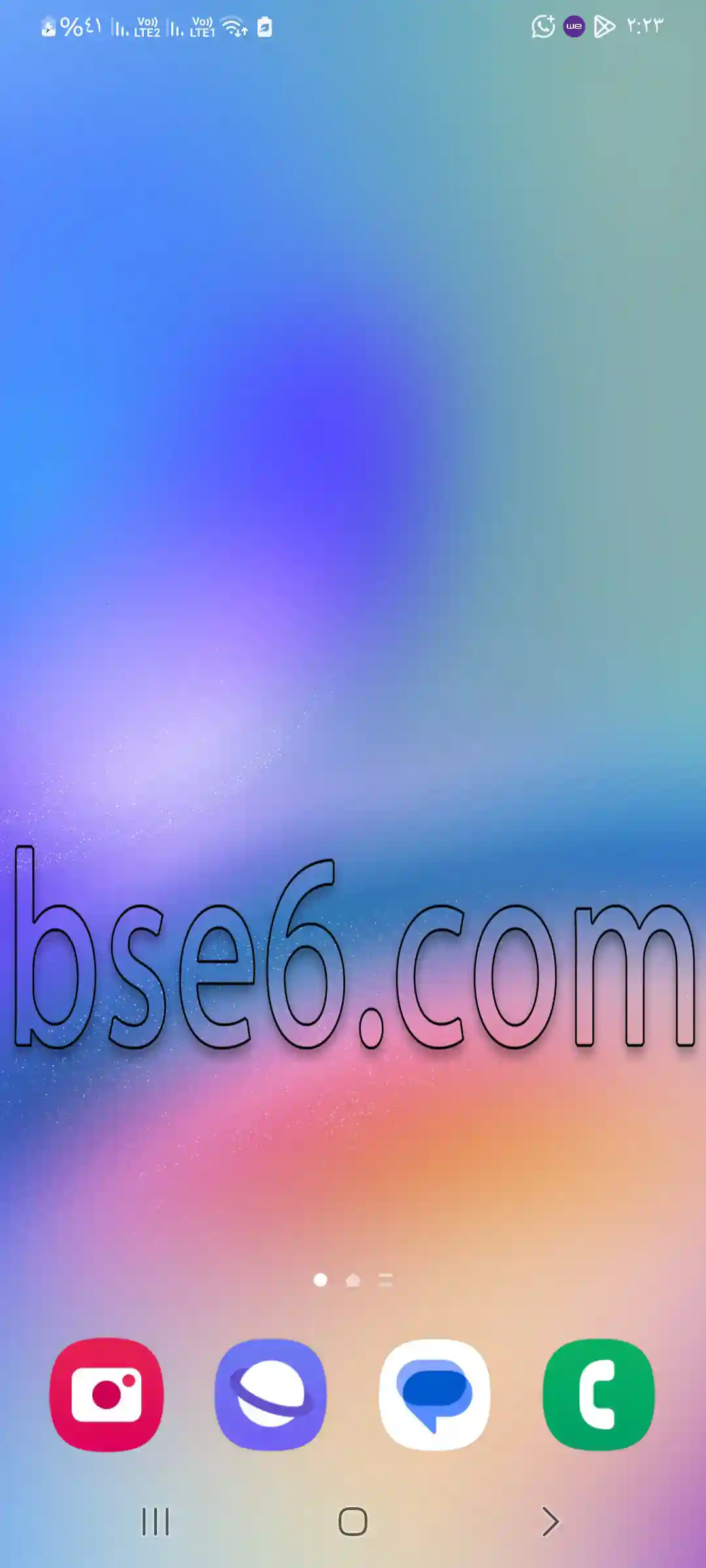
Hide Apps on Samsung Galaxy A36 5G
Hide apps on Samsung Galaxy A36 5G, how to hide apps on Samsung Galaxy A36 5G, steps to hide any app from your Samsung Galaxy A36 5G.
How to hide apps on Samsung Galaxy A36 5G?
You can hide any apps on the home screen of your Samsung Galaxy A36 5G without installing additional programs or apps. Just follow a few simple steps that will enhance the privacy of your device.
1- Long press on any empty area of the home screen.
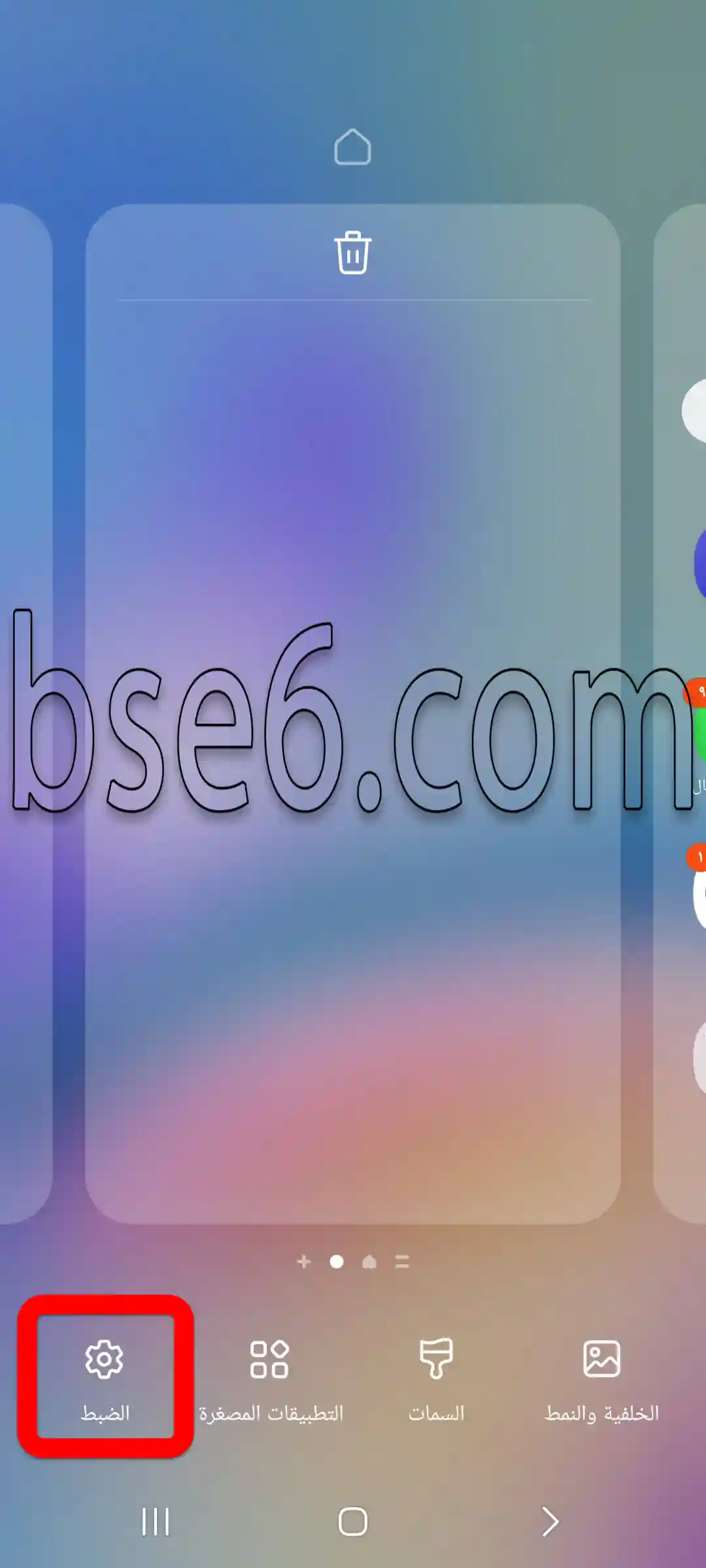
2- Open “Settings”.
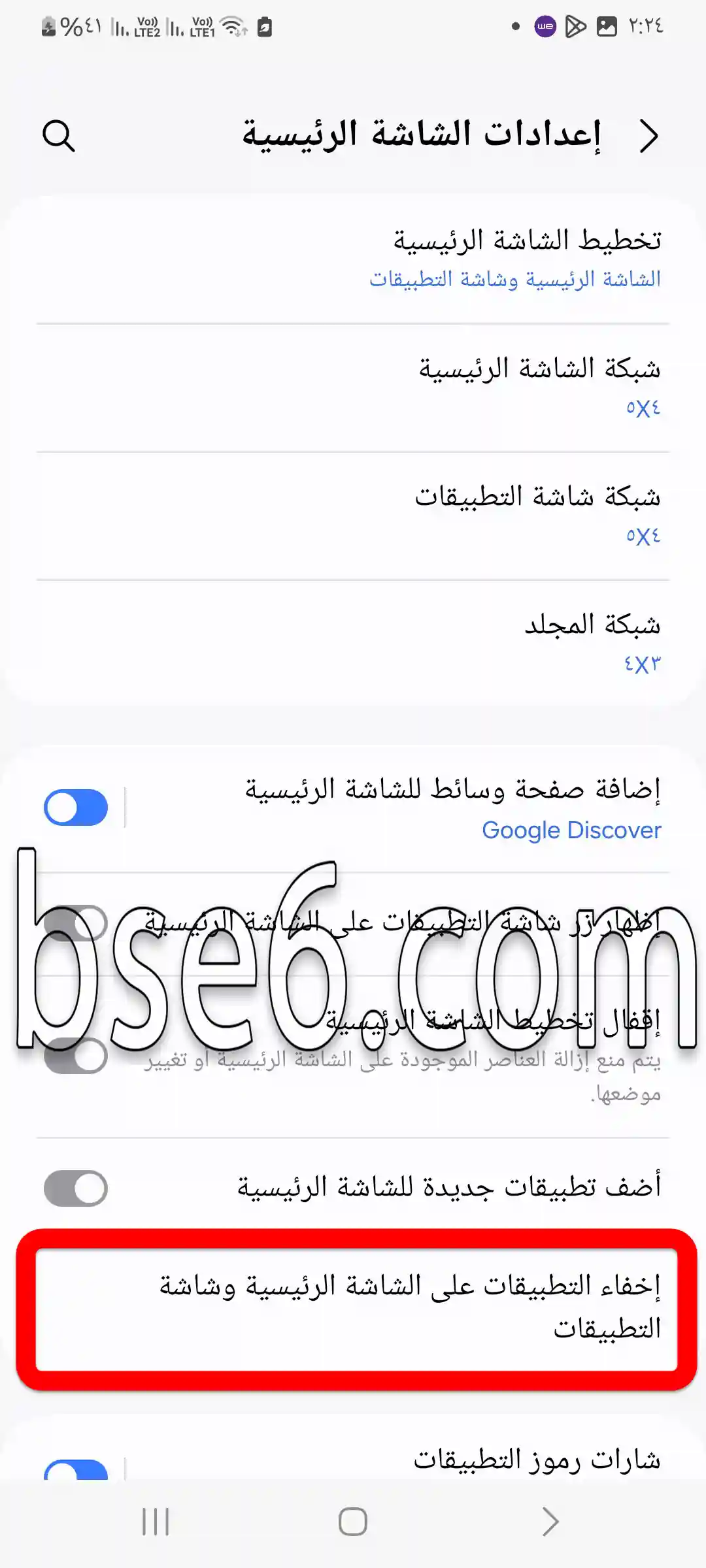
3- Go to “Hide apps on Home and Apps screens”.
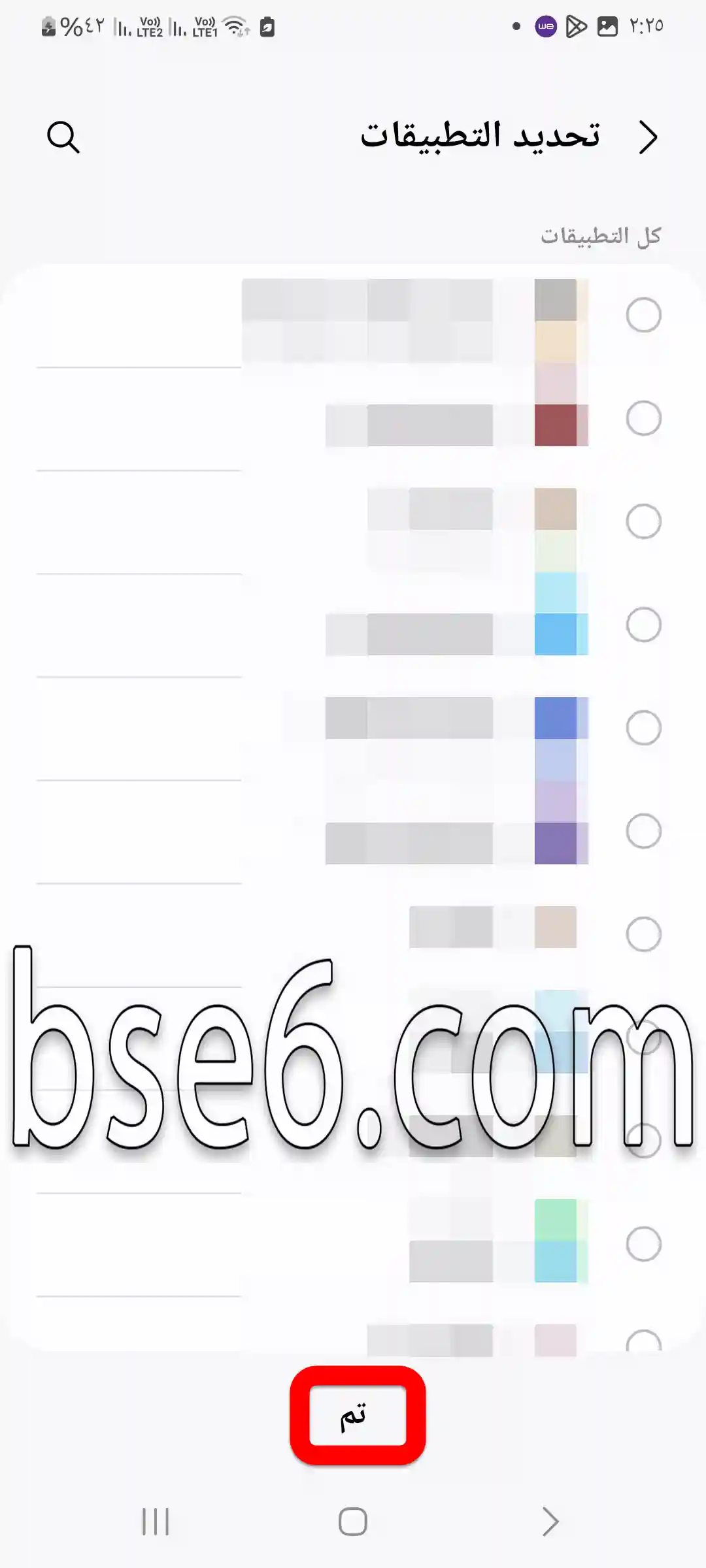
4- Select one or more apps that you want to hide.
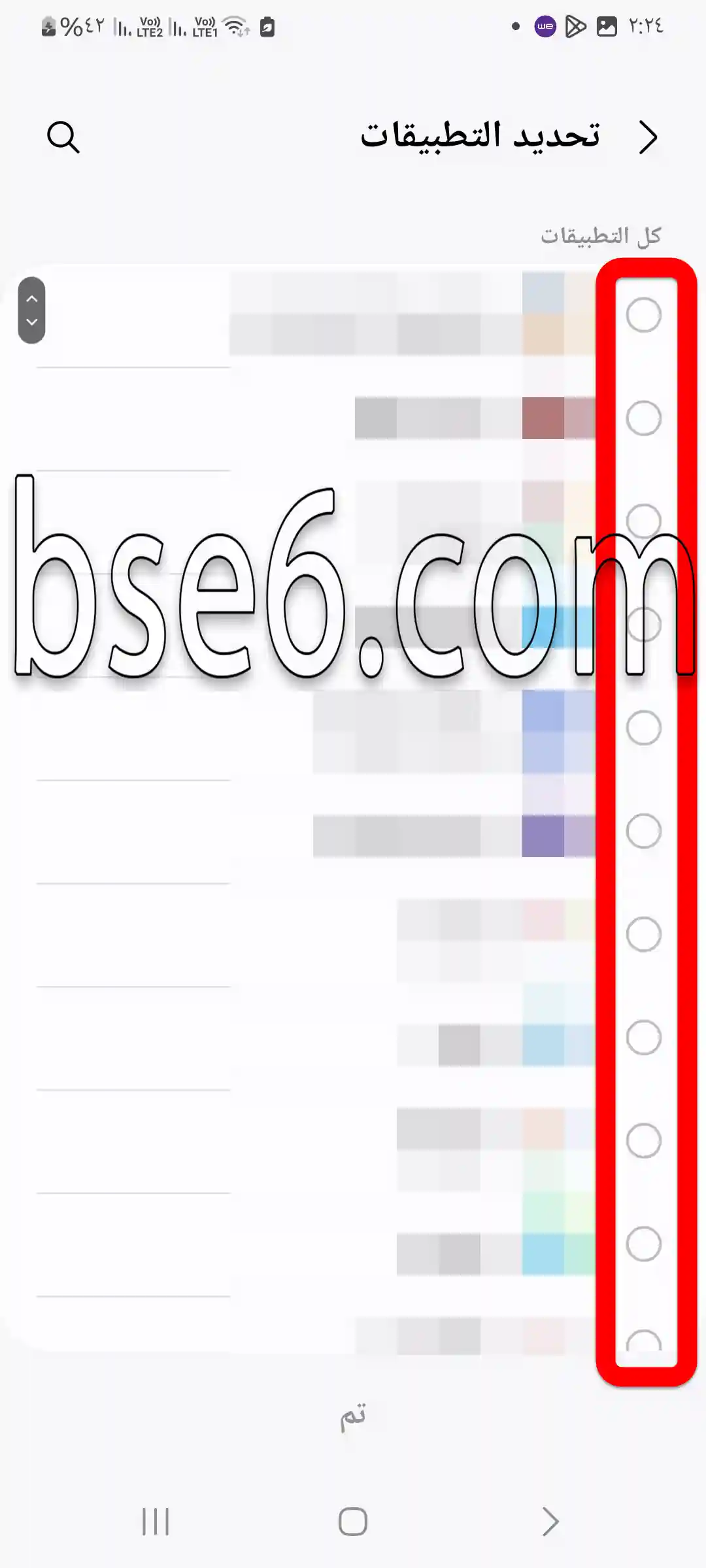
5- After selecting the apps, tap “Done”.
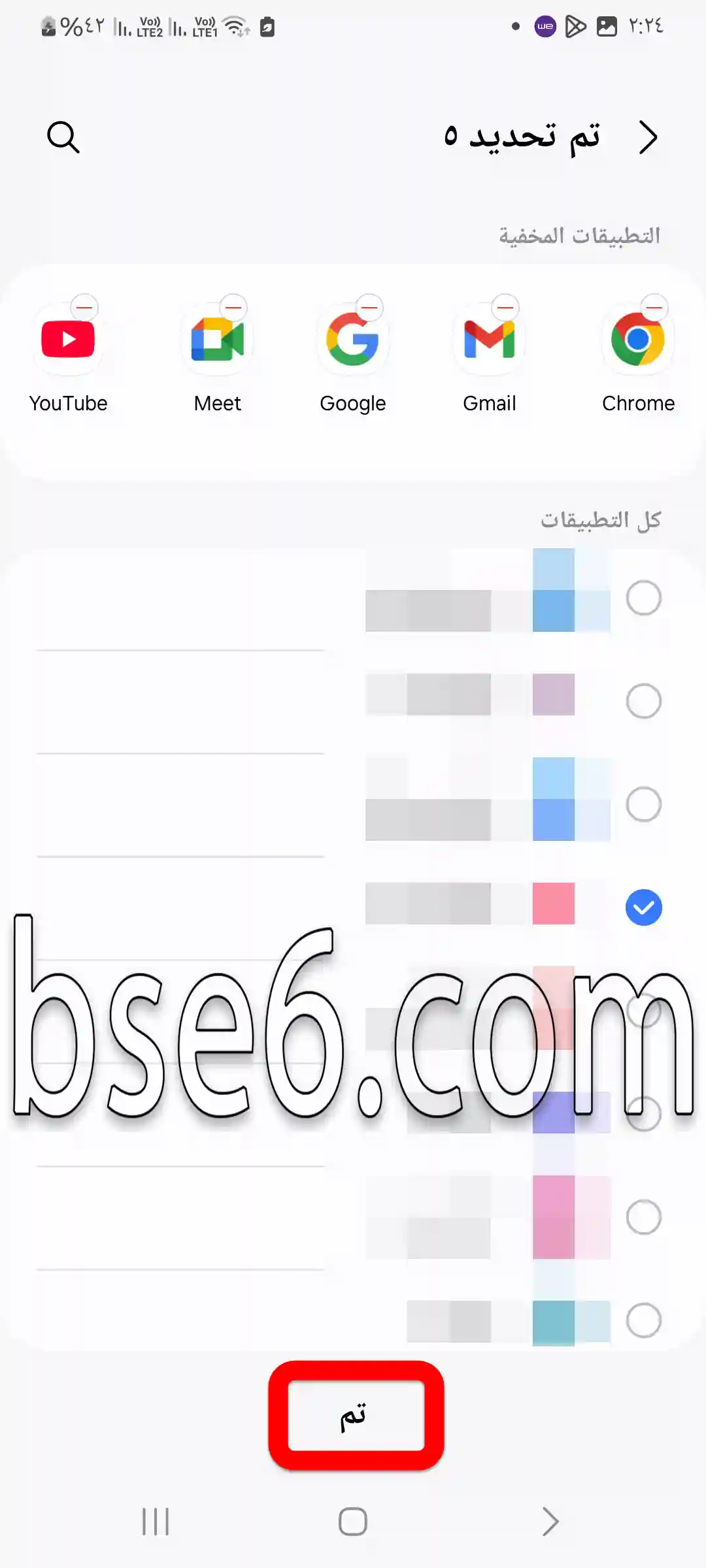
6- Once you go back to your home screen, the apps you selected will no longer appear.
How to show hidden apps on Samsung Galaxy A36 5G?
1- Long press on any empty area of the home screen.
2- Open the “Settings” page.
3- Go to “Hide apps on Home and Apps screens”.
4- Remove the check mark from the apps you want to unhide.

5- Then tap “Done”.