
Samsung
Invert Colors on Samsung Galaxy A04
Color Inversion for Samsung Galaxy A04, Enabling Color Inversion for Samsung Galaxy A04,How to Enable Screen Color Inversion for Samsung Galaxy A04,Inverting colors on Samsung Galaxy A04.
How to Enable Color Inversion on Samsung Galaxy A04?
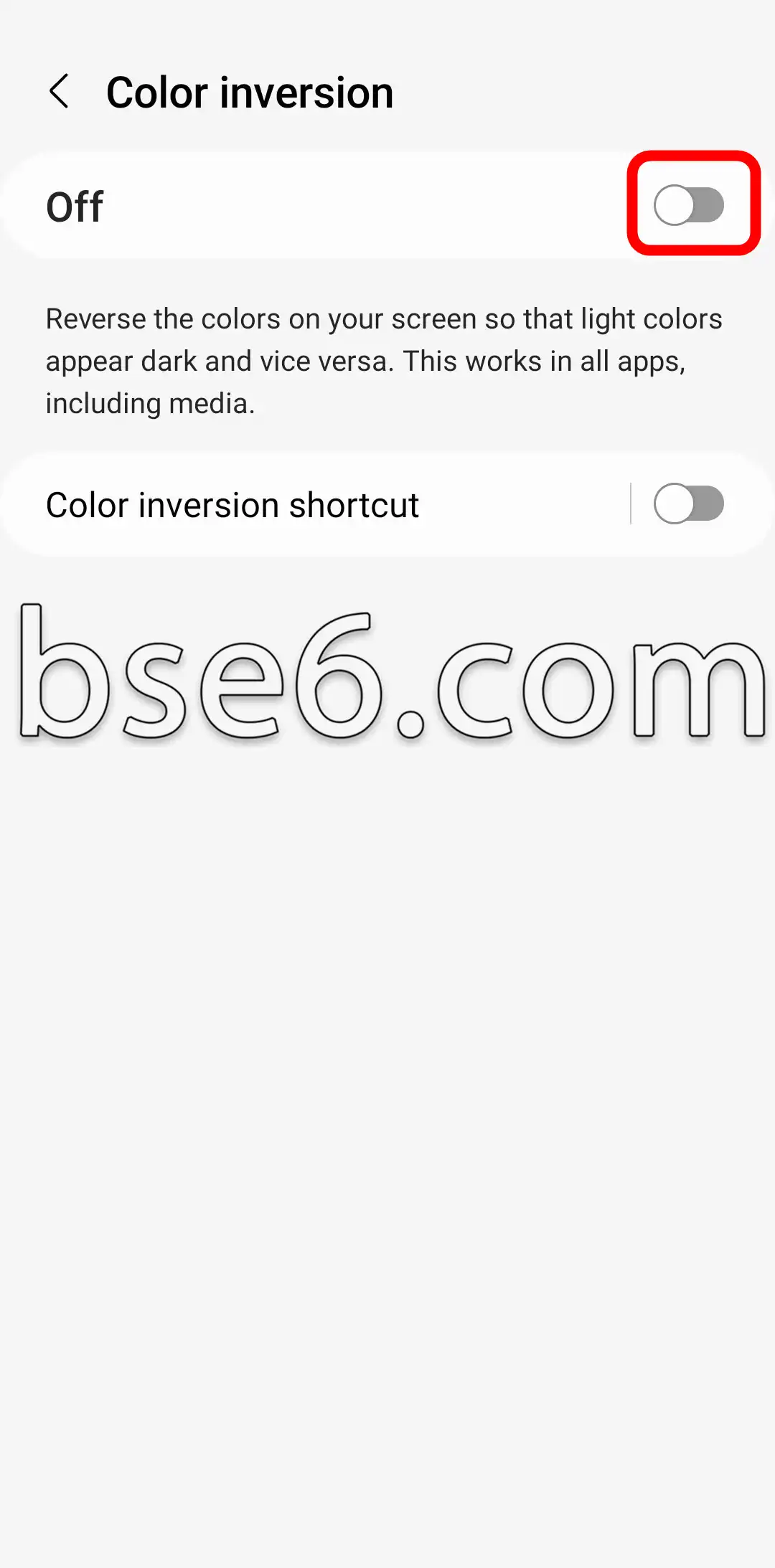
You can enable the color inversion feature on your phone to invert the screen colors of your Samsung Galaxy A04. When enabled, your screen colors will swap, making light colors appear dark and vice versa. This feature works across all applications, including media. Simply follow the steps below to invert the screen colors on your Samsung Galaxy A04:
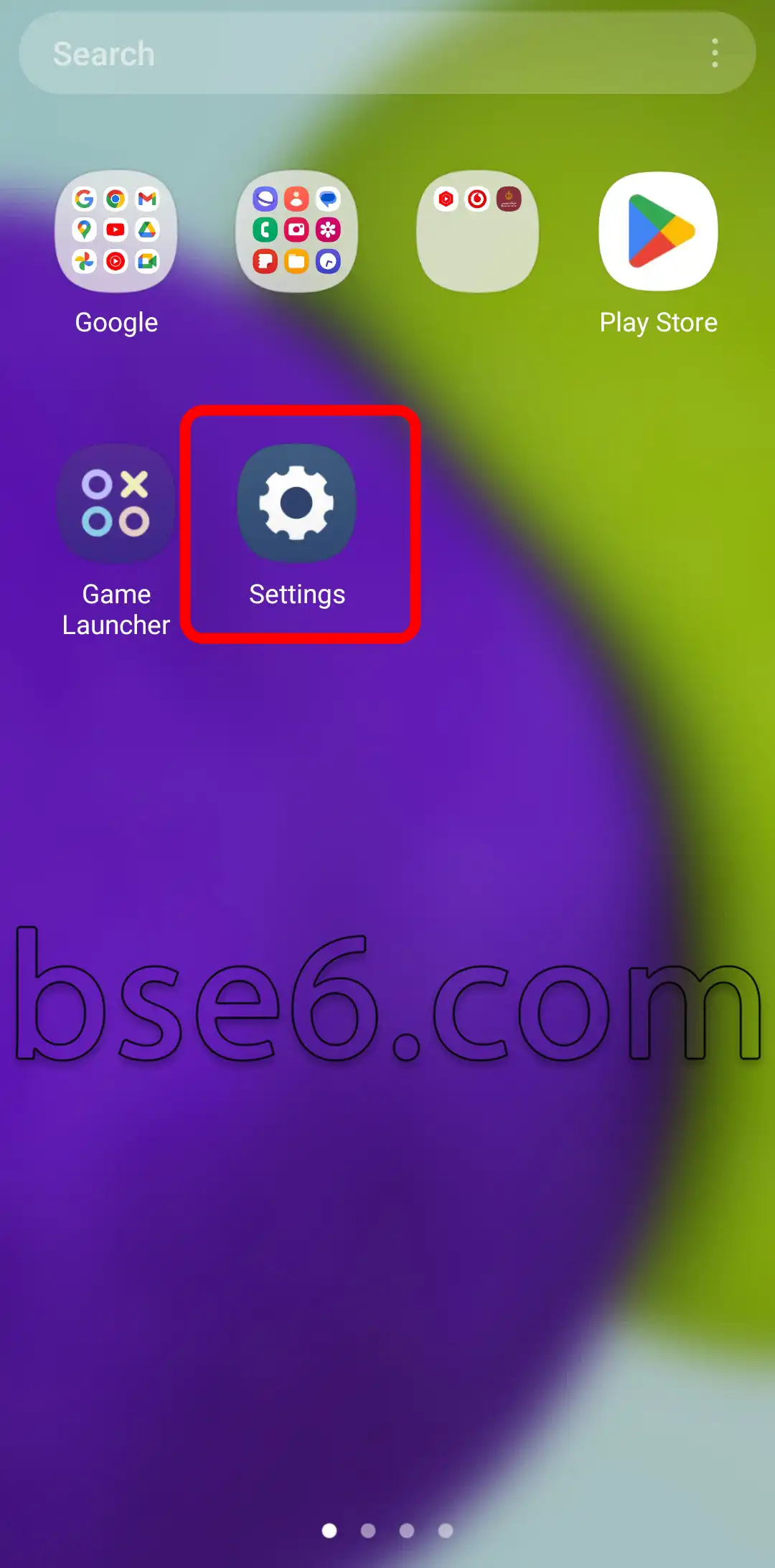
1- Go to “Settings”.
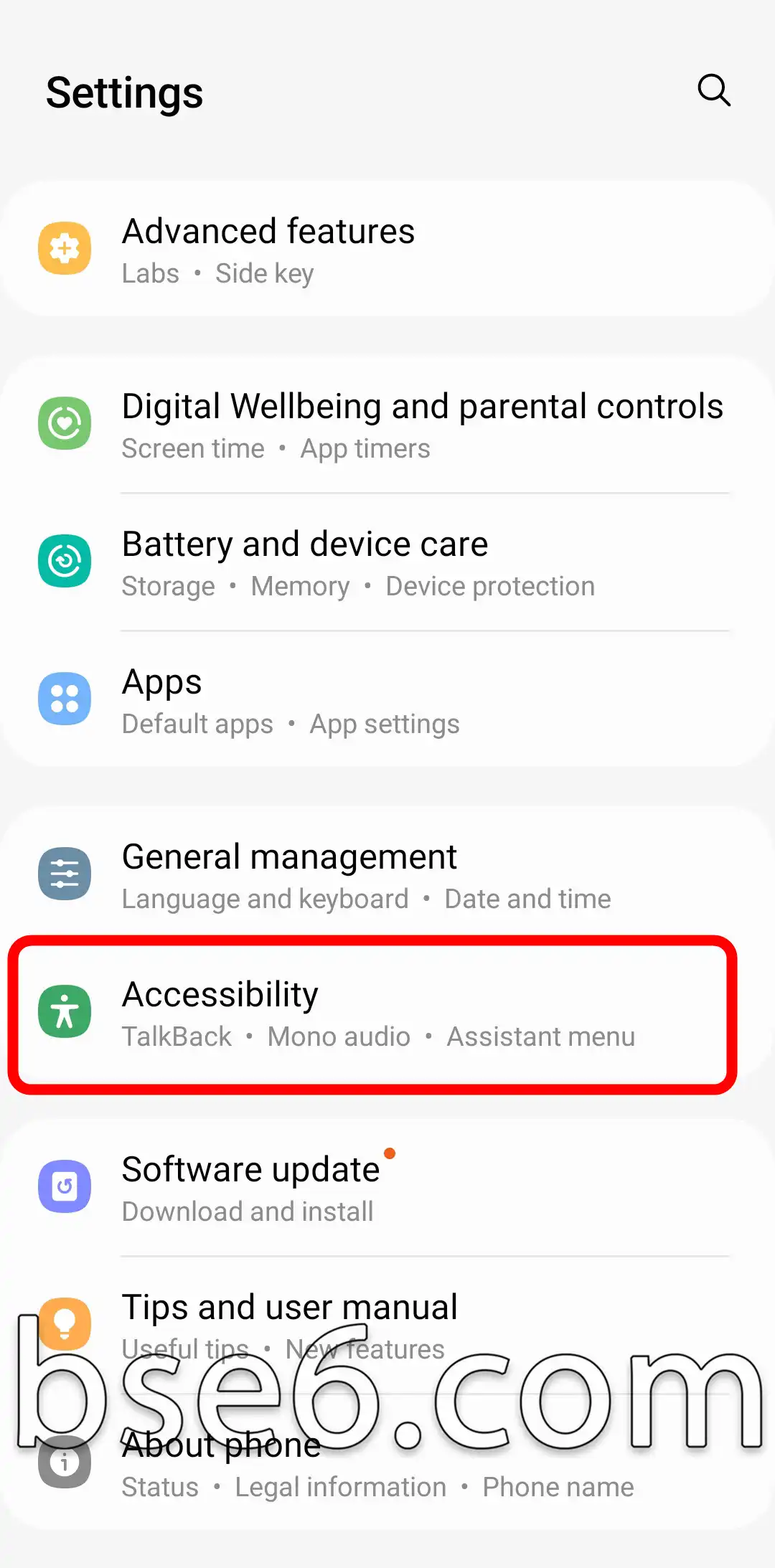
2- Tap on “Accessibility”.
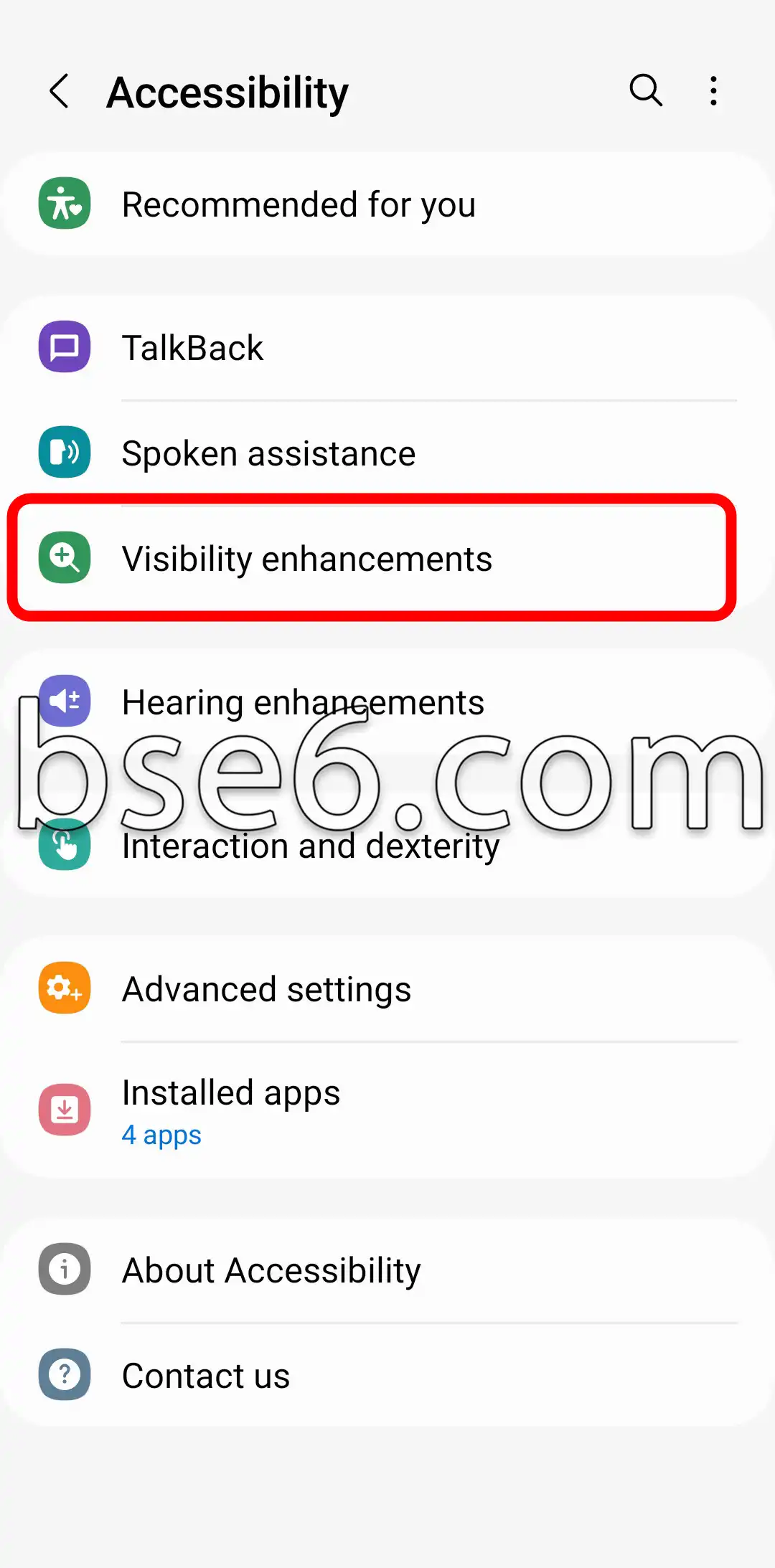
3- “Visibility enhancements”.
4- Select “Color inversion”.
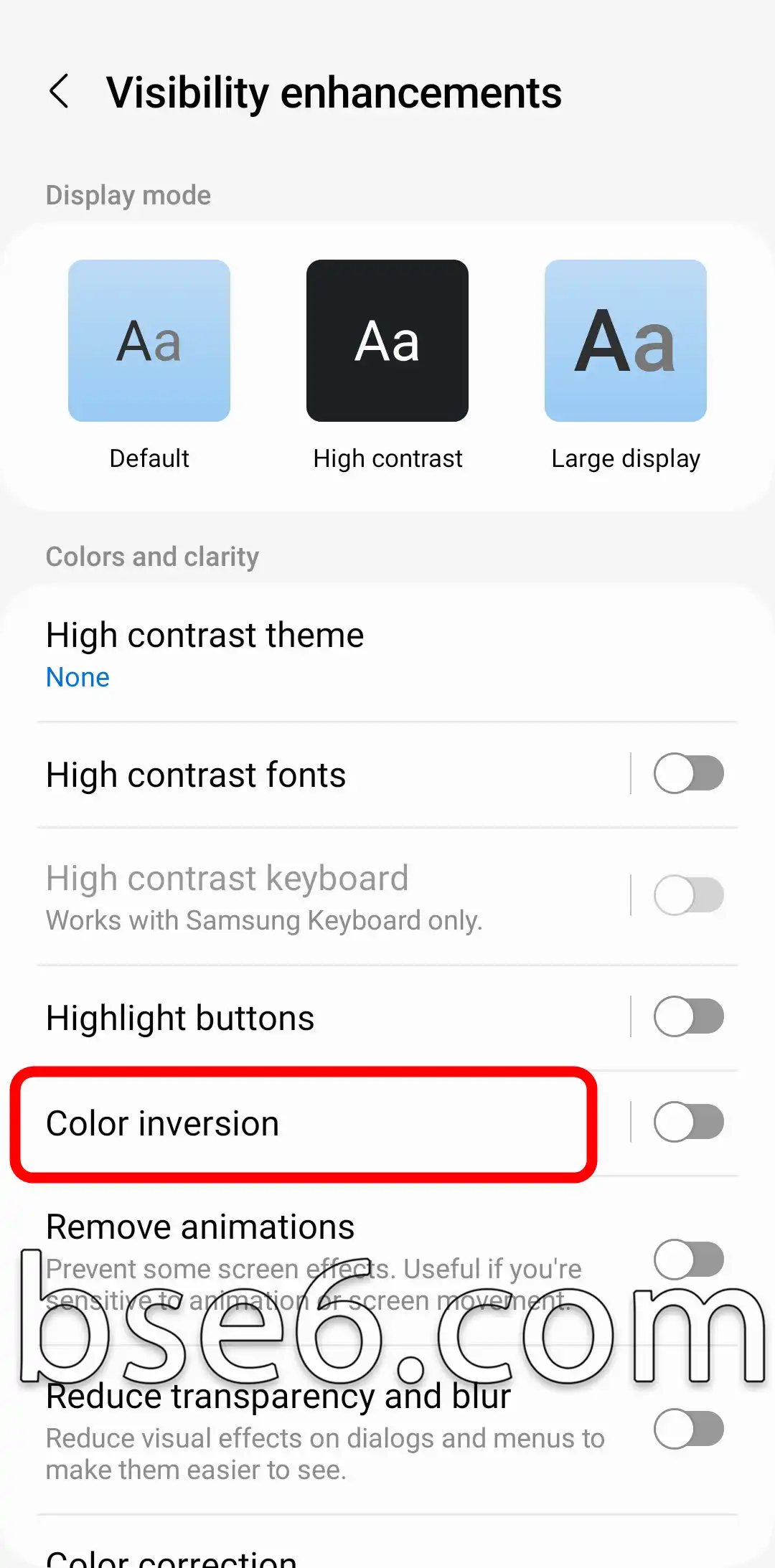
5- Turn on the switch shown in the image to enable color inversion mode on your phone.
مقالات مشابهة
- How to Enter Download Mode on Samsung Galaxy A04E
- How to Easily Enable Do Not Disturb Mode on Samsung Galaxy A04E
- Secrets and Effective Ways to Take Screenshots on Samsung Galaxy A04E
- How to Set Up the Screen Lock on Samsung Galaxy A04E
- Invert Colors on Samsung Galaxy A04E
- Everything You Need to Know About the Navigation Bar on Samsung Galaxy A04E
- How to enable Developer options on Samsung Galaxy A04E easily
- Guide to Easily Change Font Size on Samsung Galaxy A04E
- How to Enable Eye Comfort Shield on Samsung Galaxy A04E
- A Complete Guide to Enabling and Disabling TalkBack on Your Samsung Galaxy A04E
- What Is Recovery Mode on the Samsung Galaxy A04E?
- The Complete Guide to Enabling Power Saving Mode on Samsung Galaxy A04E
- How to enable Dark Mode on the Samsung Galaxy A04E Easily
- Your complete guide to changing the ringtone on the Samsung Galaxy A04E
- How to Change the Phone Language on Samsung Galaxy A04E Easily
- How to Change the Screen Timeout on Samsung Galaxy A04E
- How to easily customize the Home screen layout on Samsung Galaxy A04E
- How to Adjust the Colors on Samsung Galaxy A04E Easily
- Best ways to update your Samsung Galaxy A04E step by step
- Best ways to answer and end calls on Samsung Galaxy A04E
- How to Easily Control System Vibration on the Samsung Galaxy A04E
- Steps to Show the Battery Percentage on Samsung Galaxy A04E
- How to Turn On Flash Alerts for Incoming Calls on Samsung Galaxy A04E
- How to Set a Different Language for Each App on the Samsung Galaxy A04E
- How to Easily Hide Apps on the Samsung Galaxy A04E
- Cloning apps on Samsung Galaxy A04E step by step
- How to Enter Download Mode on Samsung Galaxy A04S
- How to Easily Enable Do Not Disturb Mode on Samsung Galaxy A04S
- Secrets and Effective Ways to Take Screenshots on Samsung Galaxy A04S
- How to Set Up the Screen Lock on Samsung Galaxy A04S
- Invert Colors on Samsung Galaxy A04S
- Everything You Need to Know About the Navigation Bar on Samsung Galaxy A04S
- How to enable Developer options on Samsung Galaxy A04S easily
- Guide to Easily Change Font Size on Samsung Galaxy A04S
- How to Enable Eye Comfort Shield on Samsung Galaxy A04S
- A Complete Guide to Enabling and Disabling TalkBack on Your Samsung Galaxy A04S
- What Is Recovery Mode on the Samsung Galaxy A04S?
- The Complete Guide to Enabling Power Saving Mode on Samsung Galaxy A04S
- How to enable Dark Mode on the Samsung Galaxy A04S Easily
- Your complete guide to changing the ringtone on the Samsung Galaxy A04S
- How to Change the Phone Language on Samsung Galaxy A04S Easily
- How to Change the Screen Timeout on Samsung Galaxy A04S
- How to easily customize the Home screen layout on Samsung Galaxy A04S
- How to Adjust the Colors on Samsung Galaxy A04S Easily
- Best ways to update your Samsung Galaxy A04S step by step
- Best ways to answer and end calls on Samsung Galaxy A04S
- How to Easily Control System Vibration on the Samsung Galaxy A04S
- Steps to Show the Battery Percentage on Samsung Galaxy A04S
- How to Turn On Flash Alerts for Incoming Calls on Samsung Galaxy A04S
- How to Set a Different Language for Each App on the Samsung Galaxy A04S
- How to Easily Hide Apps on the Samsung Galaxy A04S
- Cloning apps on Samsung Galaxy A04S step by step
- How to Enter Download Mode on Samsung Galaxy A04
- How to Easily Enable Do Not Disturb Mode on Samsung Galaxy A04
- Secrets and Effective Ways to Take Screenshots on Samsung Galaxy A04
- How to Set Up the Screen Lock on Samsung Galaxy A04
- Everything You Need to Know About the Navigation Bar on Samsung Galaxy A04
- How to enable Developer options on Samsung Galaxy A04 easily
- Guide to Easily Change Font Size on Samsung Galaxy A04
- How to Enable Eye Comfort Shield on Samsung Galaxy A04
- A Complete Guide to Enabling and Disabling TalkBack on Your Samsung Galaxy A04
- What Is Recovery Mode on the Samsung Galaxy A04?
- The Complete Guide to Enabling Power Saving Mode on Samsung Galaxy A04
- How to enable Dark Mode on the Samsung Galaxy A04 Easily
- Your complete guide to changing the ringtone on the Samsung Galaxy A04
- How to Change the Phone Language on Samsung Galaxy A04 Easily
- How to Change the Screen Timeout on Samsung Galaxy A04
- How to easily customize the Home screen layout on Samsung Galaxy A04
- How to Adjust the Colors on Samsung Galaxy A04 Easily
- Best ways to update your Samsung Galaxy A04 step by step
- Best ways to answer and end calls on Samsung Galaxy A04
- How to Easily Control System Vibration on the Samsung Galaxy A04
- Steps to Show the Battery Percentage on Samsung Galaxy A04
- How to Turn On Flash Alerts for Incoming Calls on Samsung Galaxy A04
- How to Set a Different Language for Each App on the Samsung Galaxy A04
- How to Easily Hide Apps on the Samsung Galaxy A04
- Cloning apps on Samsung Galaxy A04 step by step
- Ways to Factory Reset Samsung Galaxy A04 Easily
- Ways to Factory Reset Samsung Galaxy A04E Easily
- Ways to Factory Reset Samsung Galaxy A04S Easily
- Your Complete Guide to Performing a Factory Reset from Settings on the Samsung Galaxy A36 5G
URL Copied
#####
Subscribe to our mailing list to get new updates!
####