
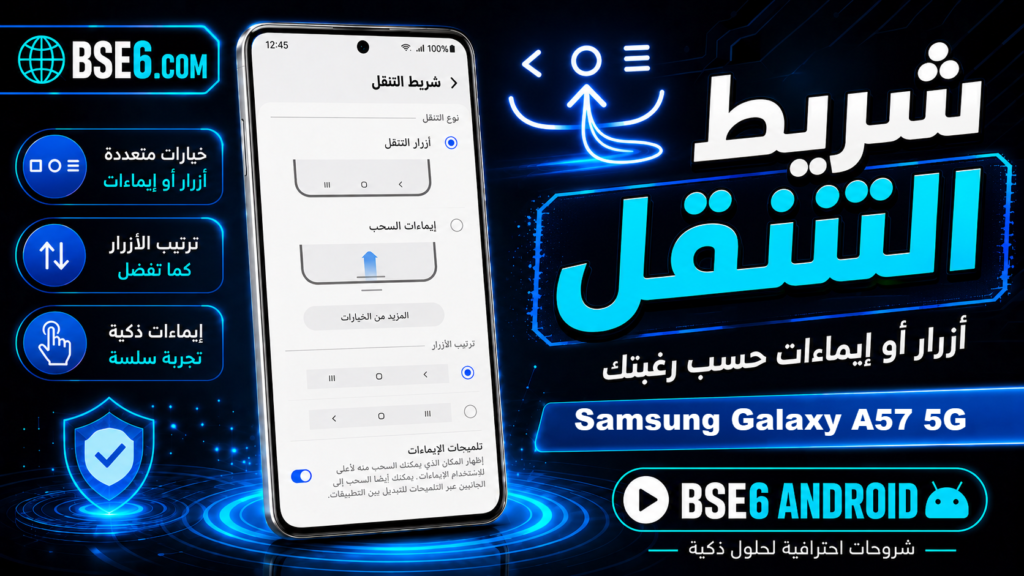
Navigation BarThe navigation bar is a fundamental element that facilitates access and control on your Android-powered Samsung Galaxy A36 5G device. Did you know that customizing the navigation bar can provide a smoother user experience? In this article, we detail everything you need to know about the navigation bar: how to customize it, change its button layout, and its importance in facilitating navigation between applications and the home screen for those seeking optimal performance.
Everything You Need to Know About the Navigation Bar on Samsung Galaxy A36 5G
The navigation bar on the Samsung Galaxy A36 5G is an essential tool that streamlines the user experience when switching between applications. Its buttons are clearly displayed at the bottom of the screen and operate efficiently thanks to the intelligent system. The navigation bar utilizes a modern digital interface that supports touch commands. Its flexibility allows users to easily customize its appearance, such as hiding it or rearranging the button positions as desired. Experts recommend leveraging the navigation bar settings to enhance device operation speed.
How to Customize the Navigation Bar and Change Settings
The navigation bar on Samsung Galaxy A36 5G devices is a fundamental element for a successful Android experience. Did you know that customizing the navigation bar can make screen usage faster and smoother?
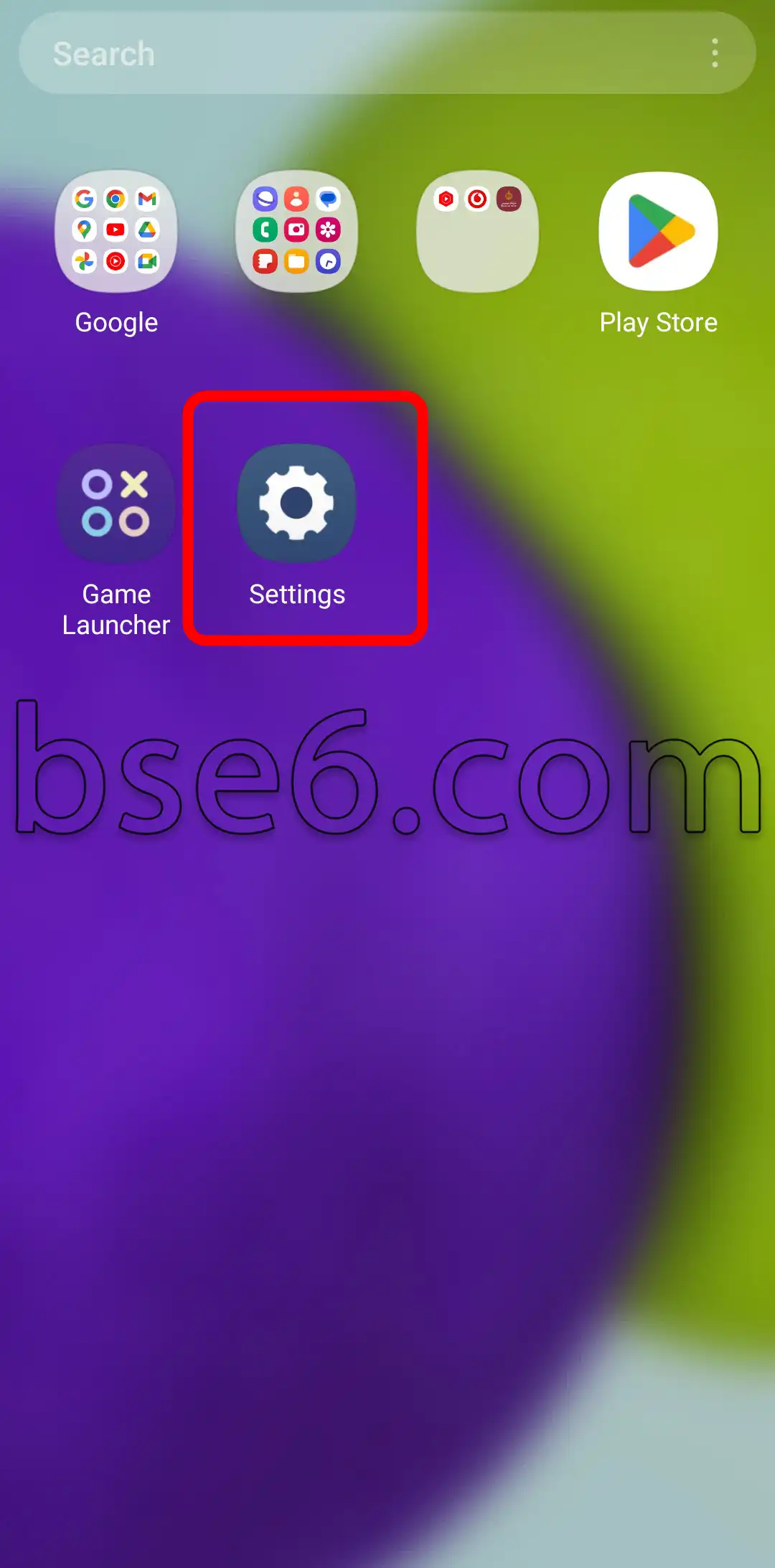
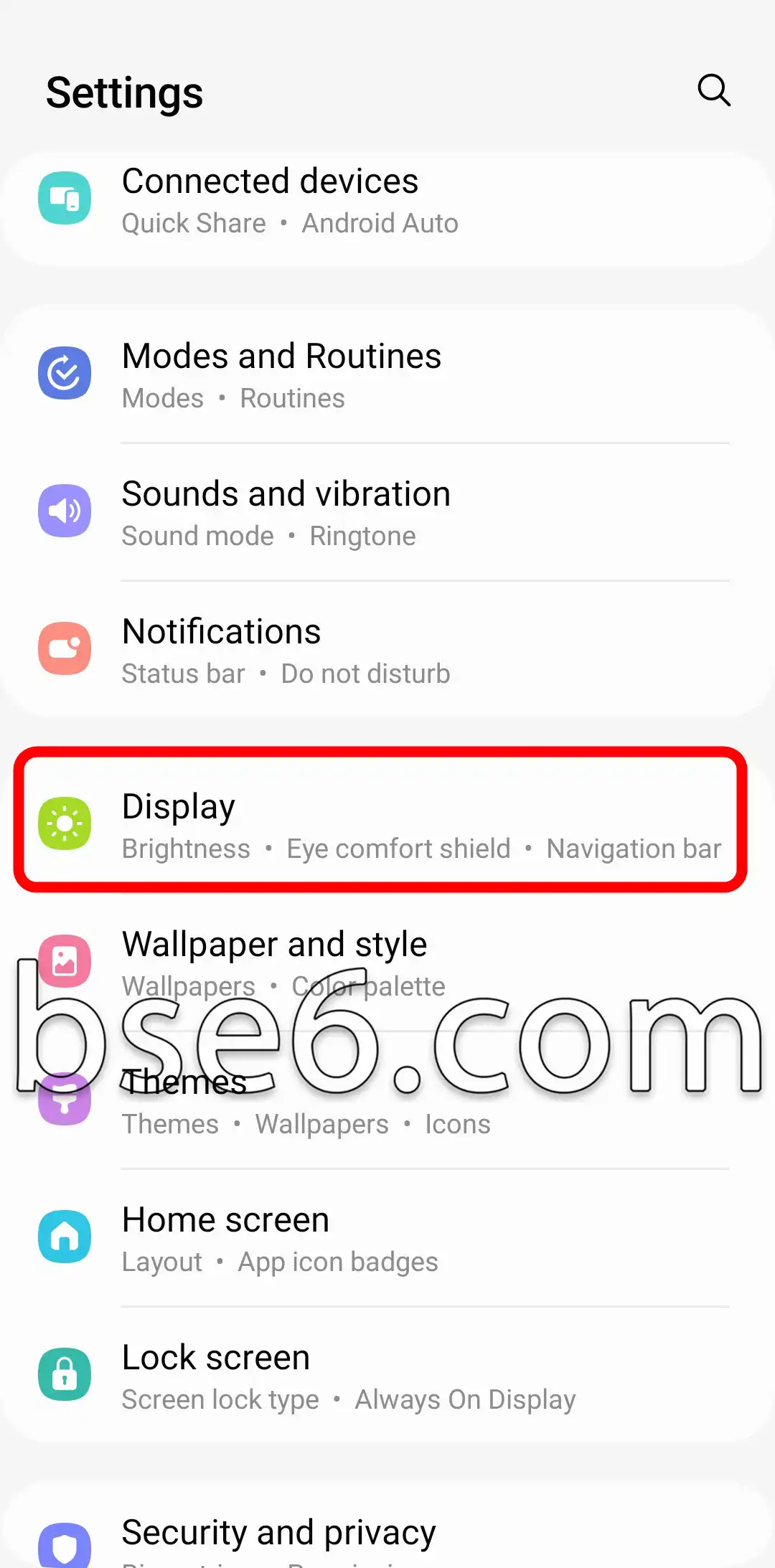
1- To customize the navigation bar, go to “Settings” then “Display.”
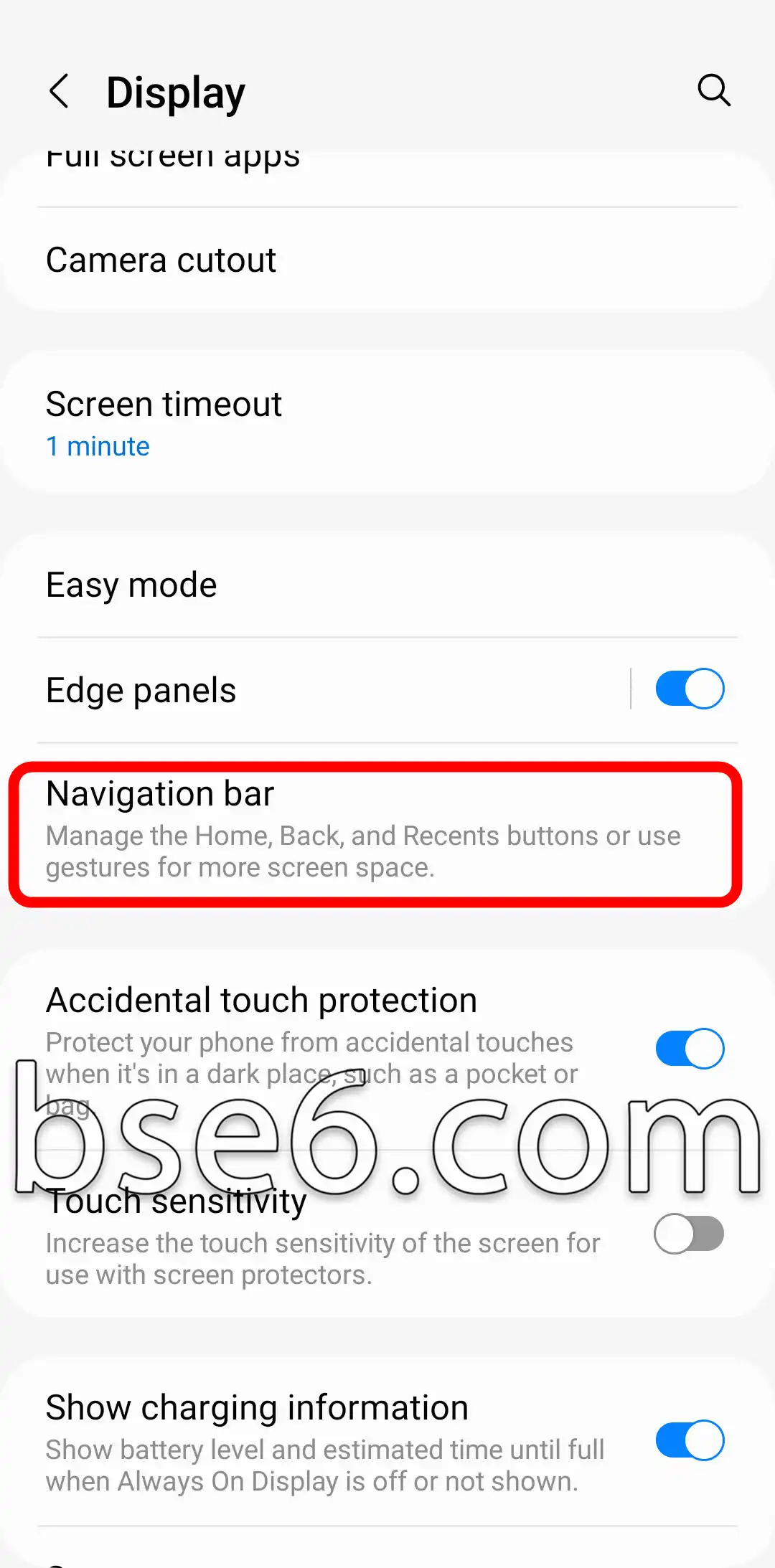
2- Select “Navigation bar” to change the button layout or use gestures instead of traditional buttons.
3- You can adjust the order of the buttons to suit your preferences, or choose gestures instead of the navigation bar, or vice versa.
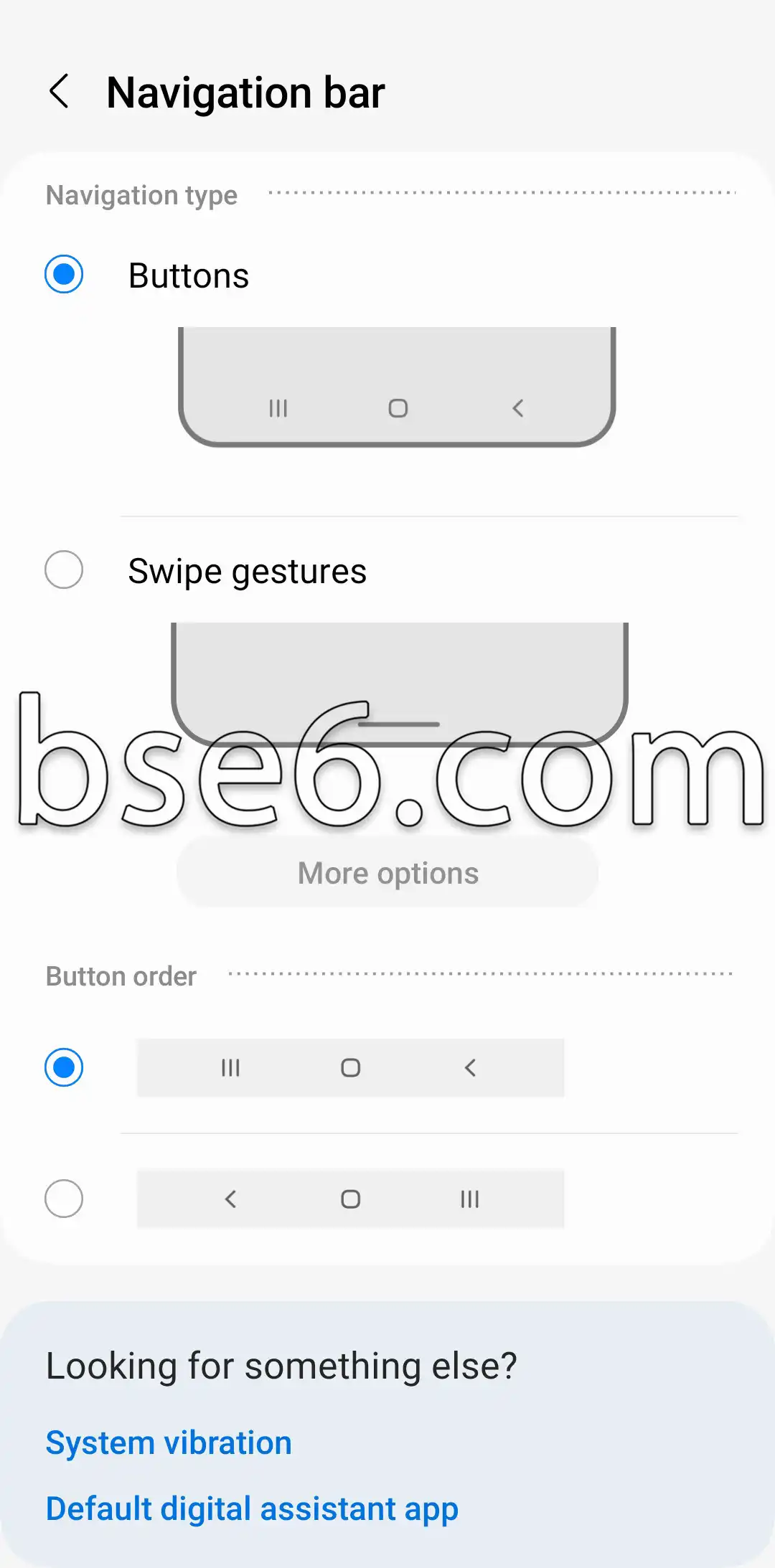
These adjustments allow for improved navigation between applications and facilitate faster device usage.
It is recommended to follow Samsung’s official guidelines to ensure the navigation bar functions efficiently. Customizing the navigation bar provides a more personalized and practical Android experience.
What is the function of the navigation bar on the Samsung Galaxy A36 5G?
Have you ever wondered about the importance of the navigation bar on your Samsung Galaxy A36 5G?
- The navigation bar appears at the bottom of your device’s screen, making it easy to switch between apps and tasks smoothly.
- It simplifies phone usage, removing the need for physical side or dedicated buttons.
- Through it, you can quickly navigate between the Home screen, open apps, or go back to the previous step.
- It often includes virtual buttons such as Back, Home, and Recents.
- The ability to customize the bar’s layout according to your preferences enhances your experience and gives you more effective control.
- Through the settings, you can change the button order or choose to enable gesture navigation.
- This bar feature enhances usability for individuals with special needs and generally boosts productivity.
- According to official Samsung sources, the steps to customize the navigation bar are available in the device settings and explained in technical support guides.
In summary, the navigation bar on the Galaxy A36 5G is a fundamental element that simplifies phone usage, enhancing your daily experience and efficiency.