How to Enter Download Mode on Samsung Galaxy A36 5G
What is Download Mode on Samsung Galaxy A36 5G?, How to Enter Download Mode on a Samsung Galaxy A36 5G, How to Use Download Mode for Samsung Galaxy A36 5G? Entering Download Mode on Samsung Galaxy A36 5G?.
What is Download Mode on Samsung Galaxy A36 5G Phones?
Download Mode is a special screen within the phone. Once accessed, the phone prepares to receive firmware or any software-related files. However, this screen must be used with extreme caution, as any error in the files you flash to the phone can cause malfunctions or, in some cases, brick the device.
How to Enter Download Mode on Samsung Galaxy A36 5G?
To enter Download Mode on your Samsung Galaxy A36 5G phone, follow these steps:
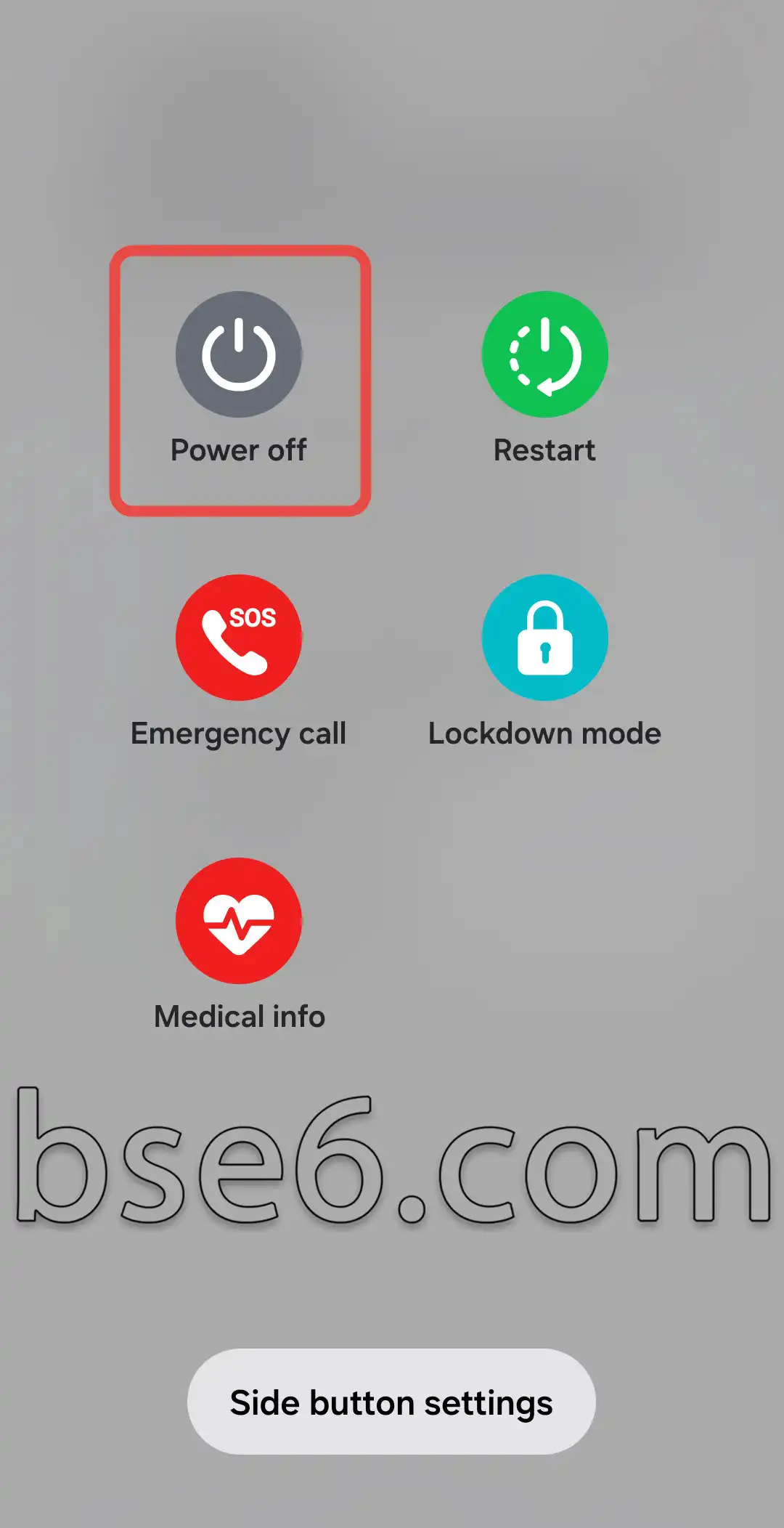
1. Power off your phone. This is usually done by pressing and holding the Power button and selecting ‘Power off.’ On some devices, you might need to press and hold the Power button + Volume Down button simultaneously to power off the phone.

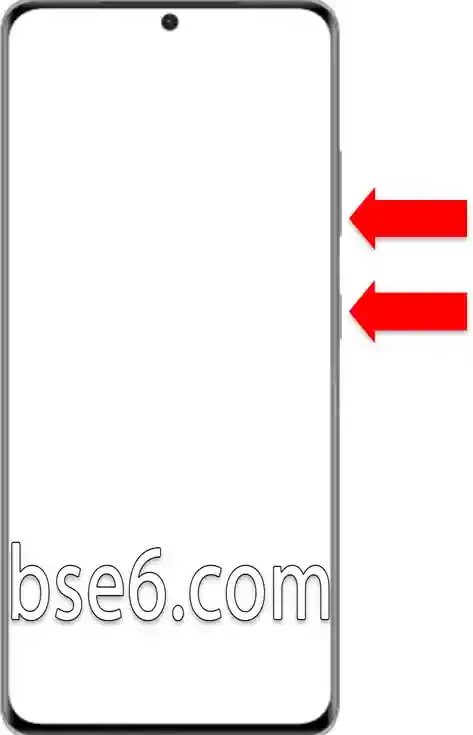
2. Press and hold the Volume Up button + Volume Down button simultaneously. While holding them, connect a USB cable that is already plugged into a computer or laptop. (Ensure the USB cable supports data transfer.)

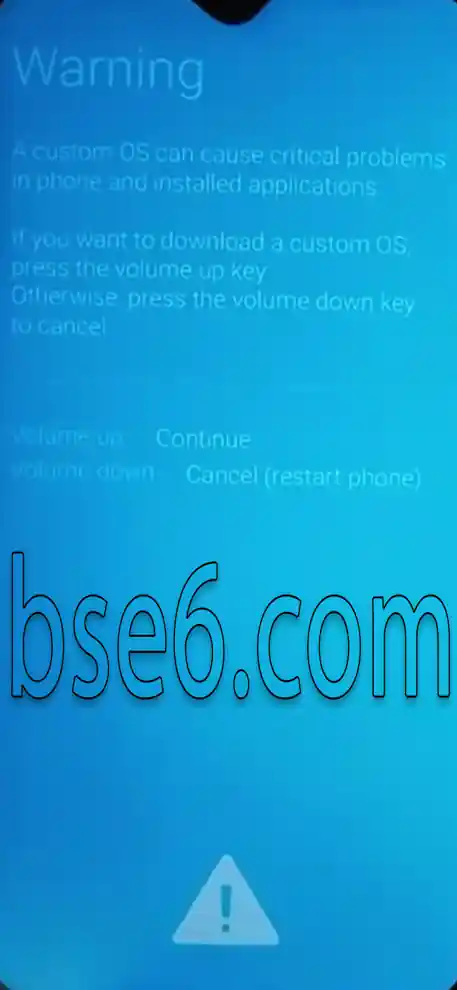
3. The main Download Mode screen will appear. Release the buttons, then press the Volume Up button once to confirm and prepare your phone to receive files.
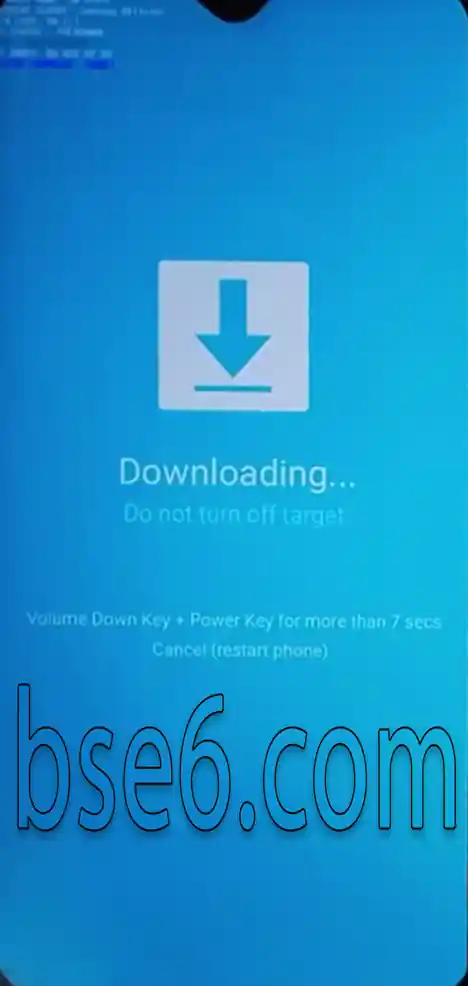
4. Toexit Download Mode, all you need to do is press and hold the Power button + Volume Down button until your phone restarts. Then, release the buttons.