
How to Easily Enable Do Not Disturb Mode on Samsung Galaxy A36 5G
Do Not Disturb on Samsung Galaxy A36 5G, Enabling Do Not Disturb Mode on Samsung Galaxy A36 5G, Turning On the Do Not Disturb Feature on Your Samsung Phone, Muting Sound During Calls and Do Not Disturb on Samsung Galaxy A36 5G, Do Not Disturb Mode on Samsung Galaxy A36 5G.
Do Not Disturb mode has become a staple of modern smartphones, especially with the increasing number of daily notification alerts. Do you want to know how to easily enable Do Not Disturb mode on your Samsung Galaxy A36 5G? Activating this mode helps you manage your time and focus on tasks without constant interruptions. In this guide, we’ll cover the steps, benefits, and how to professionally customize and schedule Do Not Disturb mode to enhance your daily experience.
Steps to Enable Do Not Disturb Mode on Samsung Galaxy A36 5G
Do Not Disturb mode provides the quiet you need during meetings or sleep. To activate this mode on your Samsung Galaxy A36 5G, follow these steps:
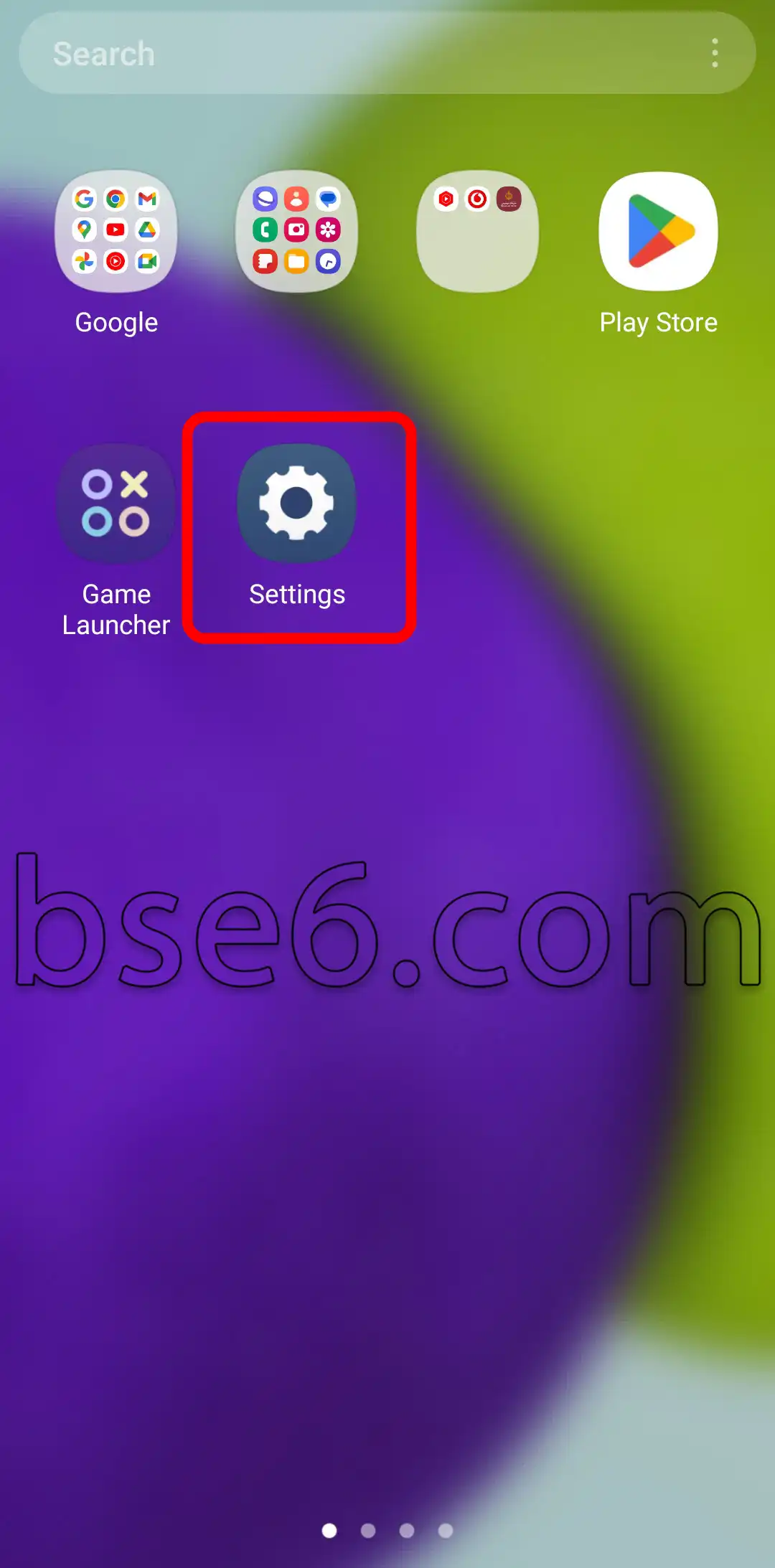
1. First, go to “Settings”.
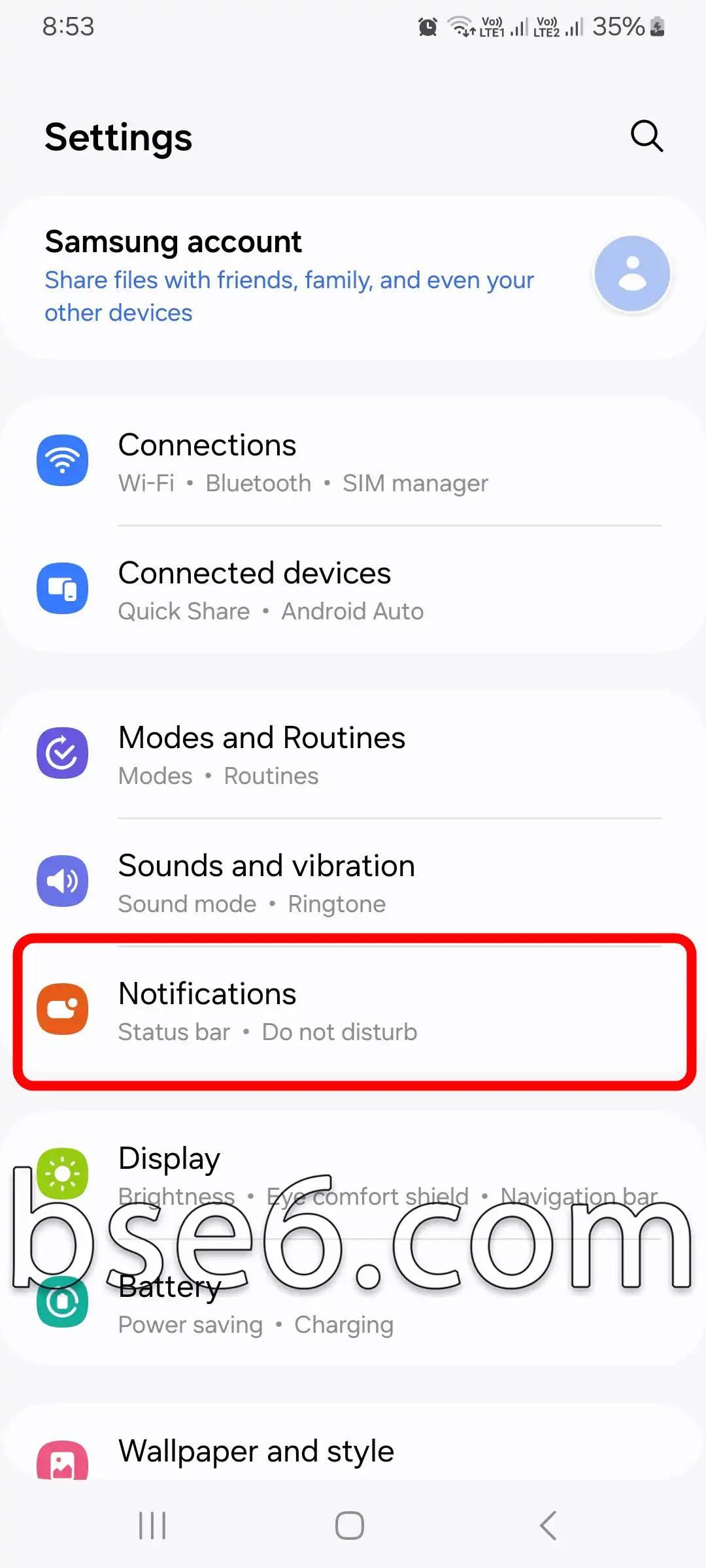
2. Tap on “Notifications”.
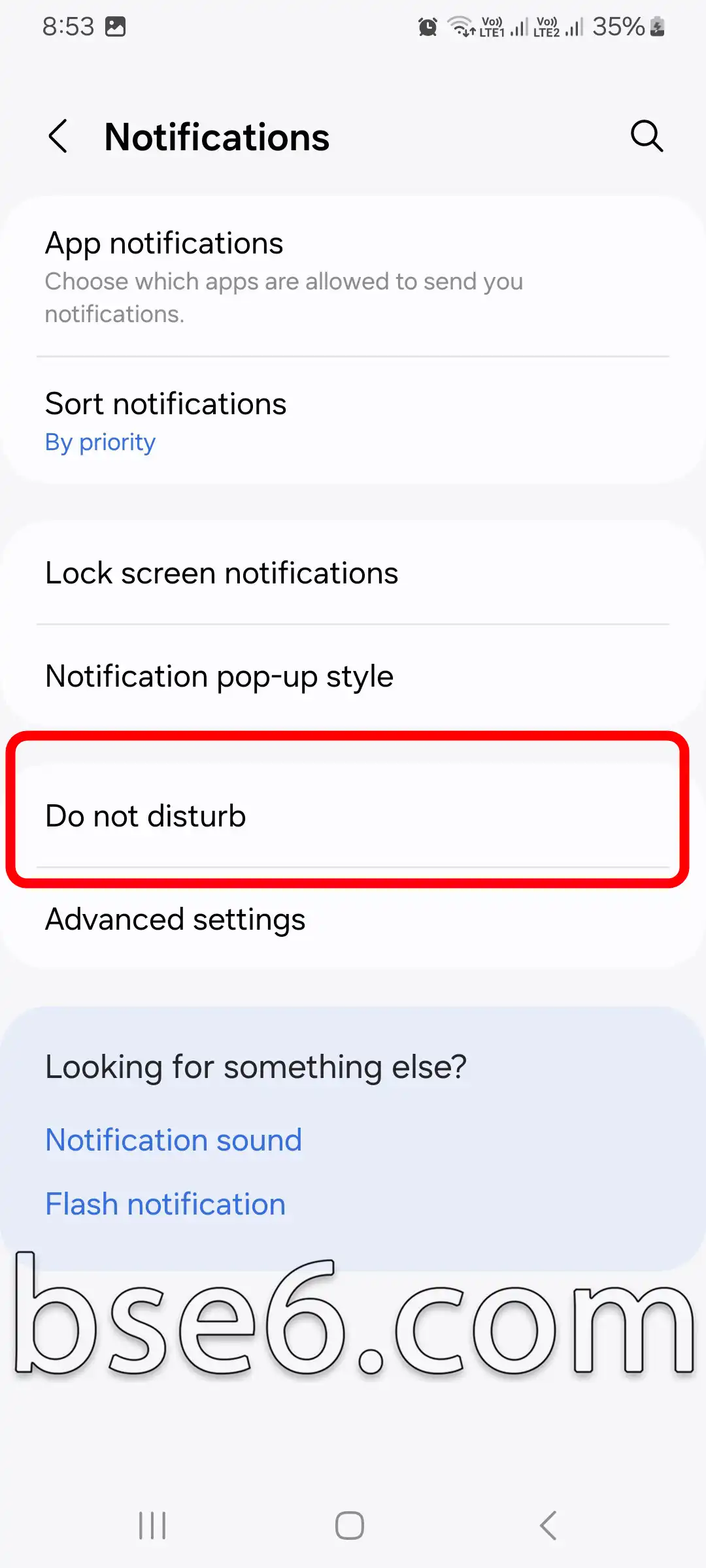
3. Tap on “Do Not Disturb”.
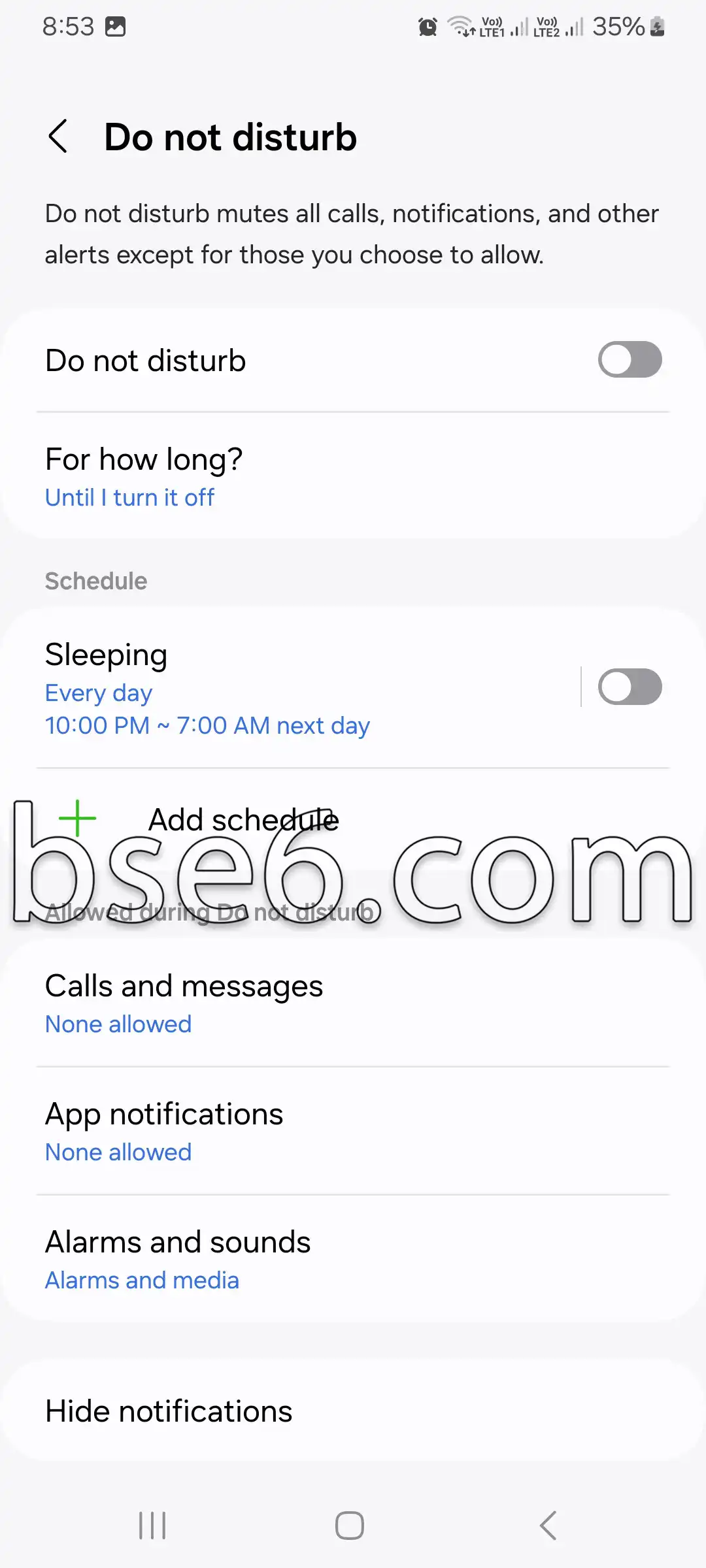
4. From the Do Not Disturb page, you can control the option to turn the feature on and off on your phone. You can also schedule Do Not Disturb mode to activate at a specific time, select its duration, add exceptions for calls and messages, manage app notifications, control alarms and sounds, and finally, hide notifications from the screen.
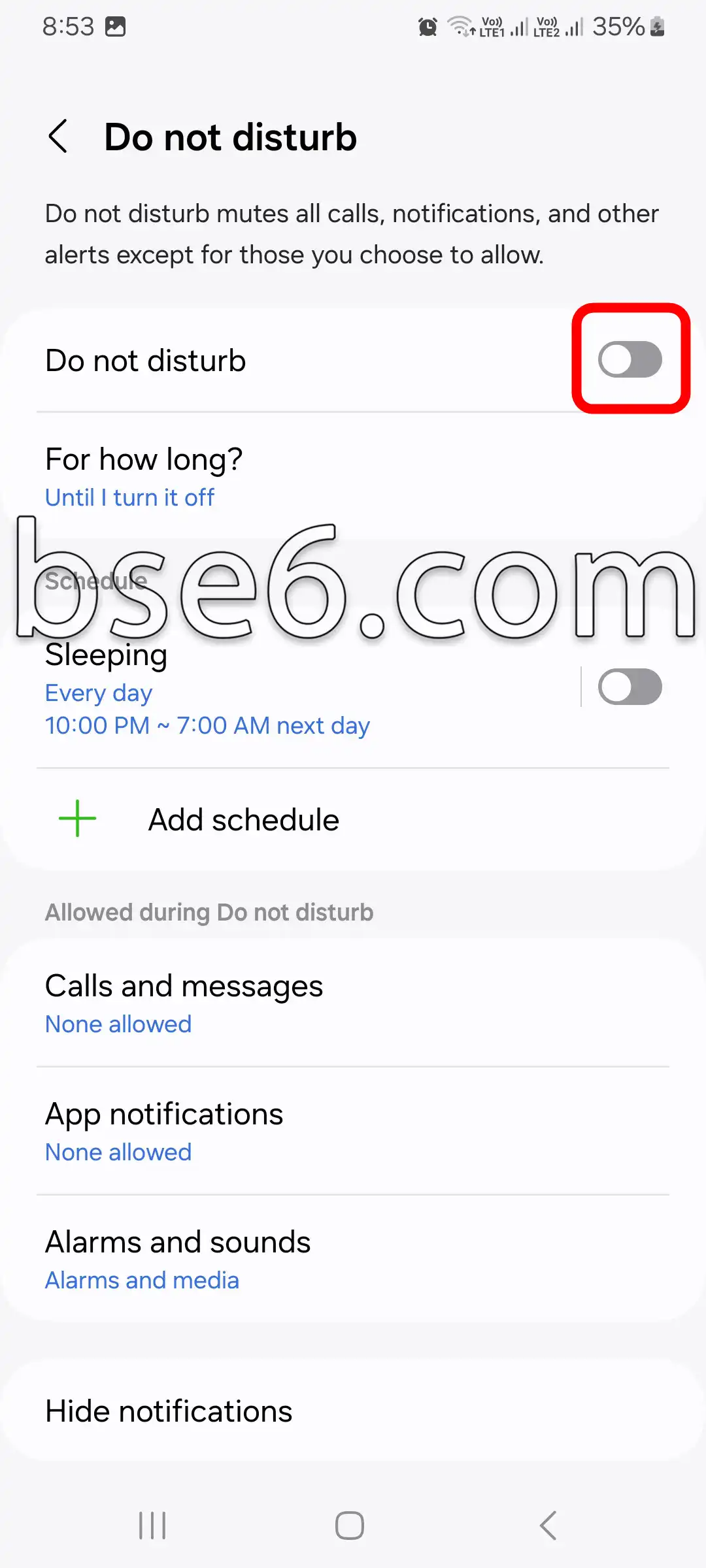
5. If you want to turn off Do Not Disturb mode, tap on the selected option (as shown in the following image), and your selection will be applied, turning off Do Not Disturb mode.
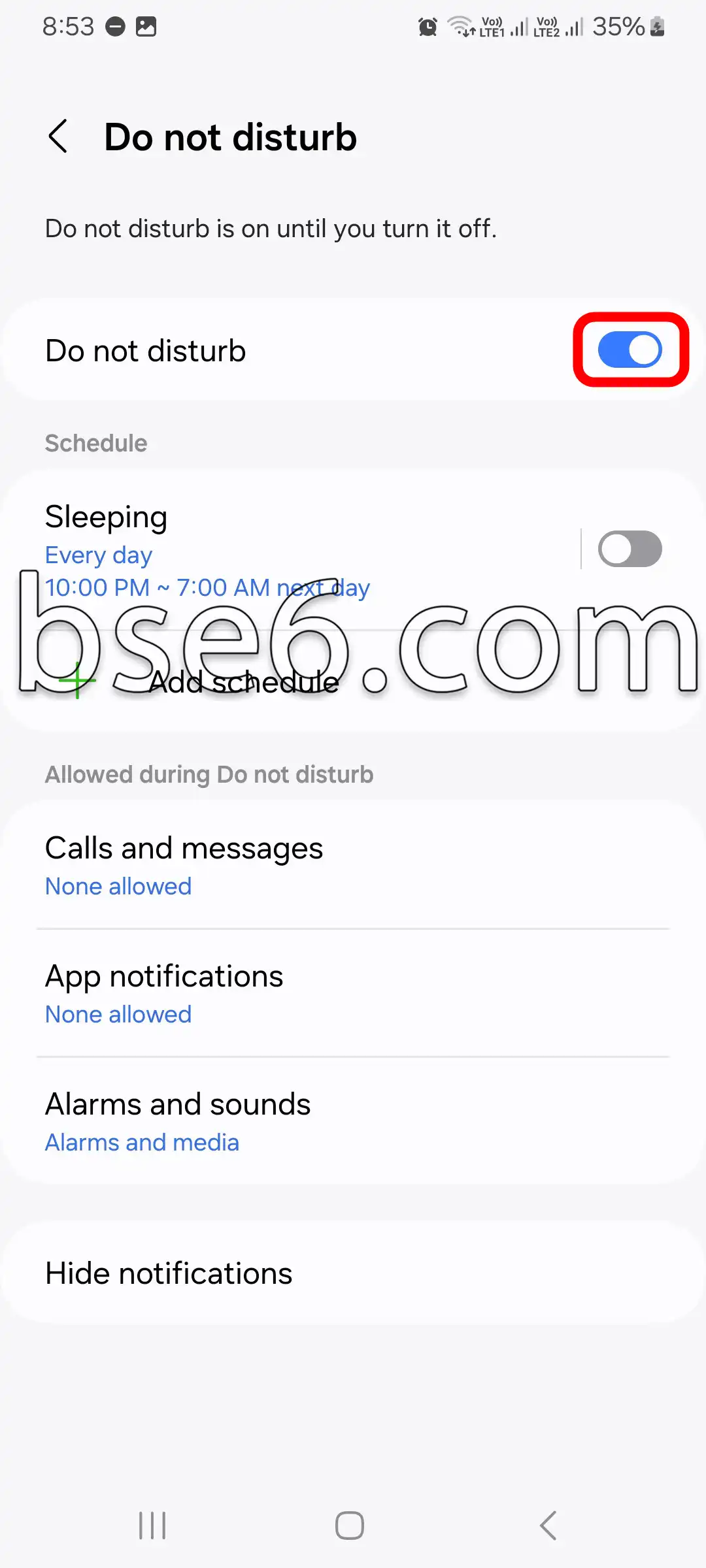
This option is similar to what’s available on iPhone, helping you reduce distractions and focus on essential tasks. Following these steps ensures effective phone usage.
5 Essential Tips for Optimal Use of Do Not Disturb Mode
Exclude work apps such as email during activation.
Set a temporary duration (e.g., one hour) when you need to focus.
Use with Focus mode in Android 12+ for more customization.
Add a Home screen shortcut for quick access.
Try ‘Do Not Disturb during sleep’ with blue light reduction.
How to Customize Do Not Disturb Mode for Daily Tasks
Do Not Disturb mode has become essential for focusing and minimizing distractions during daily tasks. Activating it on your Samsung Galaxy A36 5G phone is straightforward through the Settings. You can customize notifications to allow only important calls or messages. Scheduling Do Not Disturb mode helps you complete work without interruption. Options to allow specific apps or contacts to bypass notifications enhance productivity and reduce constant disturbances. Tech experts recommend using this feature for effective time management.
What Are the Benefits of Using Do Not Disturb Mode?
Do Not Disturb mode helps you focus and prevents disruptive notifications. It’s also ideal for ensuring quiet at night or during meetings.
How Can Do Not Disturb Mode Be Scheduled Automatically?
Do Not Disturb mode on your Samsung Galaxy A36 5G phone minimizes interruptions by automatically scheduling quiet periods.
To enable scheduling:
- Go to Settings > Notifications > Do Not Disturb.
- Enable “Scheduled turn on.”
- Select the desired times and days to minimize disturbances from notifications and calls.
This feature helps you improve focus, especially during meetings or sleep, similar to how it works on iPhone.
Samsung employs advanced standards to safeguard user privacy and ensure a peaceful experience.
For more details, visit Samsung’s official website or consult support experts.
Does Do Not Disturb mode affect the reception of important notifications?
Do Not Disturb mode mutes notification sounds, but you can customize it to receive only important notifications according to your preferences.
Do Not Disturb mode gives you complete control over notifications on your Samsung Galaxy A36 5G, allowing you to enjoy peace and quiet and boost your productivity. By following the steps to activate and customize Do Not Disturb for your daily tasks, you can minimize distractions without missing important notifications. Try activating Do Not Disturb mode and scheduling it automatically today, and share your experience with us in the comments.