
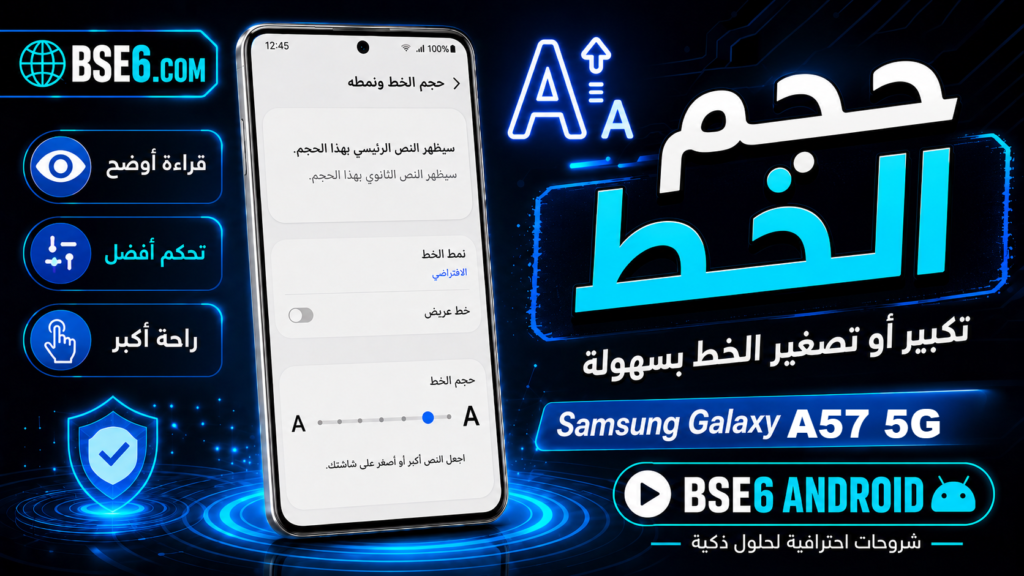
Change Font Sizeis an important option for making text clearer on your phone’s display.Samsung Galaxy A36 5GUsers can easily adjust the font size through the settings to suit their visual needs. In this guide, we will explain the steps to change text size in detail, demonstrate how this affects the daily user experience, and provide practical tips to enhance your reading experience without impacting phone or app performance.
Guide to Easily Change Font Size on Your Samsung Galaxy A36 5G
Change Font Size: Want to Customize Your Phone for Comfortable Reading?
1. To change the font size on your Samsung Galaxy A36 5G, go to “Settings”.

2. Tap “Display”.

3. In the menu, look for “Font size and style” and “Screen zoom”.

4. Use the font size slider to select your preferred size.


5. You can apply the changes immediately, without needing to restart. Adjusting the font size makes reading easier and protects your eyes, especially during long periods of use. Expert Tip: Choose a medium size to strike a balance between eye comfort and display aesthetics.