

Developer options is a powerful tool that gives you deep control over the Android system on your Samsung Galaxy A36 5G. Many users seek to enable Developer options to take advantage of advanced features, such as obtaining performance reports or modifying hidden Android settings. In this guide, you will learn the steps to reveal Developer options in the Settings menu and the most common mistakes to avoid, making your experience with your Samsung Galaxy A36 5G more professional and seamless.
Steps to Easily Enable Developer Options on Samsung Galaxy A36 5G
Developer Options: Did you know that enabling Developer options on Android devices like the Samsung Galaxy A36 5G grants you advanced features that assist both developers and users? You can follow these steps:
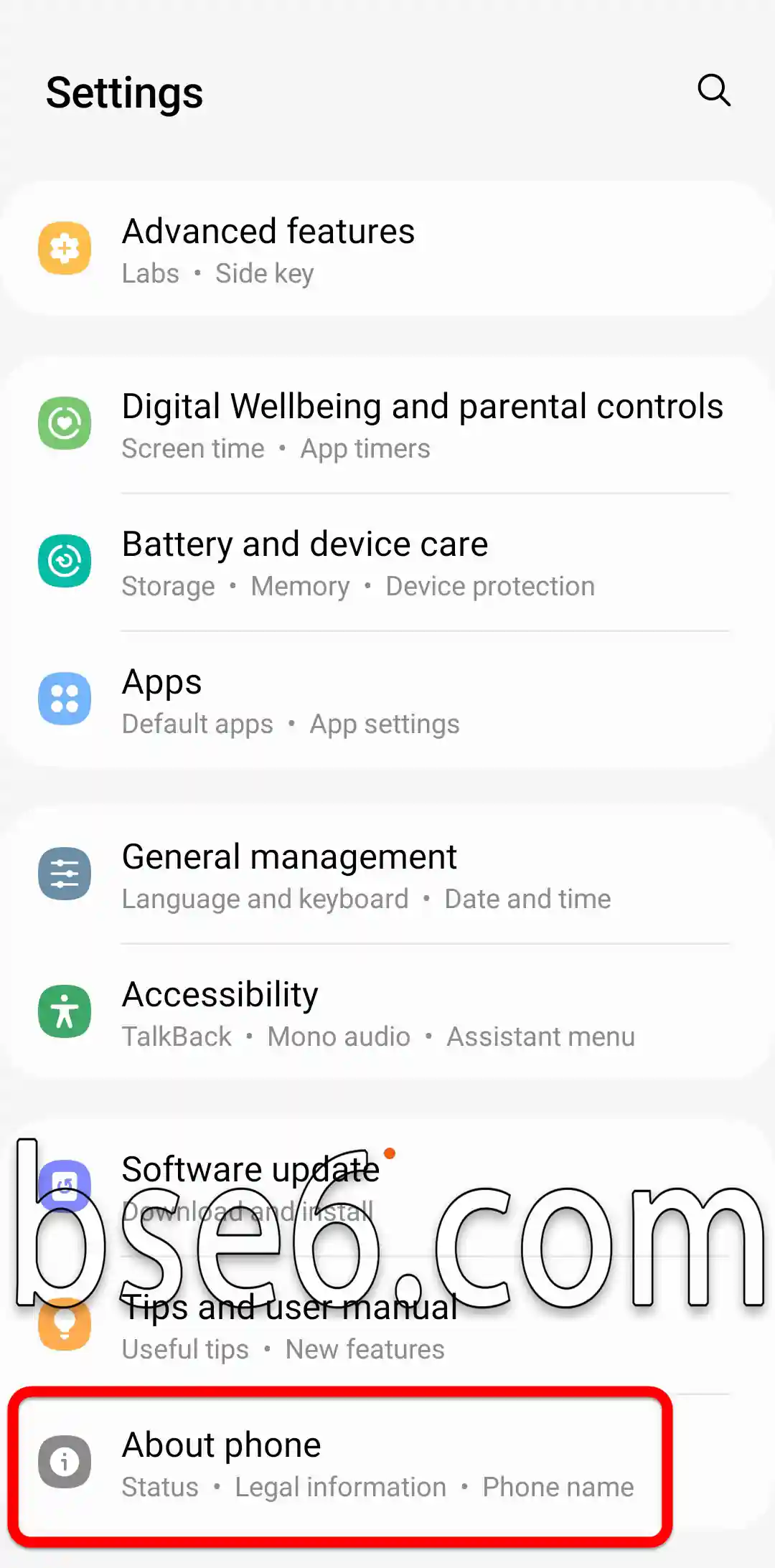
1. Open the Settings app on your Samsung Galaxy A36 5G.

2. Tap on About phone.
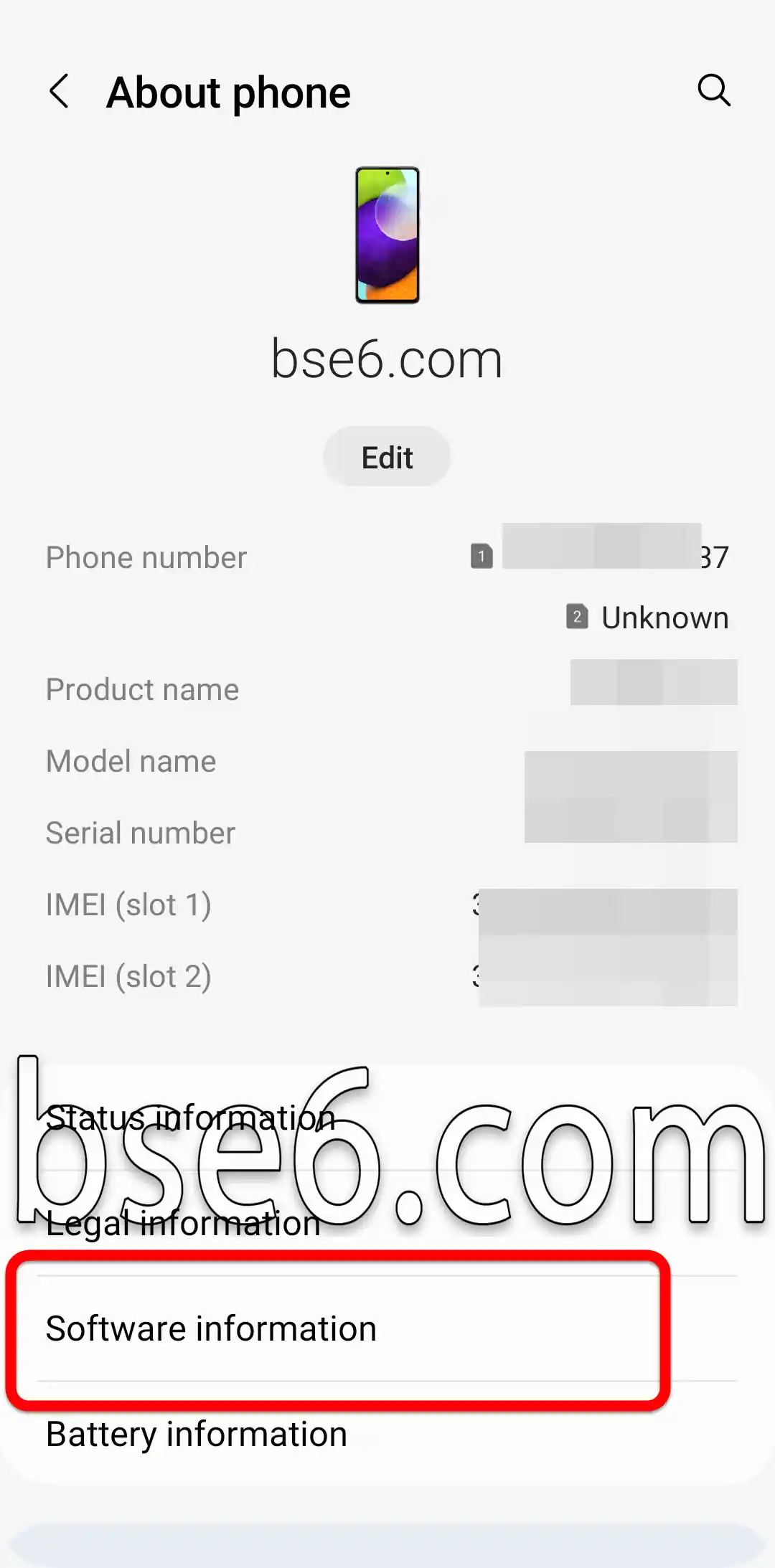
3. Tap on Software information.
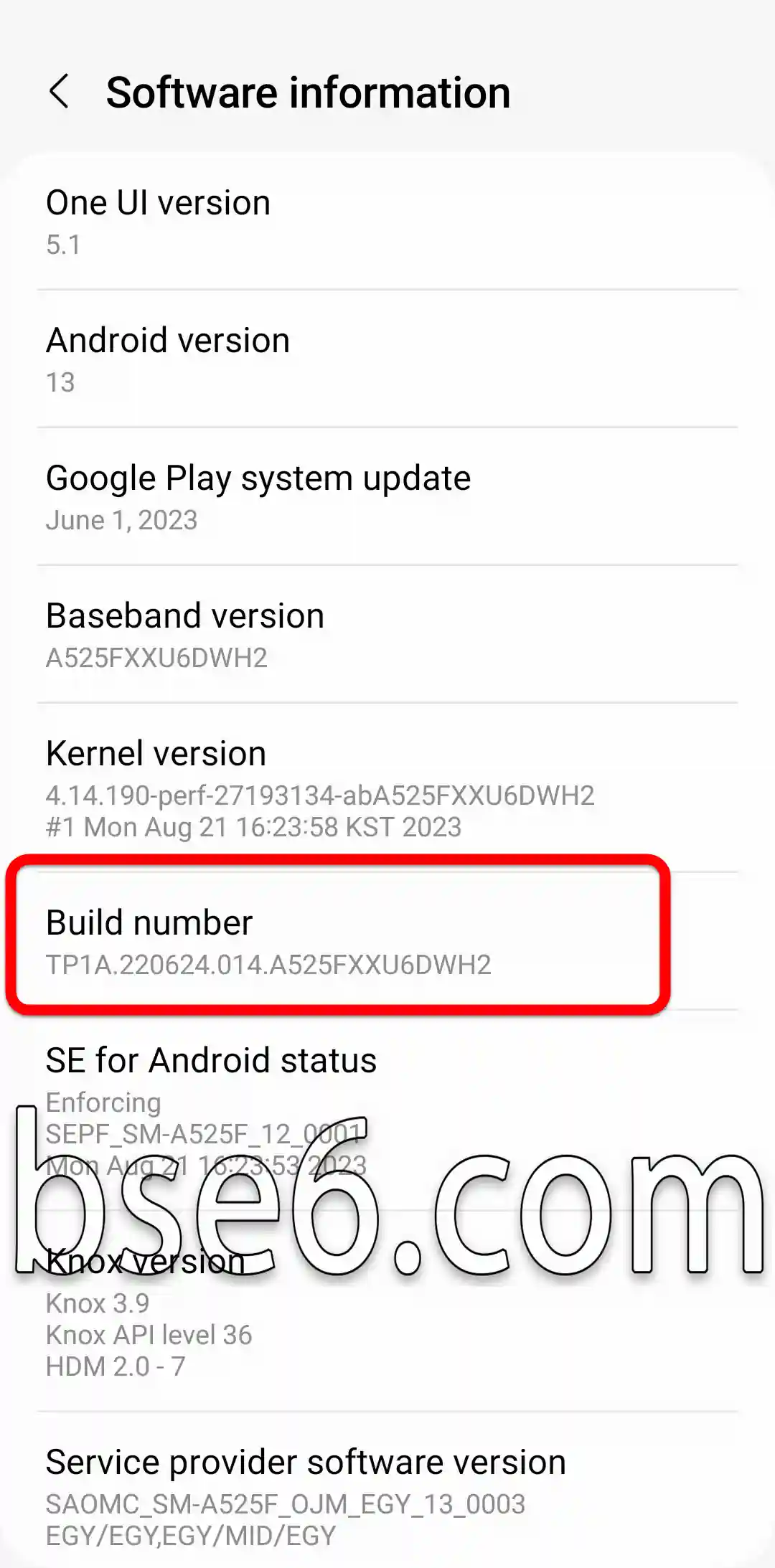
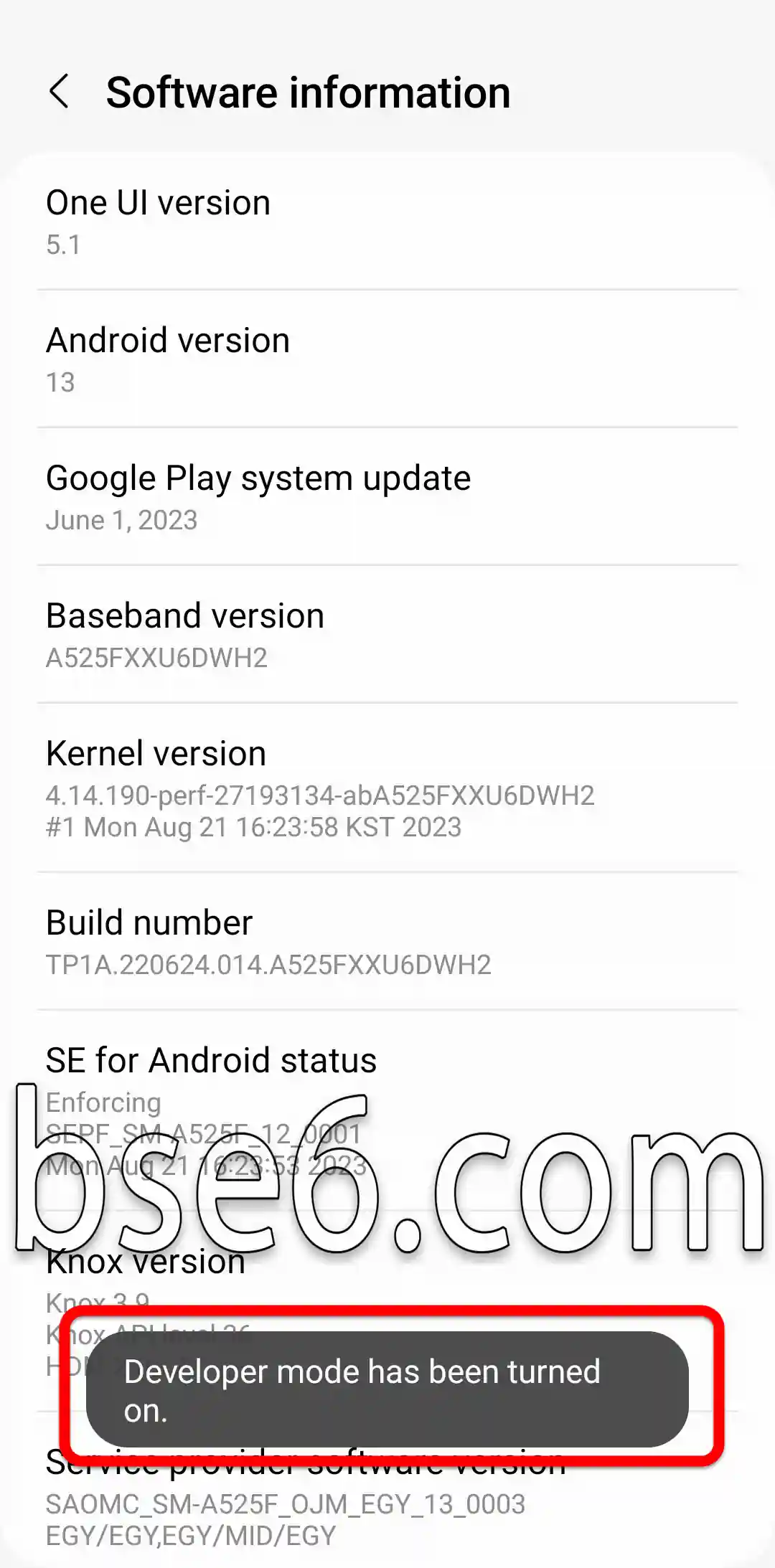
4. Tap on Build number multiple times until a notification appears at the bottom of the screen stating, “Developer mode has been enabled.”
5- To access Developer options, you can go back to the main Settings page and scroll down slightly until you find “Developer options.”
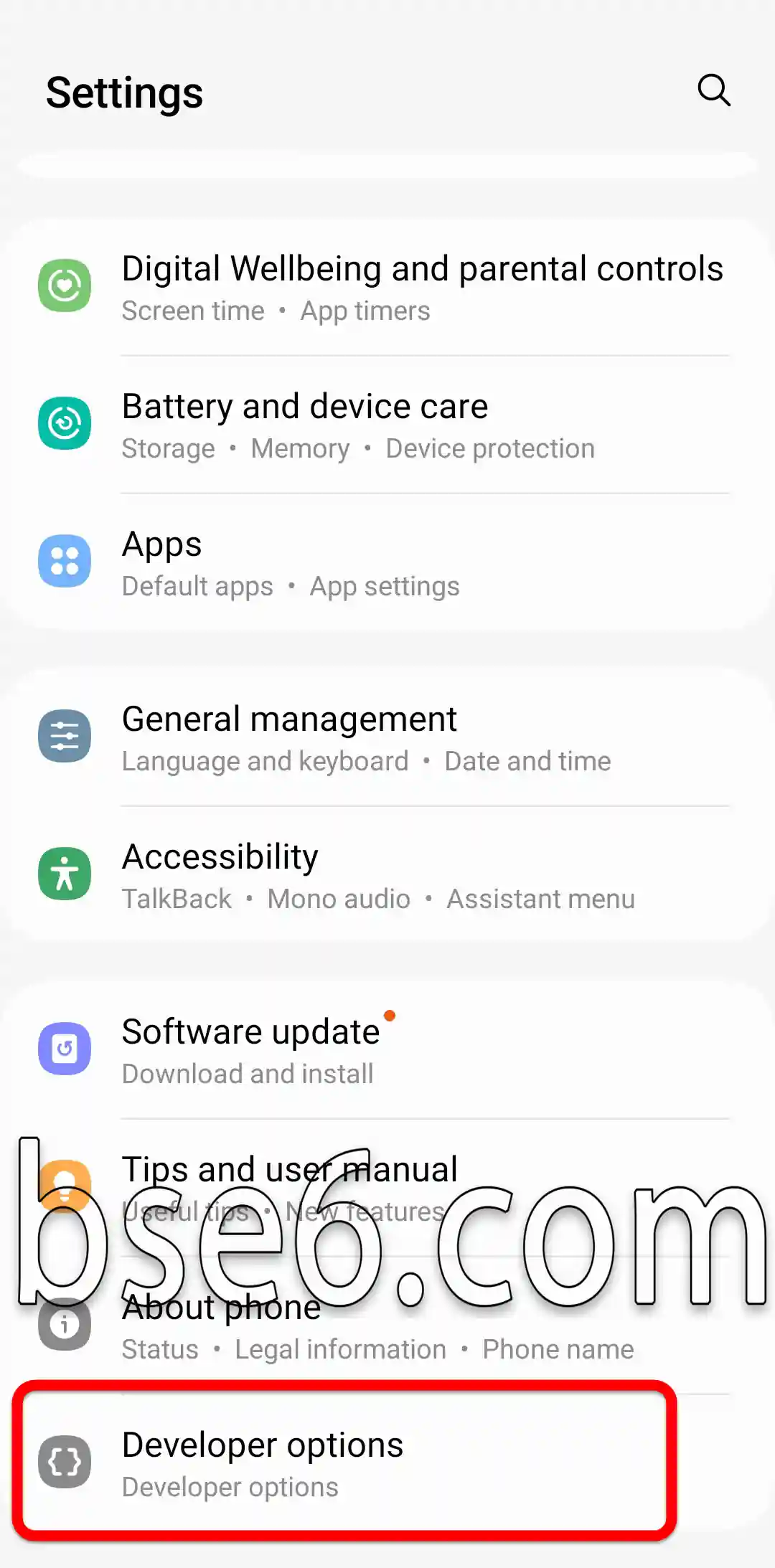
6- Developer options have been enabled for your Samsung Galaxy A13.
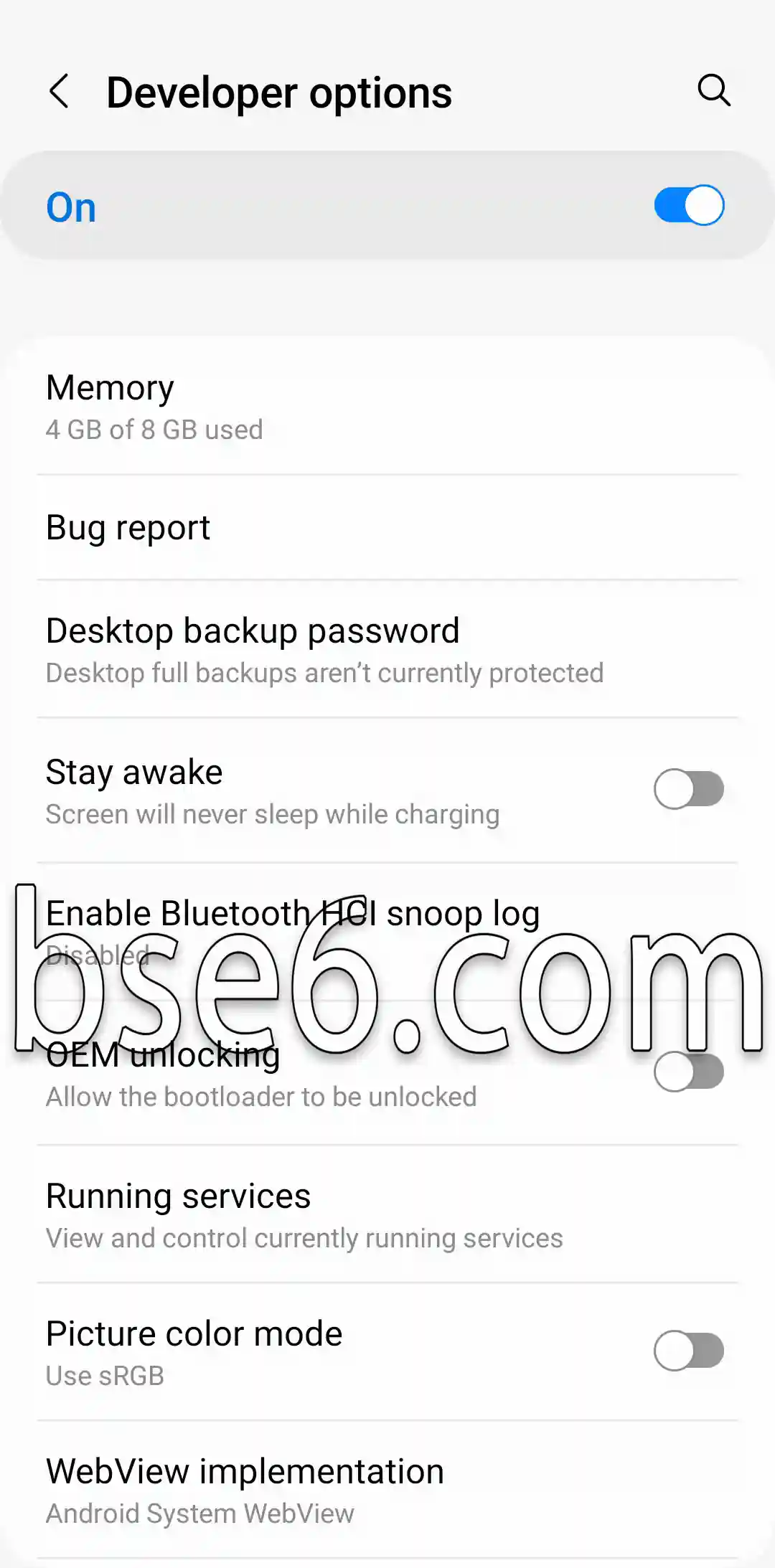
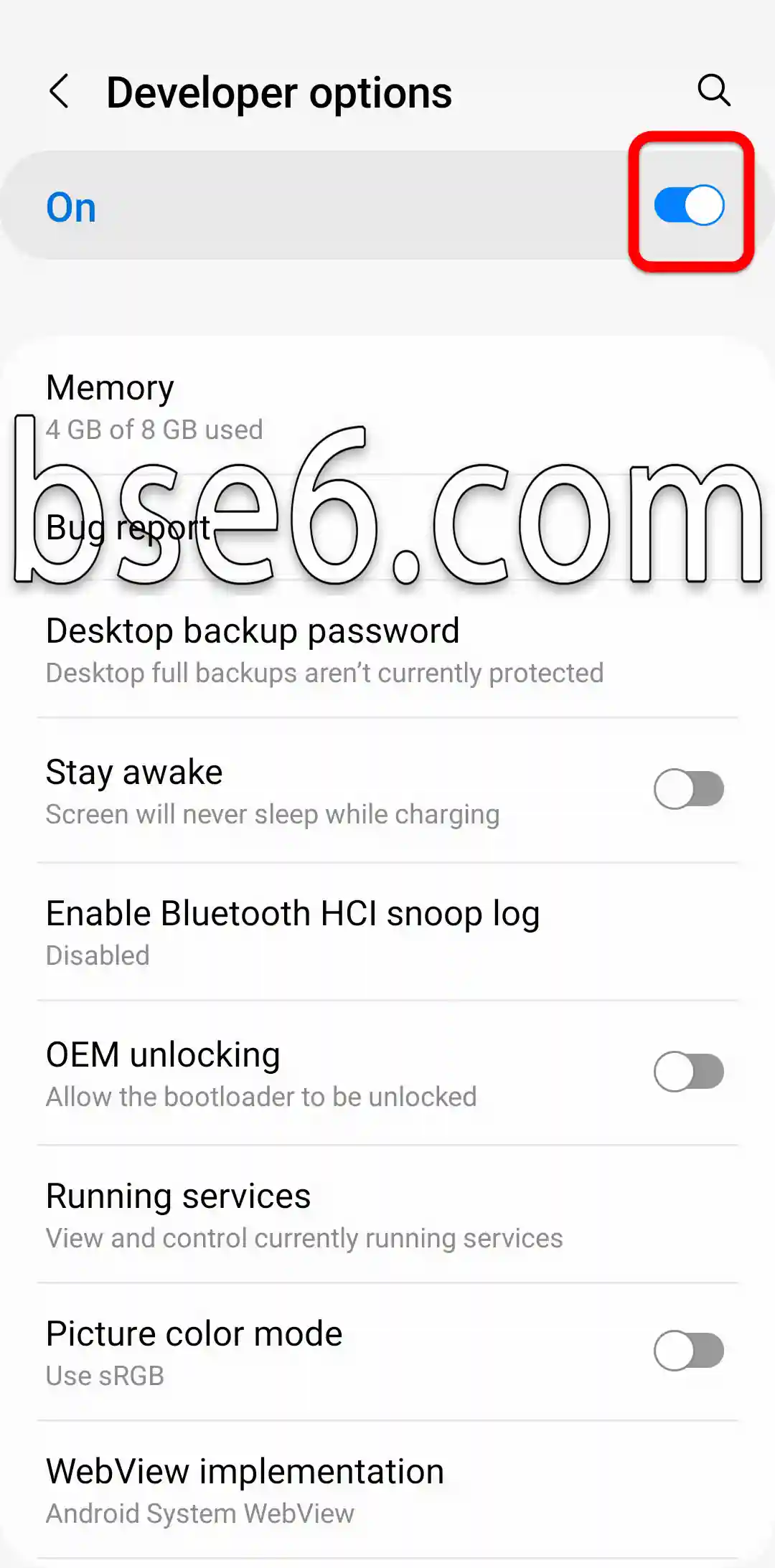
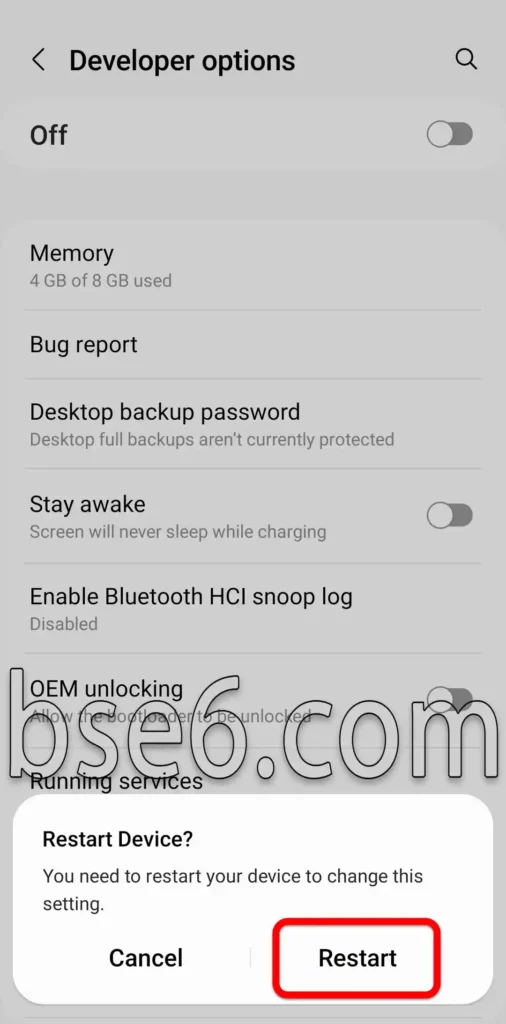
7- You can disable Developer options by toggling off the first option at the top.
Then tap “Restart”.

These options are beneficial for easily enhancing performance and testing applications. Samsung is a globally trusted source in this field, and you can benefit from expert experiences in tech forums.
Understanding Developer Options and Their Key Features
Developer options allow users on Android devices, such as the Samsung Galaxy A36 5G, to access advanced settings for enhancing performance. You can enable Developer options by going to Settings, then selecting “About phone,” and tapping “Build number” several times.
Key Features:
- Enhance Android Experience: This grants users control over animations and system speed.
- USB Debugging: This facilitates connecting to a computer for developers and testing applications.
- Optimize battery usage: by fine-tuning background services.
- Monitor device performance: You can easily monitor the status of the CPU and memory.
- Customize network options: for those interested in network development and improving the internet experience.
Enabling these options grants Android users deeper control over their device, benefiting both developers and customization enthusiasts. Tech experts emphasize the importance of adjusting these settings cautiously to enhance security and maximize their potential.