Enable TalkBackAndroid makes it easier forusers with disabilitiesby reading screen elements aloud. To learn how to enable and disable TalkBackon your Samsung Galaxy A36 5G, follow our comprehensive step-by-step guide. The TalkBack feature allows for easy menu navigation and lets you adjust TalkBack settings to suit your needs, with the option to automatically disable or enable it upon device restart for optimal phone use.
Step-by-Step Guide to Enabling and Disabling TalkBack on Samsung Galaxy A36 5G
Enabling TalkBack: Did you know that the TalkBack service makes it easier for blind or visually impaired users to interact with Samsung Galaxy A36 5G devices?
Here’s a step-by-step guide on how to enable or disable TalkBack on your phone:
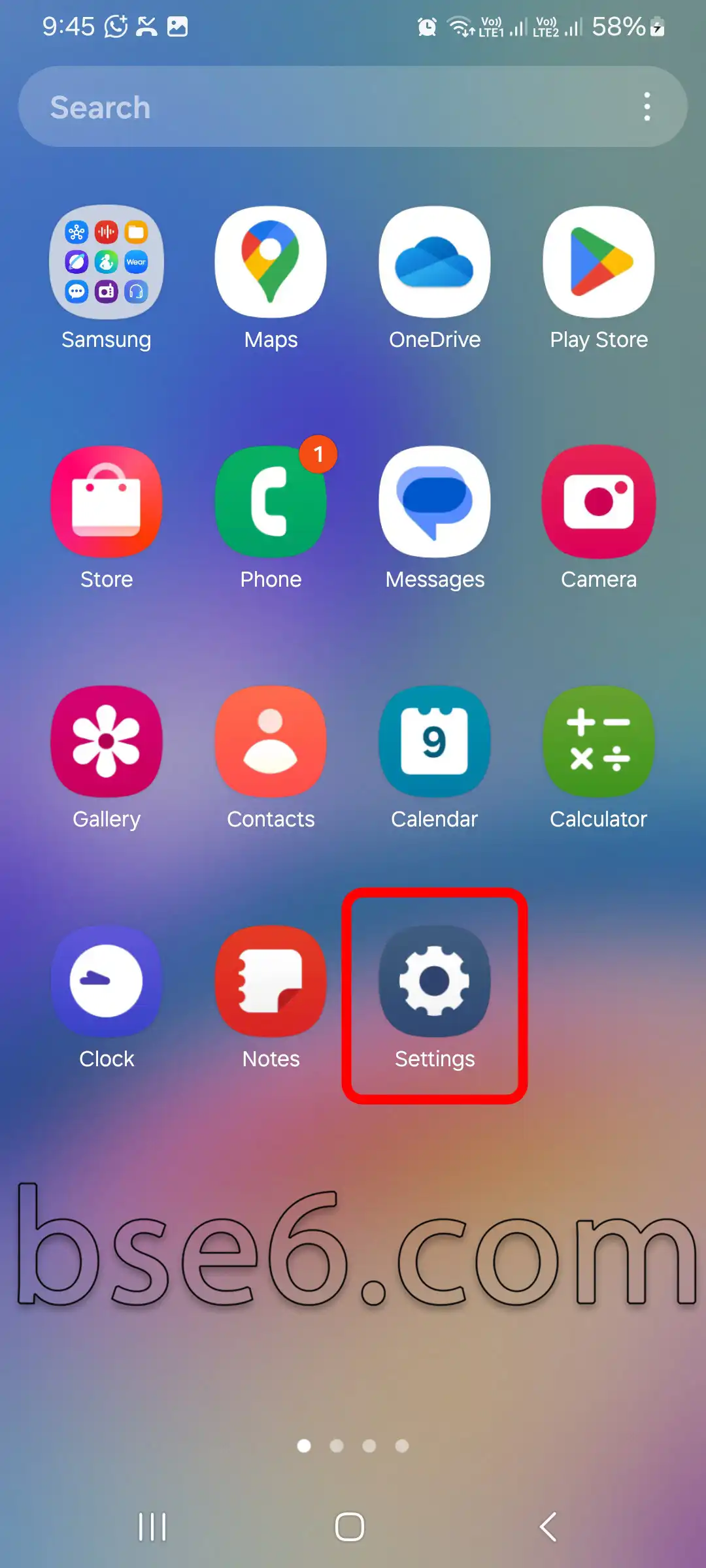
1- Go to “Settings” on your device.
2- Select “Accessibility”.
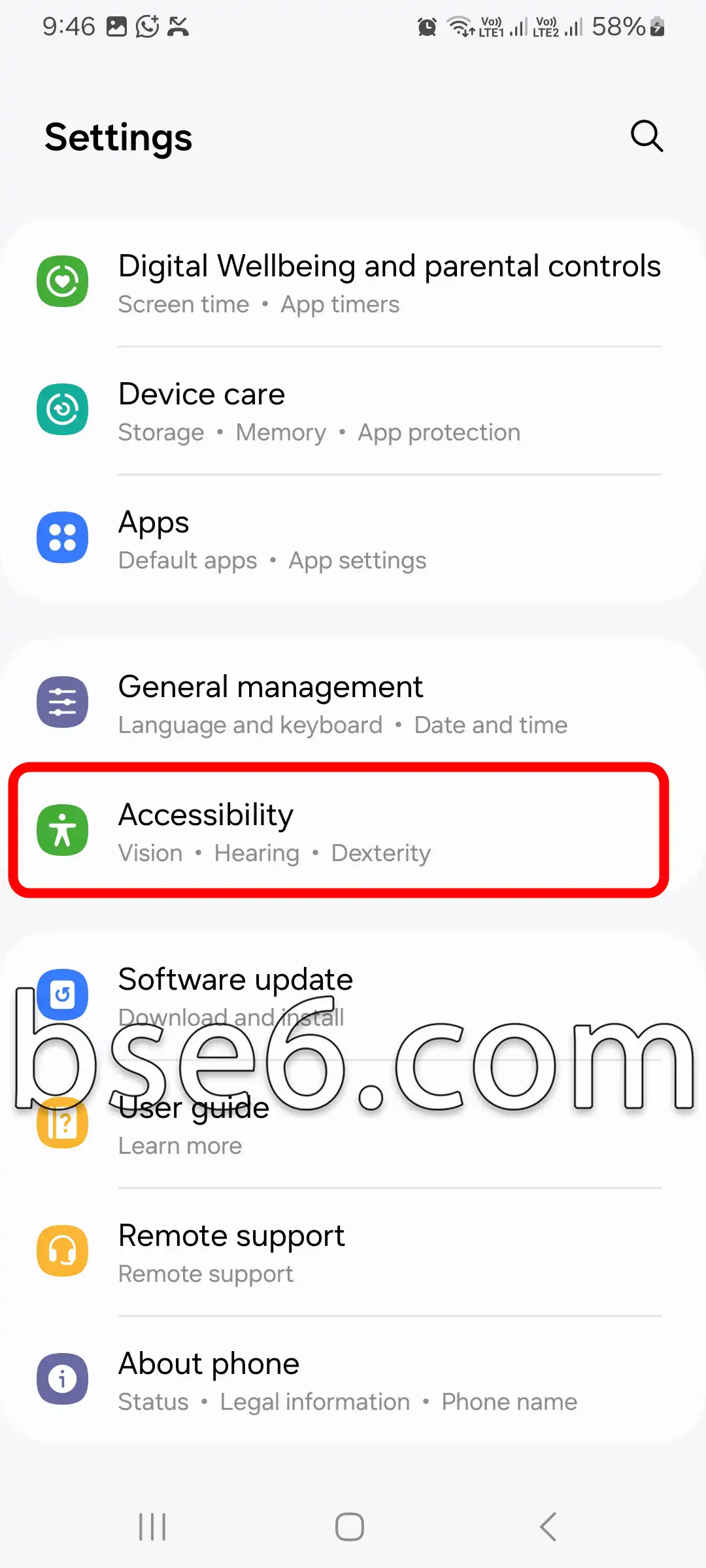
3- Tap “TalkBack”.
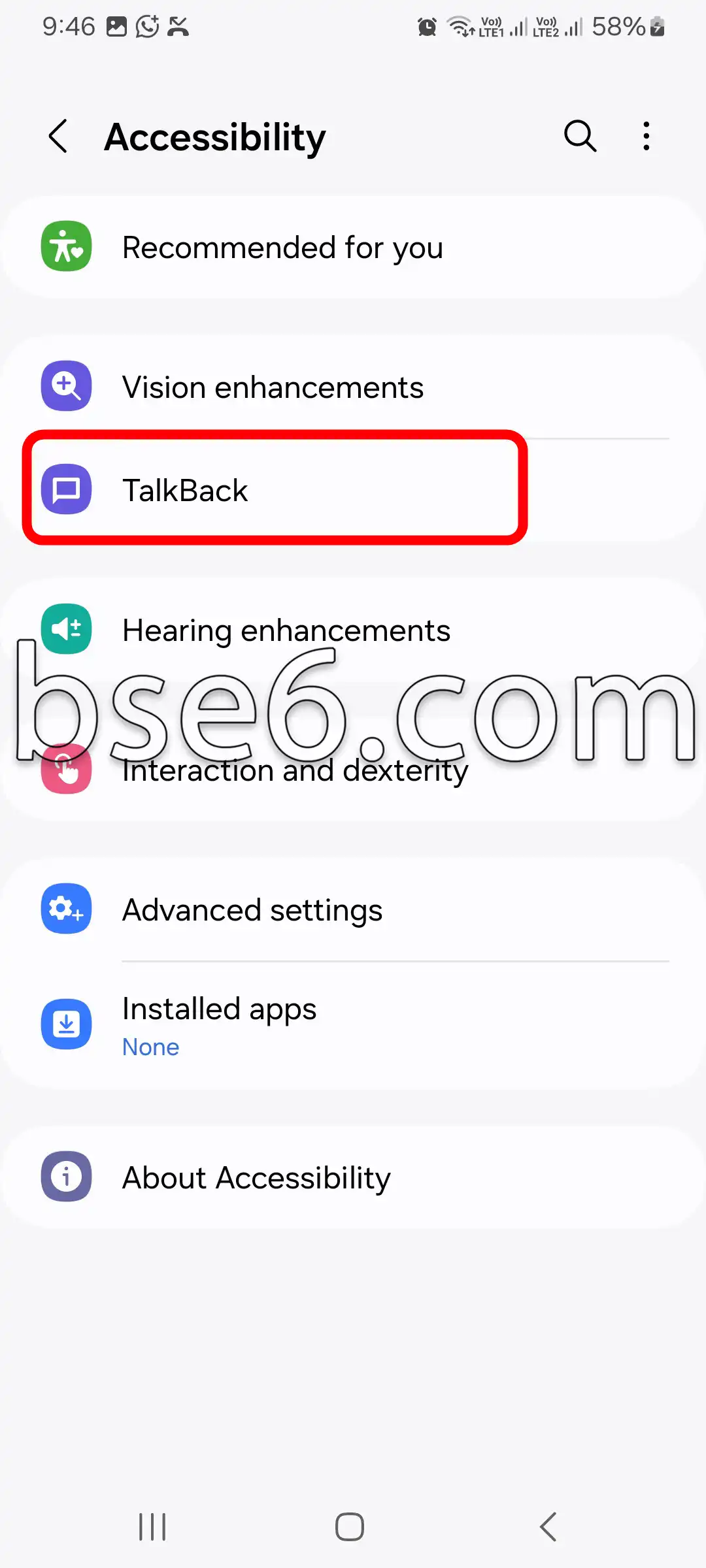
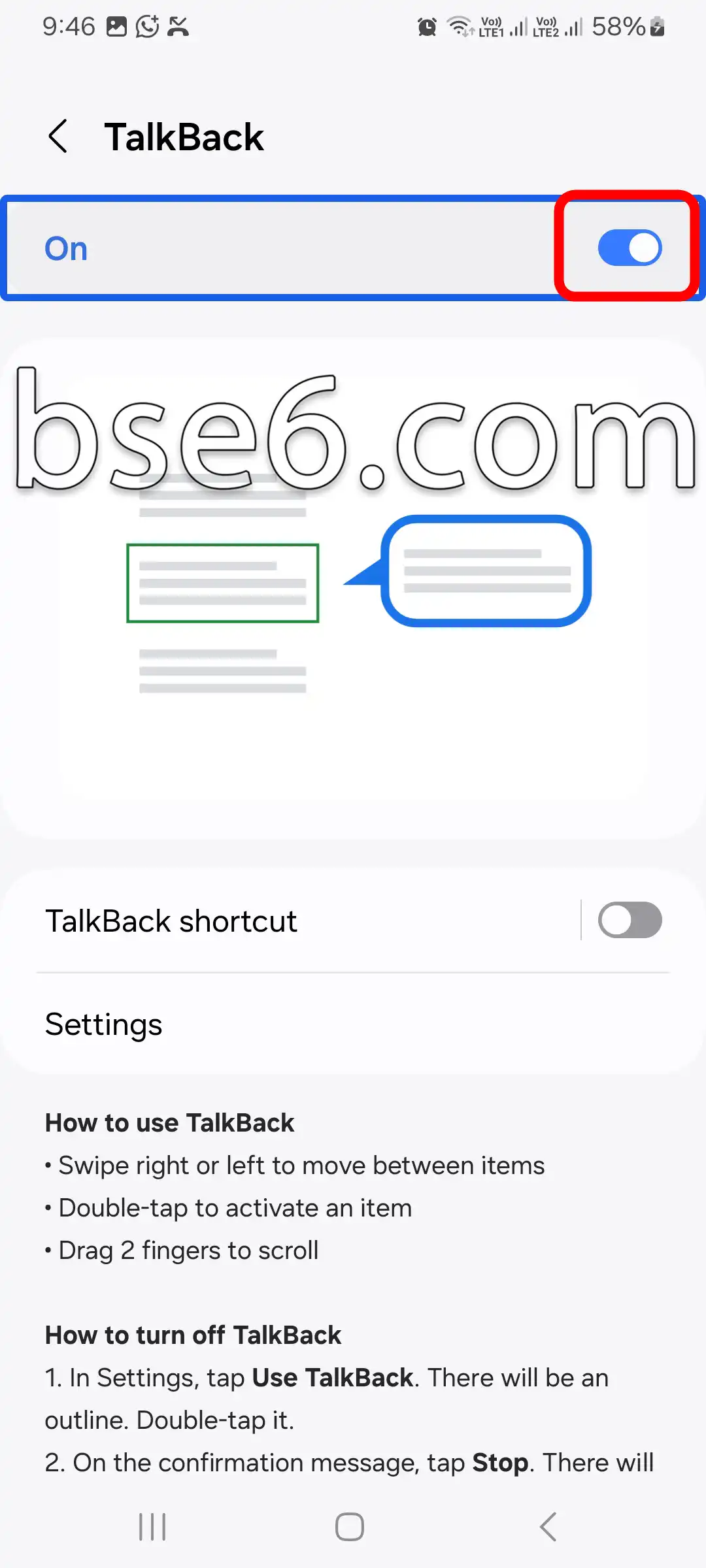
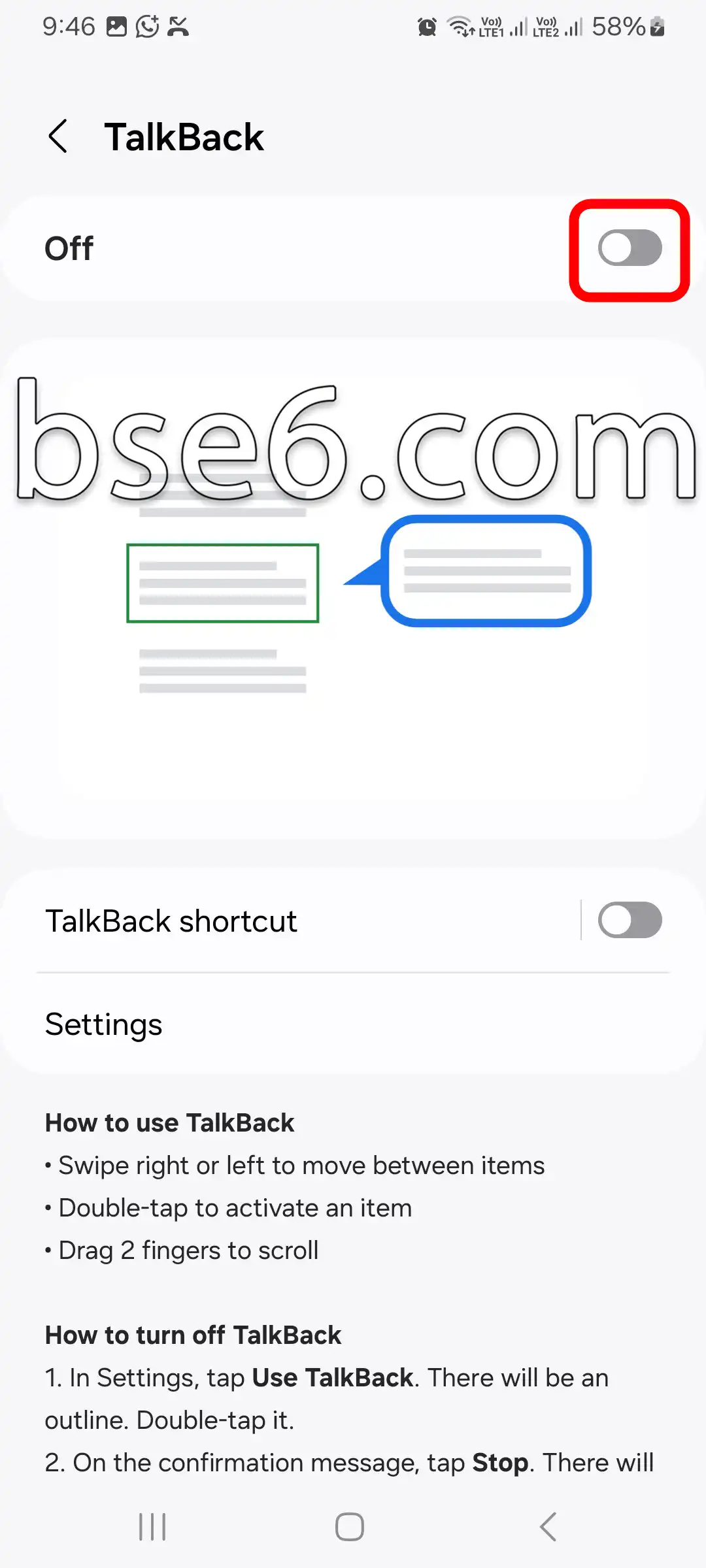
4- Tap the toggle switch to turn the service on or off.
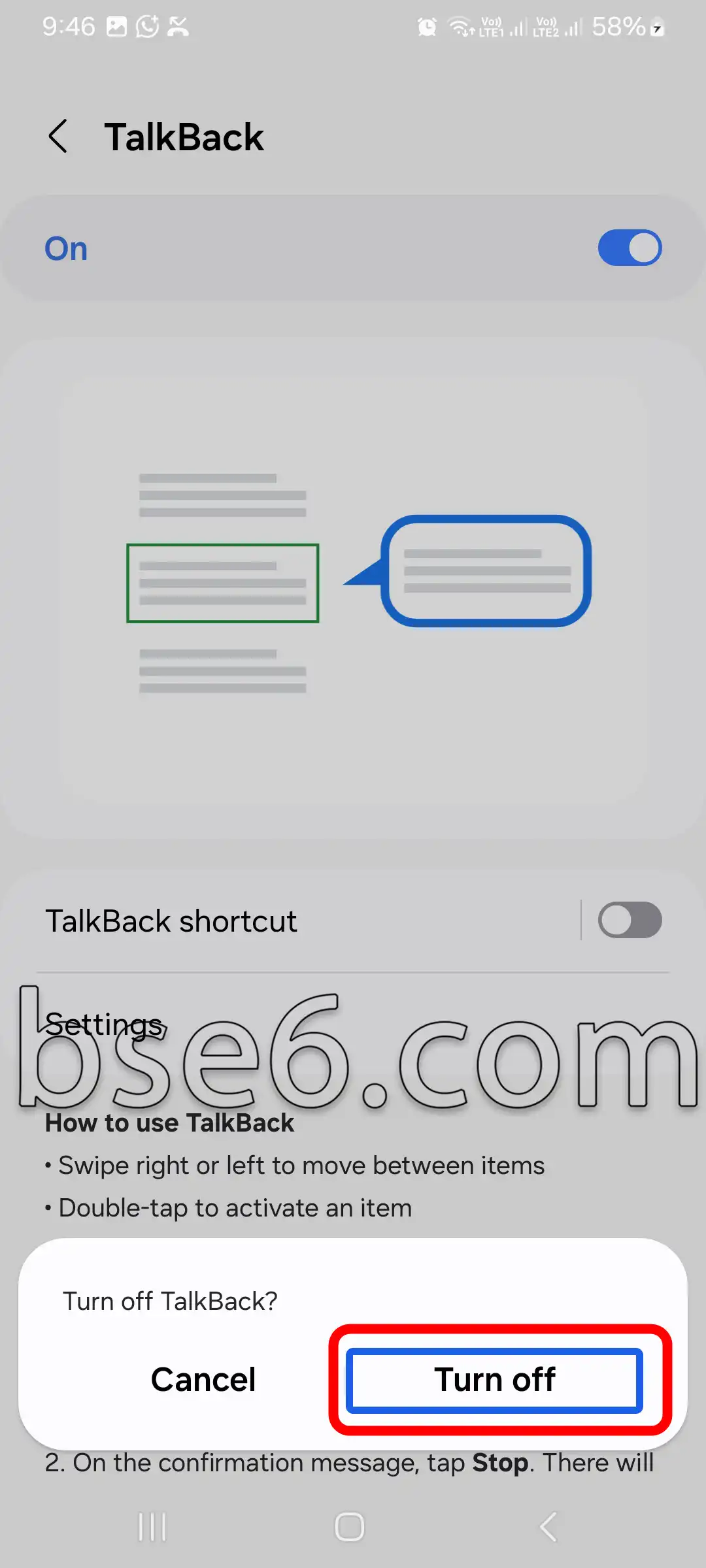
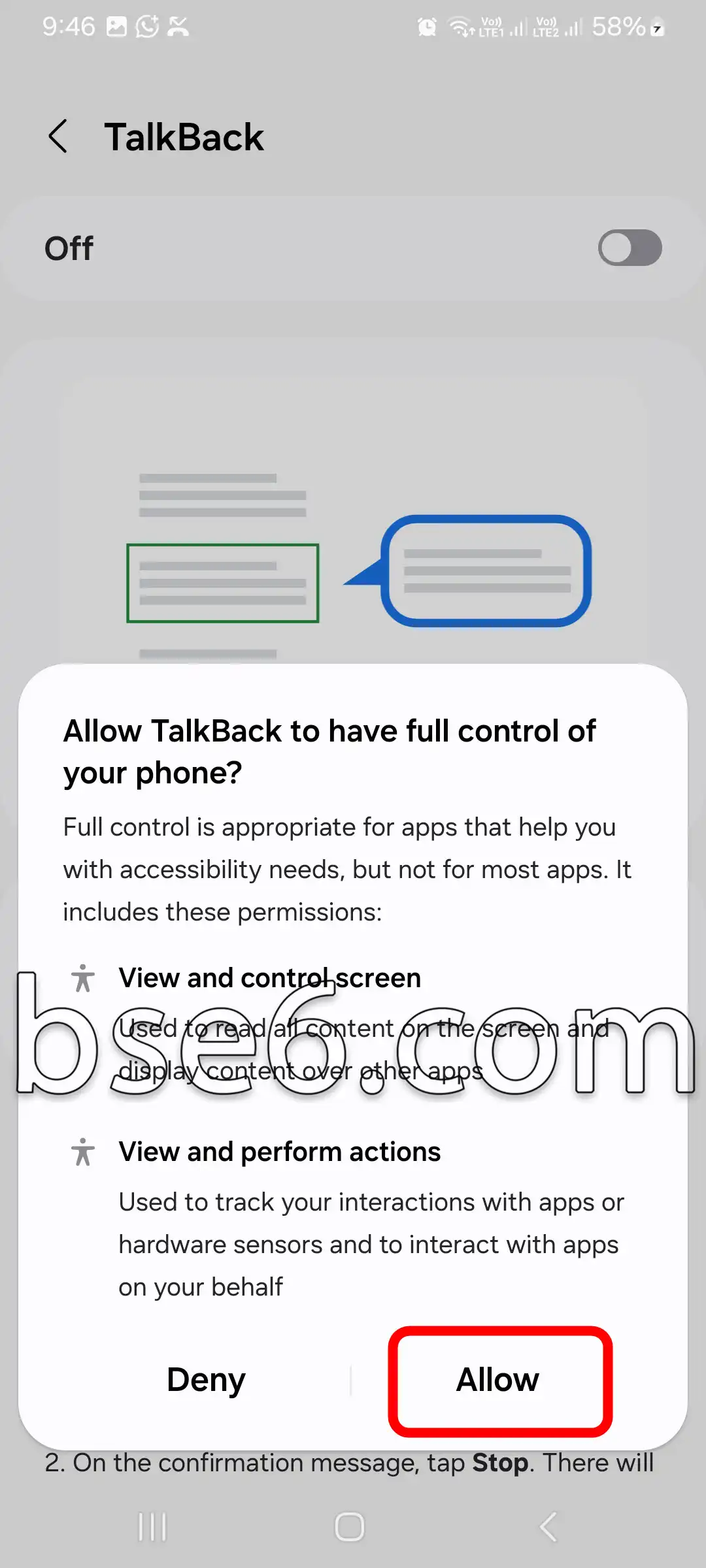
5- To confirm the action, a confirmation message will appear. Confirm it to complete the change.
You can also activate or deactivate TalkBack at any time by long-pressing both side volume keys simultaneously. This method enhances usability and allows quick interaction for the visually impaired without needing to navigate through menus.
Enabling TalkBack offers several advantages, such as reading text aloud and facilitating access to applications. This significantly improves the user experience. For more information about accessibility, it is recommended to consult official Samsung sources and specialized technical guides.
How to Easily Turn TalkBack On and Off
TalkBack is an important Android feature, especially for the blind or visually impaired. This feature enables interaction with the screen through audio, making non-visual navigation easier. To set up TalkBack on your Samsung Galaxy A36 5G, follow these steps:
- Open “Settings”.
- Select “Accessibility”.
- Tap on “Visibility enhancements”.
- Turn on TalkBack using the toggle switch.
To disable or turn off TalkBack, repeat these steps and toggle the switch off. This knowledge empowers you to manage your smart device’s accessibility settings independently.