

If you haveenabled color correction on the phone, you can enjoy more accurate color vision, remove colors to help you focus, and control the color tone on the Samsung Galaxy A57 5G screen. You can customize the screen color from Settings as you prefer, and in the following guide, we’ll show you how to enable color correction on the Samsung Galaxy A57 5G.
How do you enable color correction on the Samsung Galaxy A57 5G?
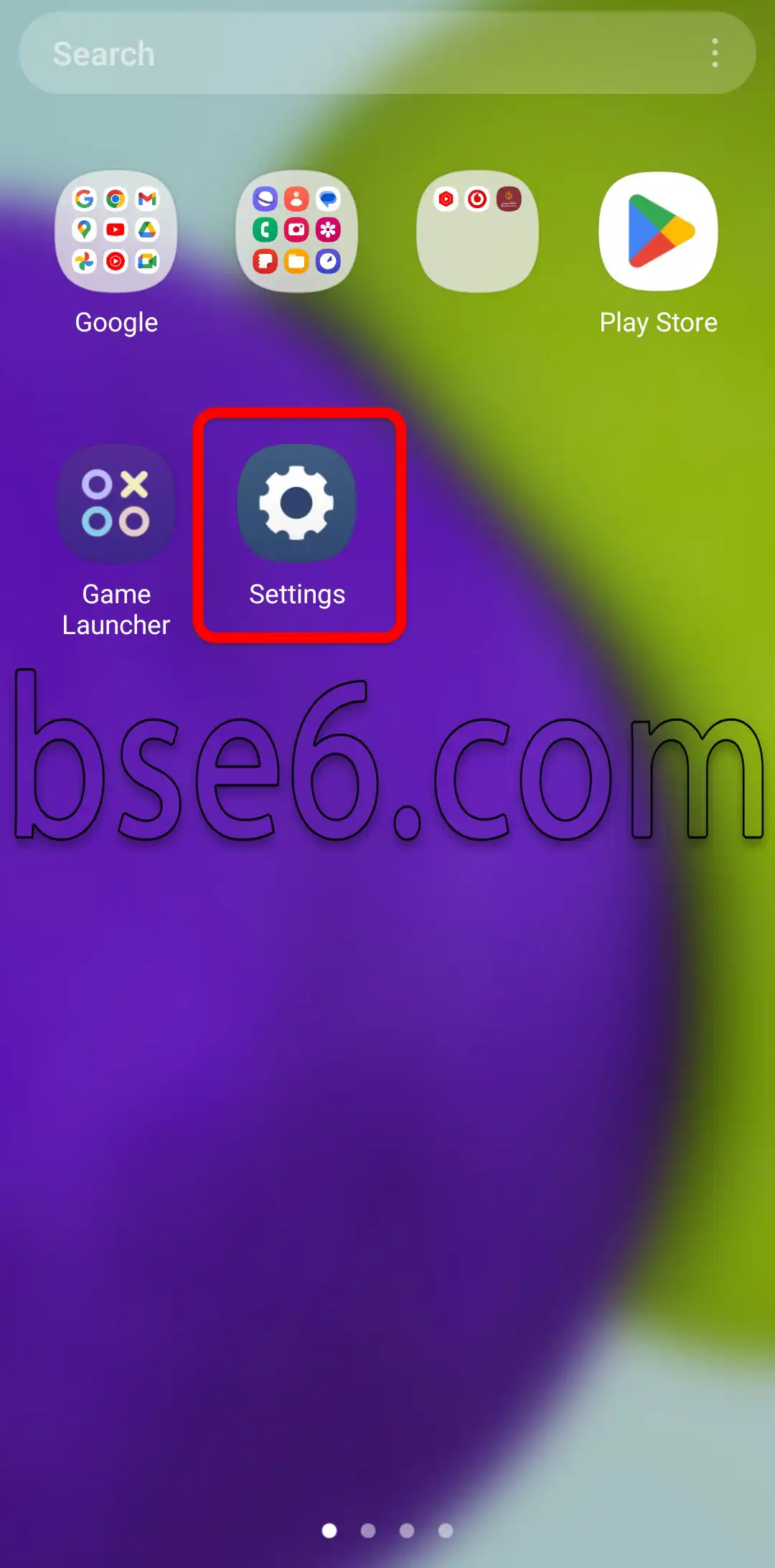
1- Go to “Settings”.
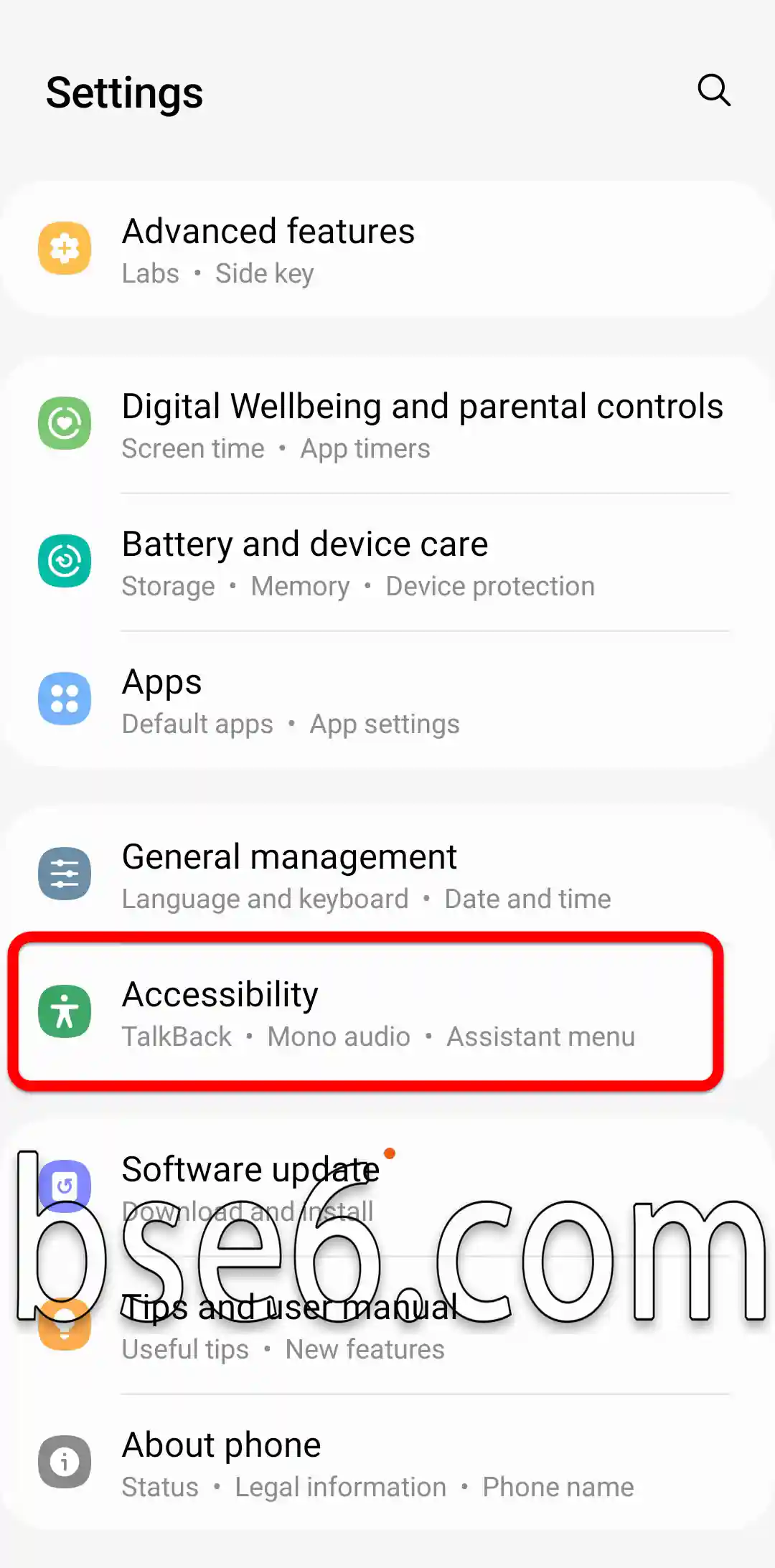
2- Scroll down and tap “Accessibility”.
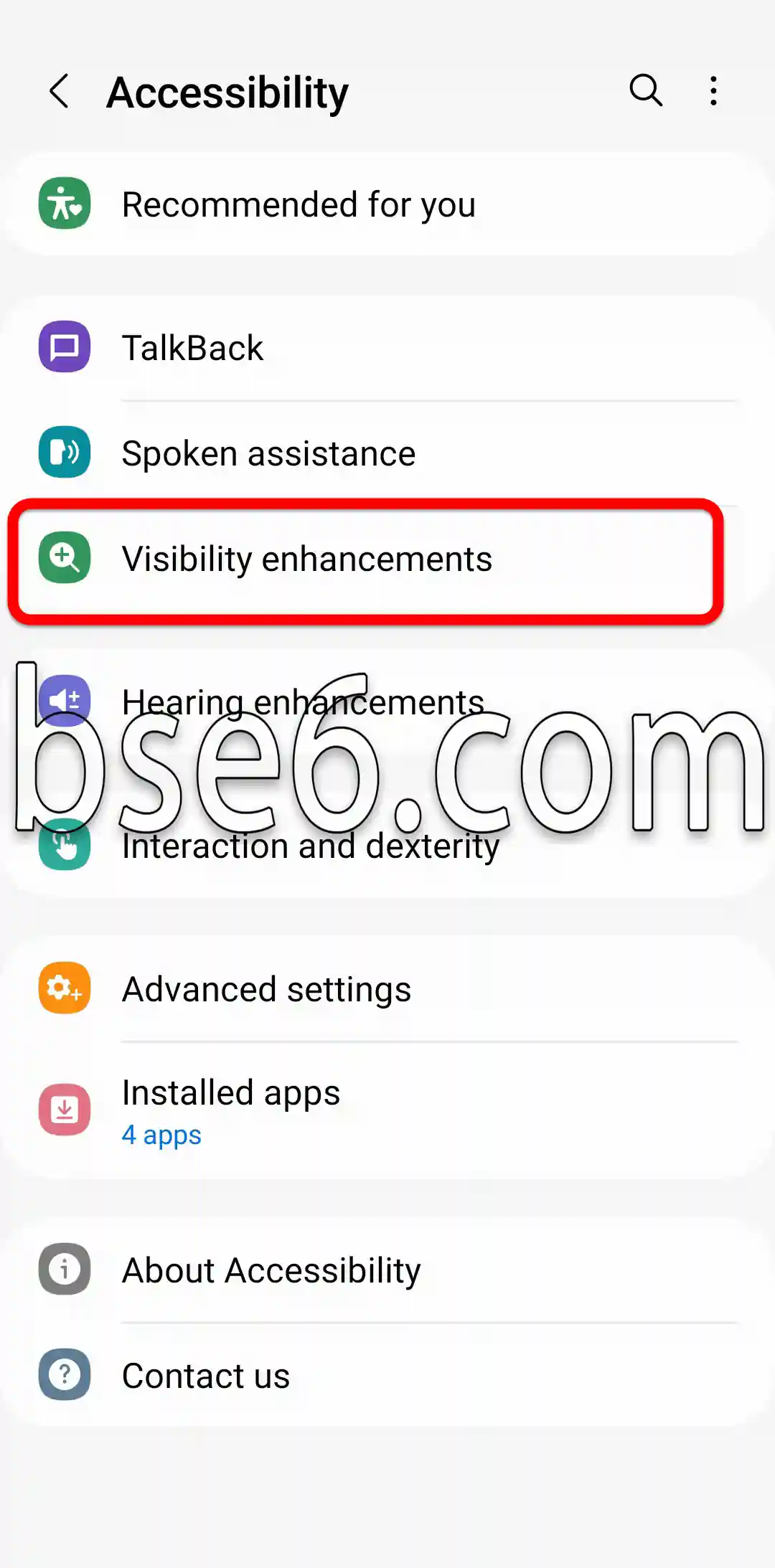
3- “Visibility enhancements”.
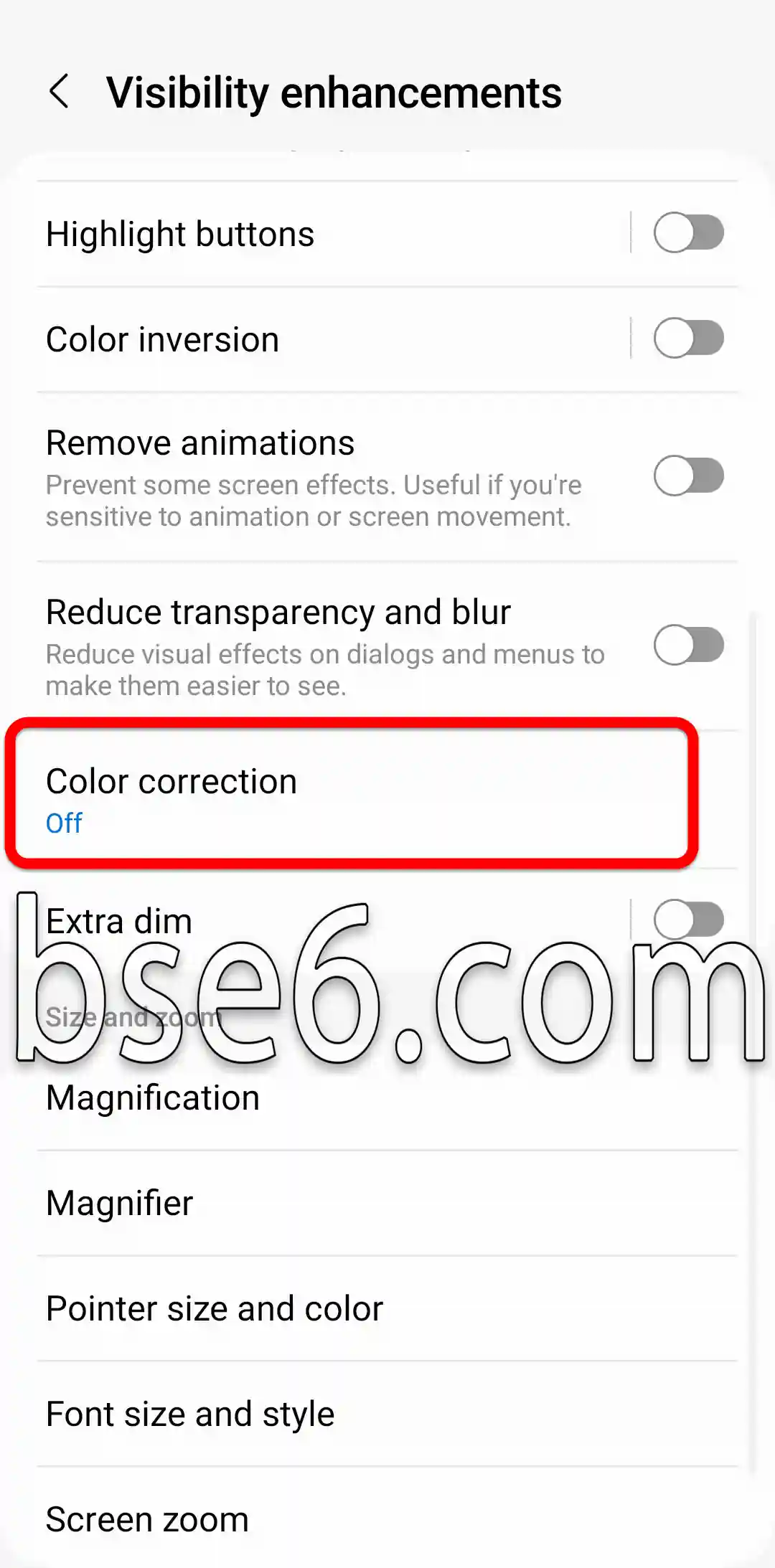
4- “Color correction”.
5- After turning it on, choose the option that suits you from this screen.
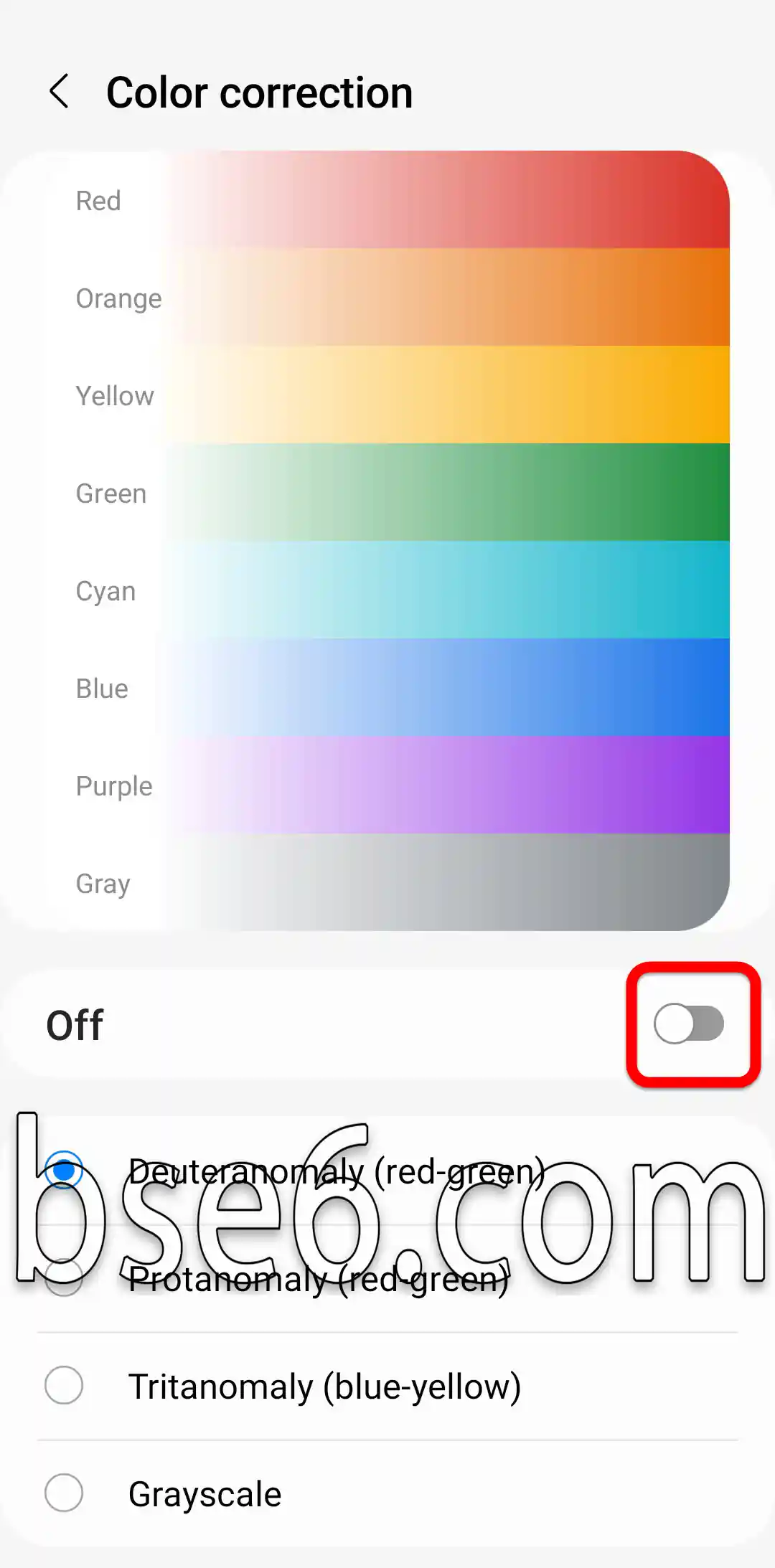
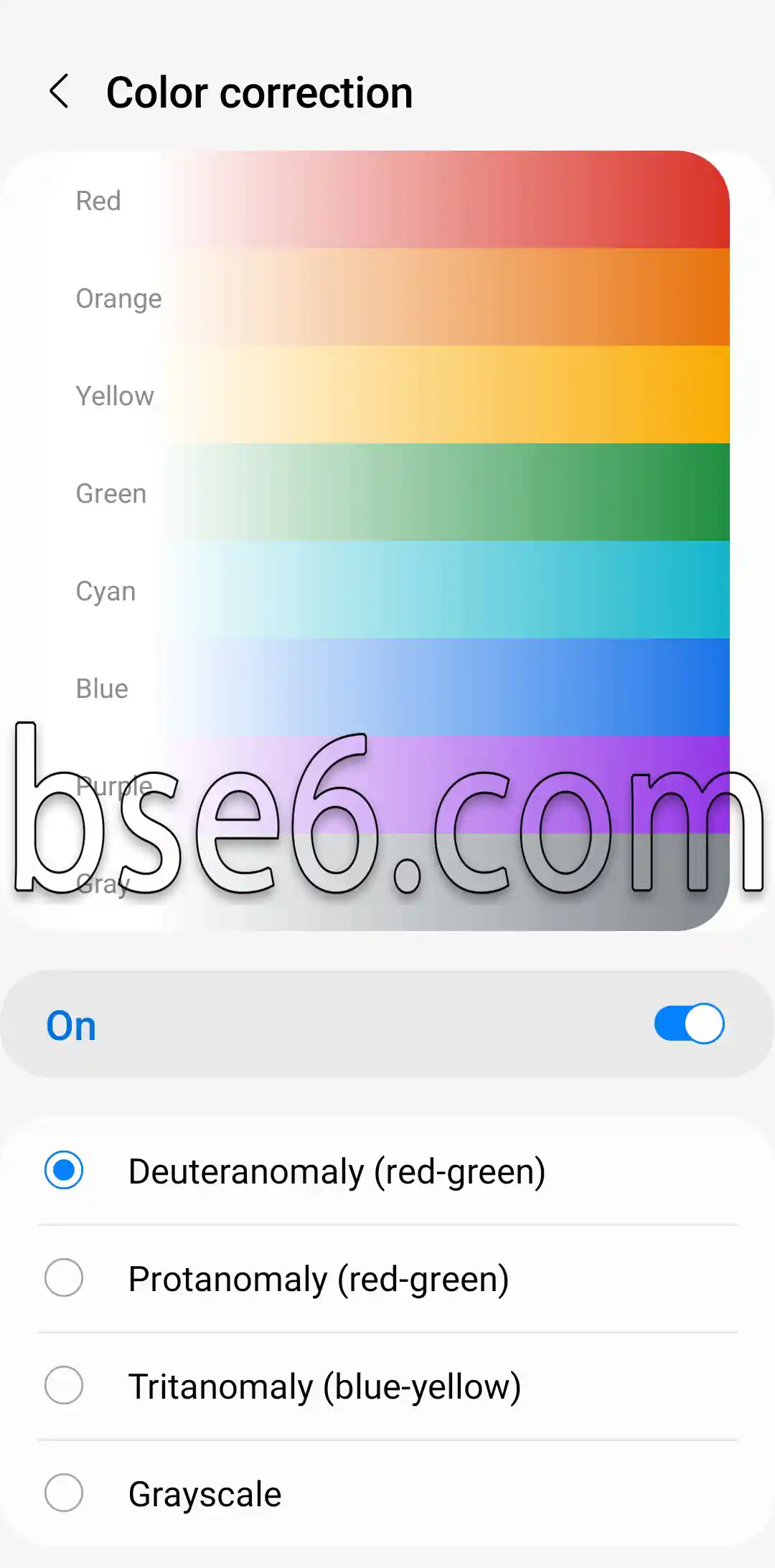
Steps to easily correct colors on the Samsung Galaxy A57 5G
Color correction: Have you ever noticed that the photos on your Samsung Galaxy A57 5G look dull or unbalanced? Color correction is the best way to restore vibrancy and accuracy to image details, giving you a better visual experience and higher photo quality.
To get started with color correction on the Samsung Galaxy A57 5G, follow these steps:
- Open Display settings
Go to “Settings,” then select “Display,” and then “Screen mode.” You’ll find several options for adjusting the screen colors to your preference. - Choose the right color mode
The phone lets you change saturation, contrast, and hue. Choose the mode that reproduces colors as realistically as possible. You can try several modes, such as “Natural” or “Vivid,” to see the difference. - Manually adjust colors
If you want more precision, use the manual color correction tool. Here, you can enable AI to enhance colors automatically, or adjust saturation and color balance manually, which is an effective option for photography enthusiasts. - Use free third-party apps
Free specialized color correction apps are available, such as Snapseed or Lightroom. Thanks to the AI in these tools, colors can be improved with just one tap. - Color correction in photos and videos
Color correction is not limited to still photos alone; you can also use it to adjust video colors through built-in options or with video editing apps.
The importance of color correction lies in bringing out true colors and improving the user experience, especially for photography enthusiasts. According to reviews from tech sites, Galaxy A57 5G is one of the phones that offers flexible color adjustment to suit every taste.
مقالات مشابهة
- How to Enter Download Mode on Samsung Galaxy A57 5G
- How to Easily Enable Do Not Disturb Mode on Samsung Galaxy A57 5G
- Secrets and Effective Ways to Take Screenshots on Samsung Galaxy A57 5G
- How to Set Up the Screen Lock on Samsung Galaxy A57 5G
- Invert Colors on Samsung Galaxy A57 5G
- Everything You Need to Know About the Navigation Bar on Samsung Galaxy A57 5G
- How to enable Developer options on Samsung Galaxy A57 5G easily
- Guide to Easily Change Font Size on Samsung Galaxy A57 5G
- How to Enable Eye Comfort Shield on Samsung Galaxy A57 5G
- A Complete Guide to Enabling and Disabling TalkBack on Your Samsung Galaxy A57 5G
- What Is Recovery Mode on the Samsung Galaxy A57 5G?
- The Complete Guide to Enabling Power Saving Mode on Samsung Galaxy A57 5G
- How to enable Dark Mode on the Samsung Galaxy A57 5G Easily
- Your complete guide to changing the ringtone on the Samsung Galaxy A57 5G
- How to Change the Phone Language on Samsung Galaxy A57 5G Easily
- How to Change the Screen Timeout on Samsung Galaxy A57 5G
- How to easily customize the Home screen layout on Samsung Galaxy A57 5G
- Best ways to update your Samsung Galaxy A57 5G step by step
- Best ways to answer and end calls on Samsung Galaxy A57 5G
- How to Easily Control System Vibration on the Samsung Galaxy A57 5G
- Steps to Show the Battery Percentage on Samsung Galaxy A57 5G
- How to Turn On Flash Alerts for Incoming Calls on Samsung Galaxy A57 5G
- How to Set a Different Language for Each App on the Samsung Galaxy A57 5G
- How to Easily Hide Apps on the Samsung Galaxy A57 5G
- Cloning apps on Samsung Galaxy A57 5G step by step
- Ways to Factory Reset Samsung Galaxy A57 5G Easily
- The Complete Guide to Enabling Power Saving Mode on Samsung Galaxy A9
- How to enable Dark Mode on the Samsung Galaxy A9 Easily
- How to Change the Phone Language on Samsung Galaxy A9 Easily
- How to Change the Screen Timeout on Samsung Galaxy A9
- How to easily customize the Home screen layout on Samsung Galaxy A9
- How to Adjust the Colors on Samsung Galaxy A9 Easily
- Best ways to update your Samsung Galaxy A9 step by step
- Best ways to answer and end calls on Samsung Galaxy A9
- How to Easily Control System Vibration on the Samsung Galaxy A9
- How to Turn On Flash Alerts for Incoming Calls on Samsung Galaxy A9
- How to Set a Different Language for Each App on the Samsung Galaxy A9
- Cloning apps on Samsung Galaxy A9 step by step
- The Complete Guide to Enabling Power Saving Mode on Samsung Galaxy A56 5G
- How to enable Dark Mode on the Samsung Galaxy A56 5G Easily
- How to Change the Phone Language on Samsung Galaxy A56 5G Easily
- How to Change the Screen Timeout on Samsung Galaxy A56 5G
- How to easily customize the Home screen layout on Samsung Galaxy A56 5G
- How to Adjust the Colors on Samsung Galaxy A56 5G Easily
- Best ways to update your Samsung Galaxy A56 5G step by step
- Best ways to answer and end calls on Samsung Galaxy A56 5G
- How to Easily Control System Vibration on the Samsung Galaxy A56 5G
- How to Turn On Flash Alerts for Incoming Calls on Samsung Galaxy A56 5G
- How to Set a Different Language for Each App on the Samsung Galaxy A56 5G
- Cloning apps on Samsung Galaxy A56 5G step by step
- The Complete Guide to Enabling Power Saving Mode on Samsung Galaxy A37 5G
- How to enable Dark Mode on the Samsung Galaxy A37 5G Easily
- How to Change the Phone Language on Samsung Galaxy A37 5G Easily
- How to Change the Screen Timeout on Samsung Galaxy A37 5G
- How to easily customize the Home screen layout on Samsung Galaxy A37 5G
- How to Adjust the Colors on Samsung Galaxy A37 5G Easily
- Best ways to update your Samsung Galaxy A37 5G step by step
- Best ways to answer and end calls on Samsung Galaxy A37 5G
- How to Easily Control System Vibration on the Samsung Galaxy A37 5G
- How to Turn On Flash Alerts for Incoming Calls on Samsung Galaxy A37 5G
- How to Set a Different Language for Each App on the Samsung Galaxy A37 5G
- Cloning apps on Samsung Galaxy A37 5G step by step
- The Complete Guide to Enabling Power Saving Mode on Samsung Galaxy S20 FE 5G
- How to enable Dark Mode on the Samsung Galaxy S20 FE 5G Easily
- How to Change the Screen Timeout on Samsung Galaxy S20 FE 5G
- How to easily customize the Home screen layout on Samsung Galaxy S20 FE 5G
- Best ways to update your Samsung Galaxy S20 FE 5G step by step
- How to Easily Control System Vibration on the Samsung Galaxy S20 FE 5G
- How to Turn On Flash Alerts for Incoming Calls on Samsung Galaxy S20 FE 5G
- How to Set a Different Language for Each App on the Samsung Galaxy S20 FE 5G
- The Complete Guide to Enabling Power Saving Mode on Samsung Galaxy A54 5G
- How to enable Dark Mode on the Samsung Galaxy A54 5G Easily
- How to Change the Phone Language on Samsung Galaxy A54 5G Easily
- How to Change the Screen Timeout on Samsung Galaxy A54 5G
- How to easily customize the Home screen layout on Samsung Galaxy A54 5G
- How to Adjust the Colors on Samsung Galaxy A54 5G Easily
- Best ways to update your Samsung Galaxy A54 5G step by step
- Best ways to answer and end calls on Samsung Galaxy A54 5G
- How to Easily Control System Vibration on the Samsung Galaxy A54 5G
- How to Turn On Flash Alerts for Incoming Calls on Samsung Galaxy A54 5G
- How to Set a Different Language for Each App on the Samsung Galaxy A54 5G
- Cloning apps on Samsung Galaxy A54 5G step by step
- The Complete Guide to Enabling Power Saving Mode on Samsung Galaxy S22
- How to enable Dark Mode on the Samsung Galaxy S22 Easily
- How to Change the Screen Timeout on Samsung Galaxy S22
- How to easily customize the Home screen layout on Samsung Galaxy S22
- Best ways to update your Samsung Galaxy S22 step by step
- How to Easily Control System Vibration on the Samsung Galaxy S22
- How to Turn On Flash Alerts for Incoming Calls on Samsung Galaxy S22
- How to Set a Different Language for Each App on the Samsung Galaxy S22
- The Complete Guide to Enabling Power Saving Mode on Samsung Galaxy A05S
- How to enable Dark Mode on the Samsung Galaxy A05S Easily
- How to Change the Screen Timeout on Samsung Galaxy A05S
- How to easily customize the Home screen layout on Samsung Galaxy A05S
- Best ways to update your Samsung Galaxy A05S step by step
- How to Easily Control System Vibration on the Samsung Galaxy A05S
- How to Turn On Flash Alerts for Incoming Calls on Samsung Galaxy A05S
- How to Set a Different Language for Each App on the Samsung Galaxy A05S
- The Complete Guide to Enabling Power Saving Mode on Samsung Galaxy A54
- How to enable Dark Mode on the Samsung Galaxy A54 Easily
- How to Change the Screen Timeout on Samsung Galaxy A54
- How to easily customize the Home screen layout on Samsung Galaxy A54
- Best ways to update your Samsung Galaxy A54 step by step
- How to Easily Control System Vibration on the Samsung Galaxy A54
- How to Turn On Flash Alerts for Incoming Calls on Samsung Galaxy A54
- How to Set a Different Language for Each App on the Samsung Galaxy A54
- The Complete Guide to Enabling Power Saving Mode on Samsung Galaxy A04E
- How to enable Dark Mode on the Samsung Galaxy A04E Easily
- How to Change the Phone Language on Samsung Galaxy A04E Easily
- How to Change the Screen Timeout on Samsung Galaxy A04E
- How to easily customize the Home screen layout on Samsung Galaxy A04E
- How to Adjust the Colors on Samsung Galaxy A04E Easily
- Best ways to update your Samsung Galaxy A04E step by step
- Best ways to answer and end calls on Samsung Galaxy A04E
- How to Easily Control System Vibration on the Samsung Galaxy A04E
- How to Turn On Flash Alerts for Incoming Calls on Samsung Galaxy A04E
- How to Set a Different Language for Each App on the Samsung Galaxy A04E
- Cloning apps on Samsung Galaxy A04E step by step
- The Complete Guide to Enabling Power Saving Mode on Samsung Galaxy A04S
- How to enable Dark Mode on the Samsung Galaxy A04S Easily
- How to Change the Phone Language on Samsung Galaxy A04S Easily
- How to Change the Screen Timeout on Samsung Galaxy A04S
- How to easily customize the Home screen layout on Samsung Galaxy A04S
- How to Adjust the Colors on Samsung Galaxy A04S Easily
- Best ways to update your Samsung Galaxy A04S step by step
- Best ways to answer and end calls on Samsung Galaxy A04S
- How to Easily Control System Vibration on the Samsung Galaxy A04S
- How to Turn On Flash Alerts for Incoming Calls on Samsung Galaxy A04S
- How to Set a Different Language for Each App on the Samsung Galaxy A04S
- Cloning apps on Samsung Galaxy A04S step by step
- The Complete Guide to Enabling Power Saving Mode on Samsung Galaxy A04
- How to enable Dark Mode on the Samsung Galaxy A04 Easily
- How to Change the Phone Language on Samsung Galaxy A04 Easily
- How to Change the Screen Timeout on Samsung Galaxy A04
- How to easily customize the Home screen layout on Samsung Galaxy A04
- How to Adjust the Colors on Samsung Galaxy A04 Easily
- Best ways to update your Samsung Galaxy A04 step by step
- Best ways to answer and end calls on Samsung Galaxy A04
- How to Easily Control System Vibration on the Samsung Galaxy A04
- How to Turn On Flash Alerts for Incoming Calls on Samsung Galaxy A04
- How to Set a Different Language for Each App on the Samsung Galaxy A04
- Cloning apps on Samsung Galaxy A04 step by step
- The Complete Guide to Enabling Power Saving Mode on Samsung Galaxy A10S
- How to enable Dark Mode on the Samsung Galaxy A10S Easily
- How to Change the Screen Timeout on Samsung Galaxy A10S
- How to easily customize the Home screen layout on Samsung Galaxy A10S
- Best ways to update your Samsung Galaxy A10S step by step
- How to Easily Control System Vibration on the Samsung Galaxy A10S
- How to Turn On Flash Alerts for Incoming Calls on Samsung Galaxy A10S
- How to Set a Different Language for Each App on the Samsung Galaxy A10S
- The Complete Guide to Enabling Power Saving Mode on Samsung Galaxy M02S
- How to enable Dark Mode on the Samsung Galaxy M02S Easily
- How to Change the Screen Timeout on Samsung Galaxy M02S
- How to easily customize the Home screen layout on Samsung Galaxy M02S
- Best ways to update your Samsung Galaxy M02S step by step
- How to Easily Control System Vibration on the Samsung Galaxy M02S
- How to Set a Different Language for Each App on the Samsung Galaxy M02S
- The Complete Guide to Enabling Power Saving Mode on Samsung Galaxy A20
- How to enable Dark Mode on the Samsung Galaxy A20 Easily
- How to Change the Screen Timeout on Samsung Galaxy A20
- How to easily customize the Home screen layout on Samsung Galaxy A20
- Best ways to update your Samsung Galaxy A20 step by step
- How to Easily Control System Vibration on the Samsung Galaxy A20
- How to Turn On Flash Alerts for Incoming Calls on Samsung Galaxy A20
- How to Set a Different Language for Each App on the Samsung Galaxy A20
- The Complete Guide to Enabling Power Saving Mode on Samsung Galaxy A52
- How to enable Dark Mode on the Samsung Galaxy A52 Easily
- How to Change the Screen Timeout on Samsung Galaxy A52
- How to easily customize the Home screen layout on Samsung Galaxy A52
- Best ways to update your Samsung Galaxy A52 step by step
- How to Easily Control System Vibration on the Samsung Galaxy A52
- How to Turn On Flash Alerts for Incoming Calls on Samsung Galaxy A52
- How to Set a Different Language for Each App on the Samsung Galaxy A52
- The Complete Guide to Enabling Power Saving Mode on Samsung Galaxy A36 5G
- How to enable Dark Mode on the Samsung Galaxy A36 5G Easily
- How to Change the Phone Language on Samsung Galaxy A36 5G Easily
- How to Change the Screen Timeout on Samsung Galaxy A36 5G
- How to easily customize the Home screen layout on Samsung Galaxy A36 5G
- How to Adjust the Colors on Samsung Galaxy A36 5G Easily
- Best ways to update your Samsung Galaxy A36 5G step by step
- Best ways to answer and end calls on Samsung Galaxy A36 5G
- How to Easily Control System Vibration on the Samsung Galaxy A36 5G
- How to Turn On Flash Alerts for Incoming Calls on Samsung Galaxy A36 5G
- Cloning apps on Samsung Galaxy A36 5G step by step
- How to Set a Different Language for Each App on the Samsung Galaxy A36 5G
- Best ways to answer and end calls on Samsung Galaxy A13
- How to Adjust the Colors on Samsung Galaxy A13 Easily
- How to Change the Phone Language on Samsung Galaxy A13 Easily
- How to Turn On Flash Alerts for Incoming Calls on Samsung Galaxy A13
- Cloning apps on Samsung Galaxy A13 step by step
- How to Change the Screen Timeout on Samsung Galaxy A13
- How to enable Dark Mode on the Samsung Galaxy A13 Easily
- How to Easily Control System Vibration on the Samsung Galaxy A13
- Best ways to update your Samsung Galaxy A13 step by step
- How to easily customize the Home screen layout on Samsung Galaxy A13
- How to Set a Different Language for Each App on the Samsung Galaxy A13
- The Complete Guide to Enabling Power Saving Mode on Samsung Galaxy A13
- Best ways to answer and end calls on Samsung Galaxy A12
- Cloning apps on Samsung Galaxy A12 step by step
- How to Adjust the Colors on Samsung Galaxy A12 Easily
- How to Change the Phone Language on Samsung Galaxy A12 Easily
- How to Turn On Flash Alerts for Incoming Calls on Samsung Galaxy A12
- How to enable Dark Mode on the Samsung Galaxy A12 Easily
- How to Set a Different Language for Each App on the Samsung Galaxy A12
- How to Change the Screen Timeout on Samsung Galaxy A12
- How to Easily Control System Vibration on the Samsung Galaxy A12
- Best ways to update your Samsung Galaxy A12 step by step
- How to easily customize the Home screen layout on Samsung Galaxy A12
- The Complete Guide to Enabling Power Saving Mode on Samsung Galaxy A12
- Best ways to update your Samsung Galaxy A15 step by step
- How to easily customize the Home screen layout on Samsung Galaxy A15
- How to Turn On Flash Alerts for Incoming Calls on Samsung Galaxy A15
- Cloning apps on Samsung Galaxy A15 step by step
- Best ways to answer and end calls on Samsung Galaxy A15
- How to Easily Control System Vibration on the Samsung Galaxy A15
- The Complete Guide to Enabling Power Saving Mode on Samsung Galaxy A15
- How to Set a Different Language for Each App on the Samsung Galaxy A15
- How to Change the Screen Timeout on Samsung Galaxy A15
- How to enable Dark Mode on the Samsung Galaxy A15 Easily
- How to Adjust the Colors on Samsung Galaxy A15 Easily
- How to Change the Phone Language on Samsung Galaxy A15 Easily
- How to easily customize the Home screen layout on Samsung Galaxy A14
- How to Easily Control System Vibration on the Samsung Galaxy A14
- Best ways to update your Samsung Galaxy A14 step by step
- The Complete Guide to Enabling Power Saving Mode on Samsung Galaxy A14
- How to Set a Different Language for Each App on the Samsung Galaxy A14
- How to Change the Screen Timeout on Samsung Galaxy A14
- How to Turn On Flash Alerts for Incoming Calls on Samsung Galaxy A14
- Cloning apps on Samsung Galaxy A14 step by step
- How to Adjust the Colors on Samsung Galaxy A14 Easily
- Best ways to answer and end calls on Samsung Galaxy A14
- How to enable Dark Mode on the Samsung Galaxy A14 Easily
- How to Change the Phone Language on Samsung Galaxy A14 Easily
- Best ways to answer and end calls on Samsung Galaxy A11
- How to Change the Phone Language on Samsung Galaxy A11 Easily
- How to Adjust the Colors on Samsung Galaxy A11 Easily
- Cloning apps on Samsung Galaxy A11 step by step
- How to Turn On Flash Alerts for Incoming Calls on Samsung Galaxy A11
- How to enable Dark Mode on the Samsung Galaxy A11 Easily
- How to Change the Screen Timeout on Samsung Galaxy A11
- How to Set a Different Language for Each App on the Samsung Galaxy A11
- How to easily customize the Home screen layout on Samsung Galaxy A11
- Best ways to update your Samsung Galaxy A11 step by step
- How to Easily Control System Vibration on the Samsung Galaxy A11
- The Complete Guide to Enabling Power Saving Mode on Samsung Galaxy A11
- The Complete Guide to Enabling Power Saving Mode on Samsung Galaxy A10
- How to Easily Control System Vibration on the Samsung Galaxy A10
- Best ways to update your Samsung Galaxy A10 step by step
- How to easily customize the Home screen layout on Samsung Galaxy A10
- How to Set a Different Language for Each App on the Samsung Galaxy A10
- How to Change the Screen Timeout on Samsung Galaxy A10
- How to enable Dark Mode on the Samsung Galaxy A10 Easily
- Cloning apps on Samsung Galaxy M02S step by step
- How to Adjust the Colors on Samsung Galaxy M02S Easily
- How to Change the Phone Language on Samsung Galaxy M02S Easily
- Best ways to answer and end calls on Samsung Galaxy M02S
- How to Turn On Flash Alerts for Incoming Calls on Samsung Galaxy A10
- How to Turn On Flash Alerts for Incoming Calls on Samsung Galaxy M02S
- Cloning apps on Samsung Galaxy A10 step by step
- How to Adjust the Colors on Samsung Galaxy A10 Easily
- How to Change the Phone Language on Samsung Galaxy A10 Easily
- Best ways to answer and end calls on Samsung Galaxy A10
- Best ways to answer and end calls on Samsung Galaxy S20 FE 5G
- How to Change the Phone Language on Samsung Galaxy S20 FE 5G Easily
- How to Adjust the Colors on Samsung Galaxy S20 FE 5G Easily
- Cloning apps on Samsung Galaxy S20 FE 5G step by step
- Best ways to answer and end calls on Samsung Galaxy S22
- How to Change the Phone Language on Samsung Galaxy S22 Easily
- How to Adjust the Colors on Samsung Galaxy S22 Easily
- Cloning apps on Samsung Galaxy S22 step by step
- Best ways to answer and end calls on Samsung Galaxy A05S
- How to Change the Phone Language on Samsung Galaxy A05S Easily
- How to Adjust the Colors on Samsung Galaxy A05S Easily
- Cloning apps on Samsung Galaxy A05S step by step
- Best ways to answer and end calls on Samsung Galaxy A54
- How to Change the Phone Language on Samsung Galaxy A54 Easily
- How to Adjust the Colors on Samsung Galaxy A54 Easily
- Cloning apps on Samsung Galaxy A54 step by step
- How to Change the Phone Language on Samsung Galaxy A20 Easily
- How to Adjust the Colors on Samsung Galaxy A20 Easily
- Best ways to answer and end calls on Samsung Galaxy A20
- Cloning apps on Samsung Galaxy A20 step by step
- Best ways to answer and end calls on Samsung Galaxy A10S
- Best ways to answer and end calls on Samsung Galaxy A52
- How to Change the Phone Language on Samsung Galaxy A10S Easily
- How to Adjust the Colors on Samsung Galaxy A10S Easily
- Cloning apps on Samsung Galaxy A10S step by step
- How to Change the Phone Language on Samsung Galaxy A52 Easily
- How to Adjust the Colors on Samsung Galaxy A52 Easily
- Cloning apps on Samsung Galaxy A52 step by step