
How to easily customize the Home screen layout on Samsung Galaxy A57 5G
The Home screen layout is the foundation of a smooth experience on your phone. Did you know how much organizing the Home screen affects how quickly you can access apps? In this article, we explain the best ways to customize the Home screen layout on the Samsung Galaxy A57 5G. You’ll learn why choosing the right layout matters, how to customize it manually on Android, and the benefits in terms of easier screen locking and more efficient multitasking.
Step 1: Open the Home screen settings on your Samsung Galaxy A57 5G
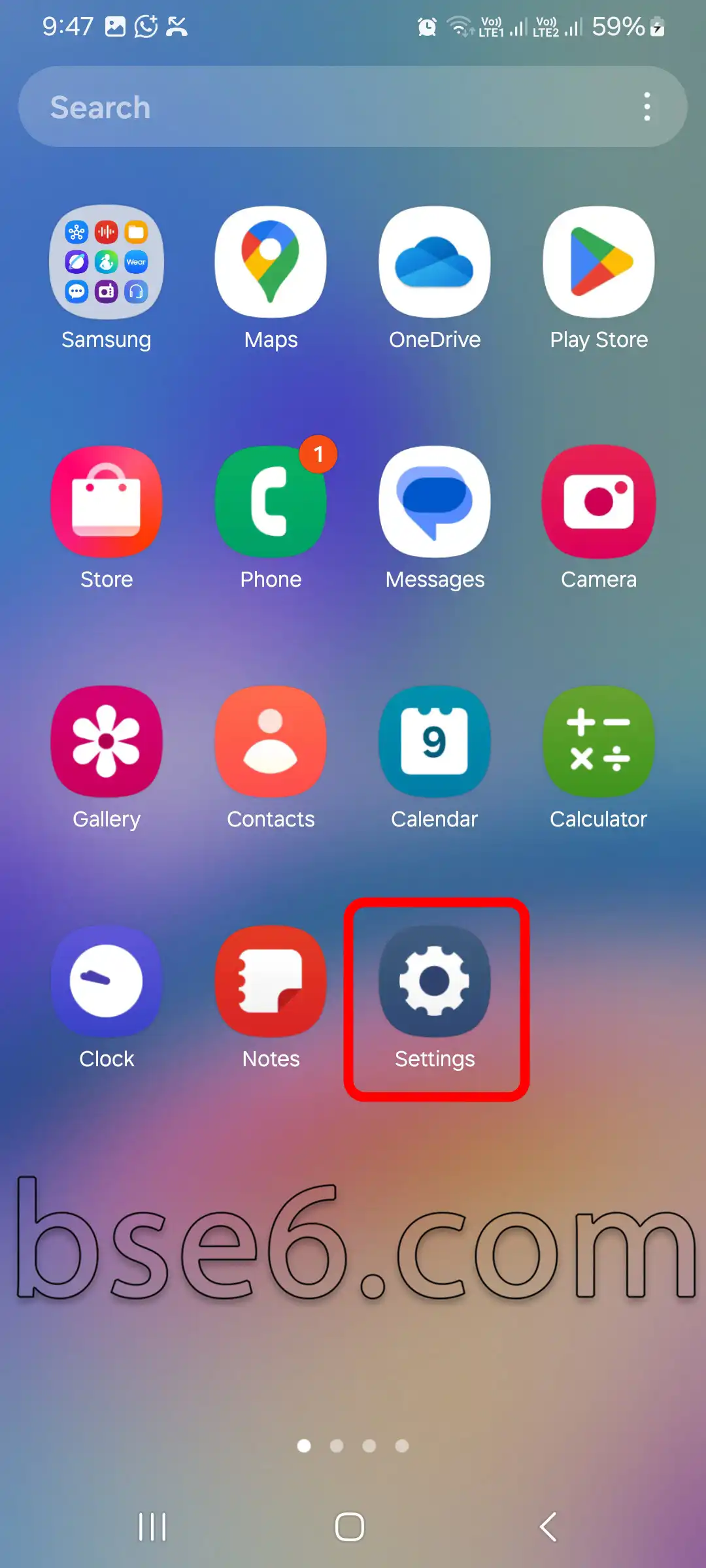
1- Tap “Settings.”
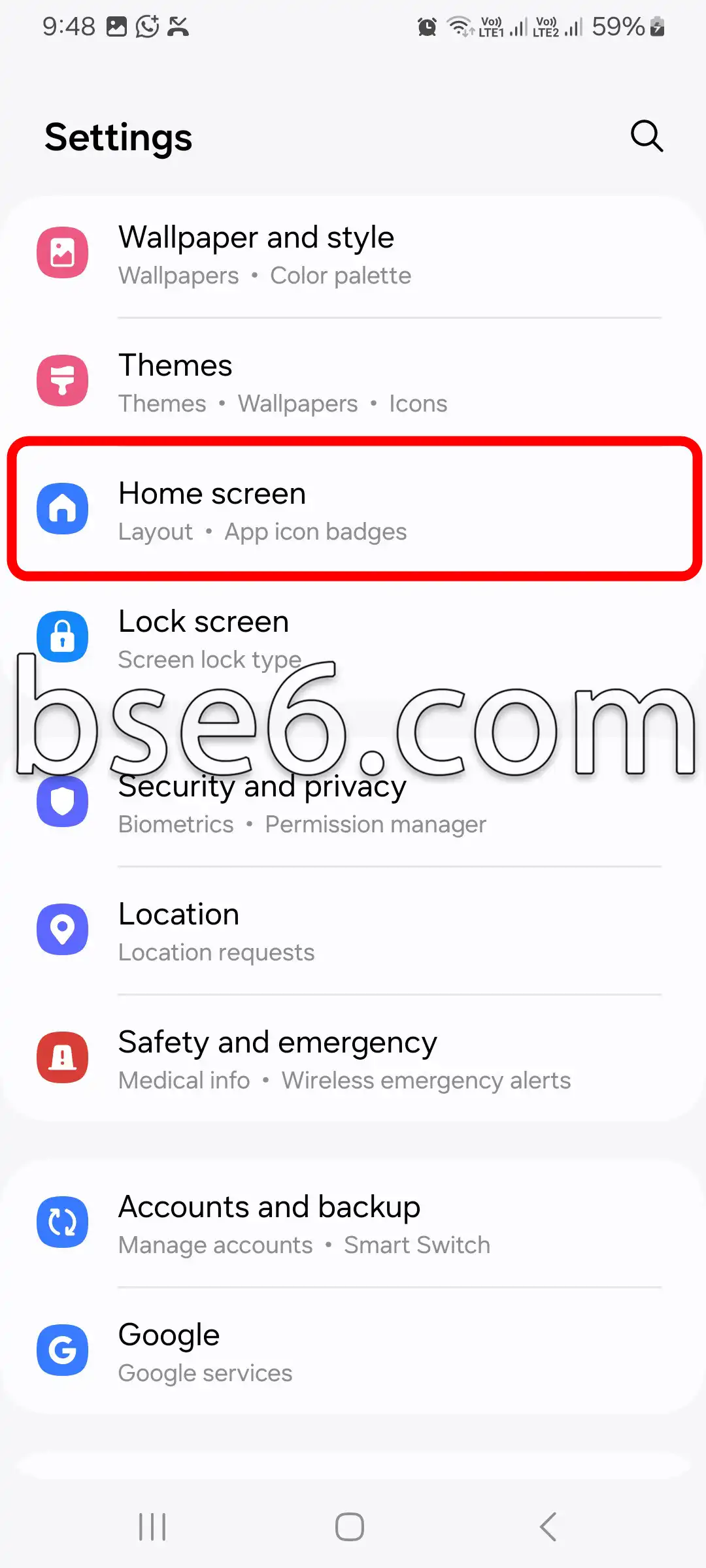
2- Scroll down a little, then tap “Home screen.”
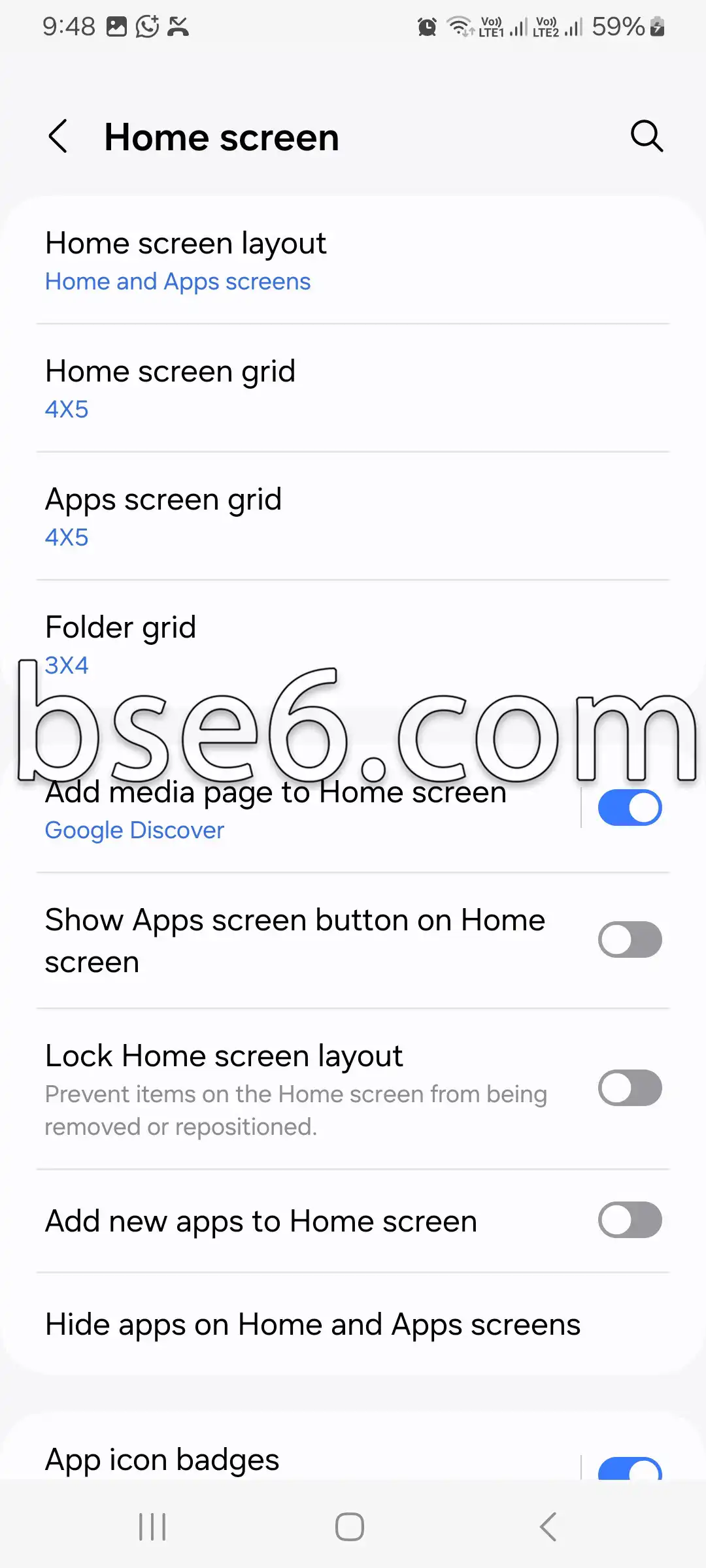
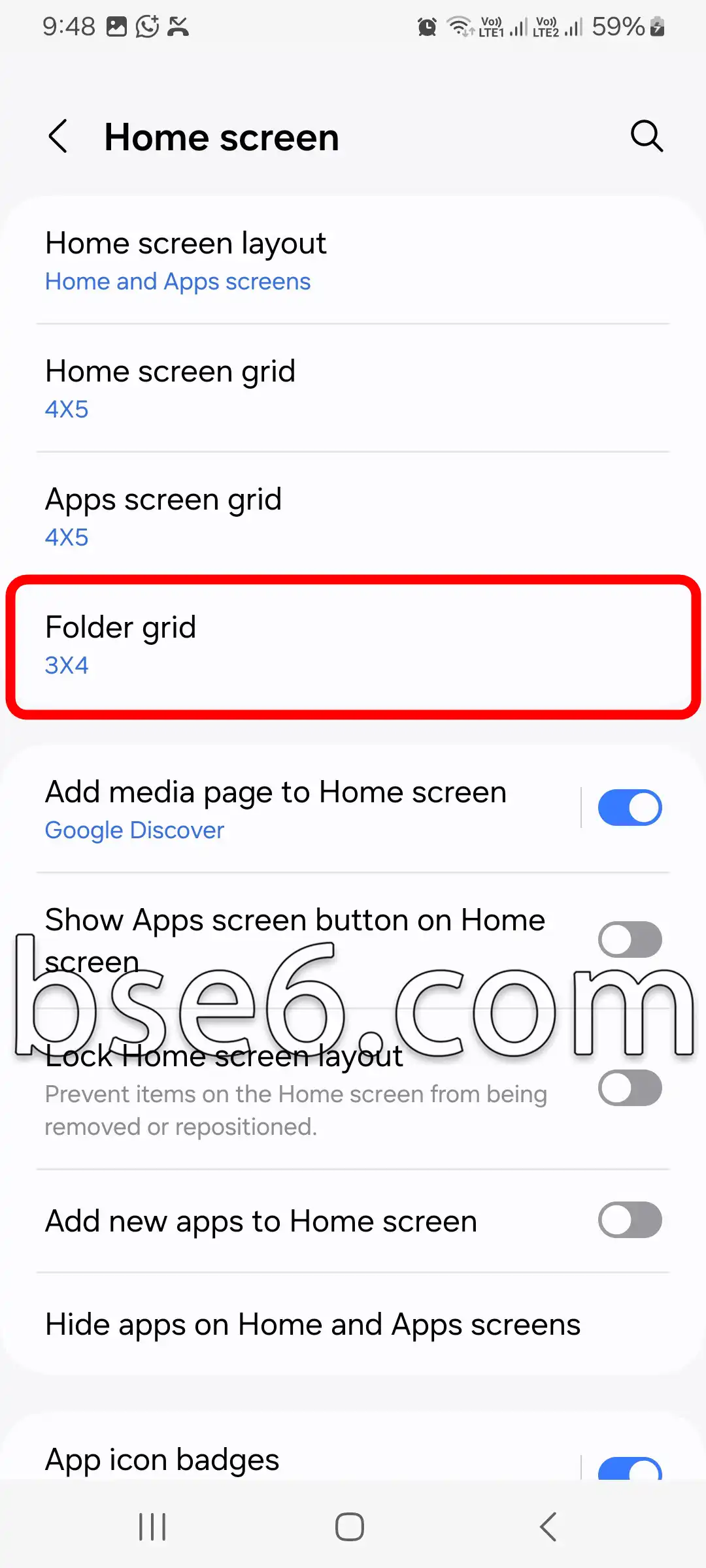
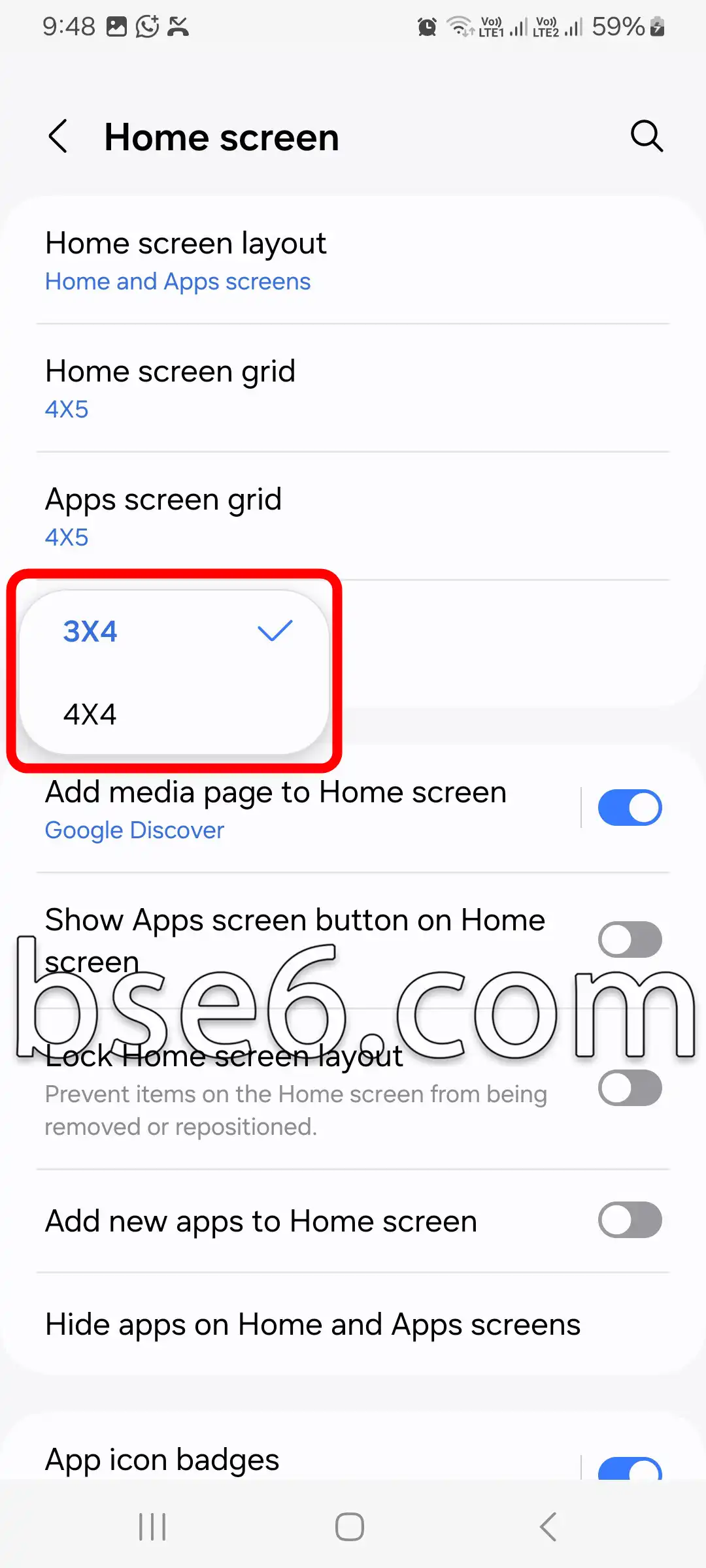
3- In the “Home screen” section, you’ll find several options for customizing the layout. Among the most notable are:
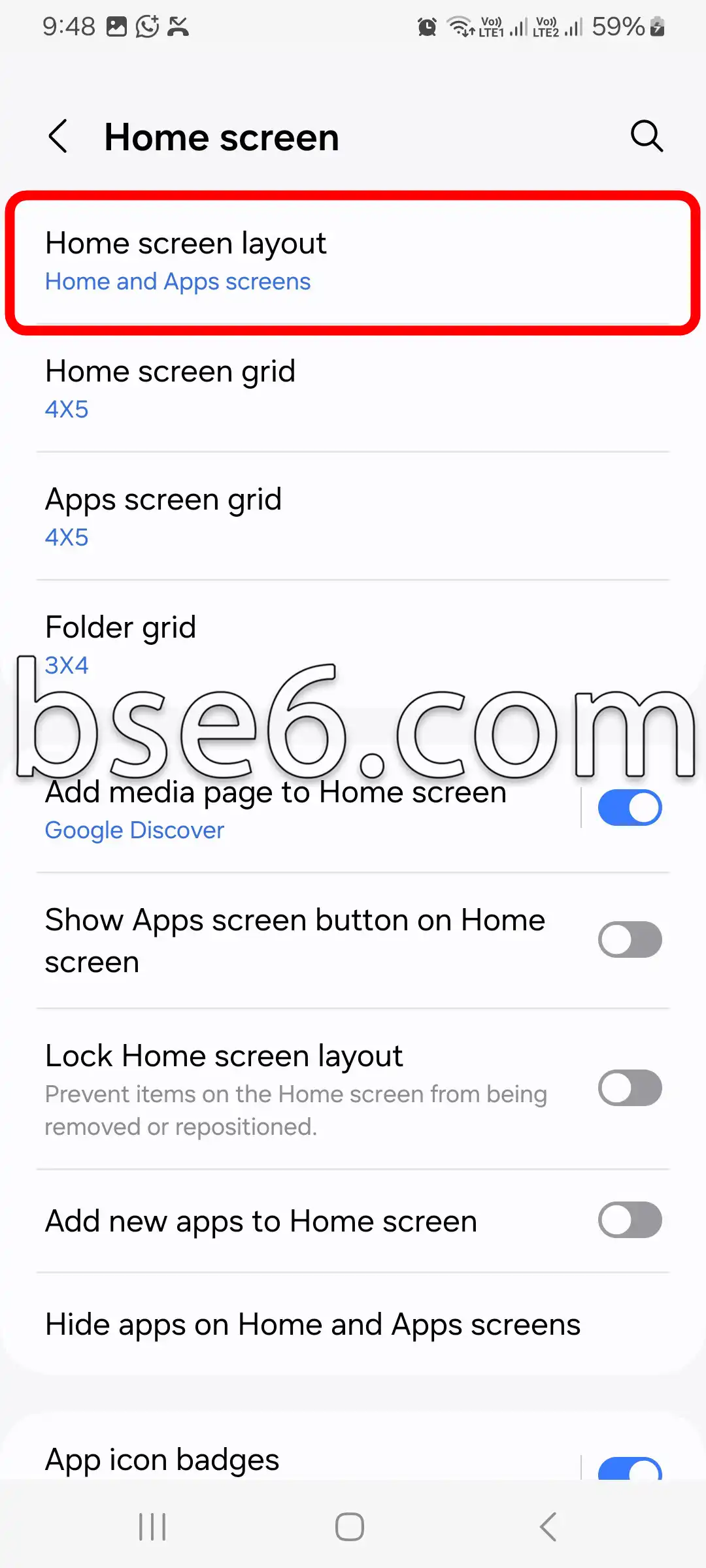
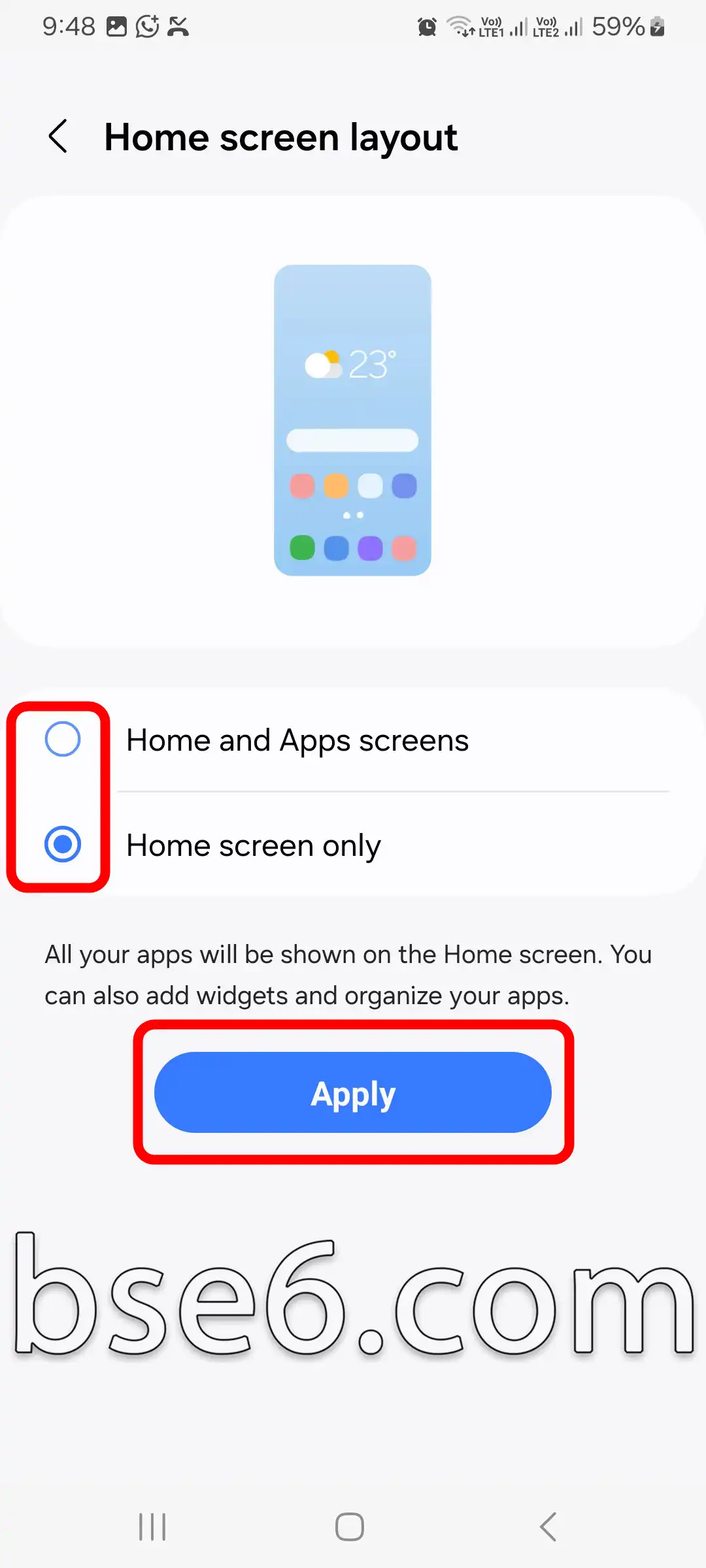
Home screen layout: Choose whether you want only the Home screen or the Home screen and Apps screen. Tap “Apply” to save your changes.
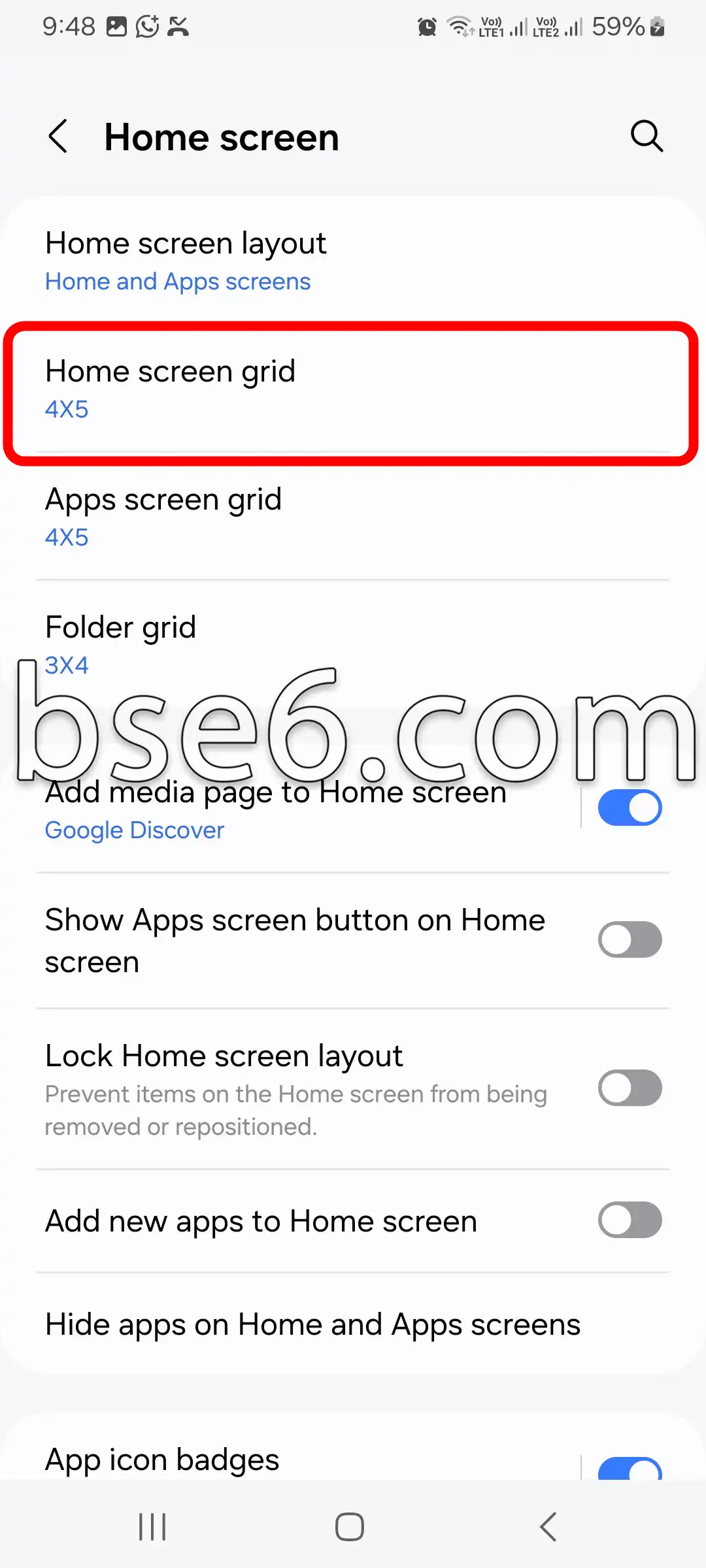
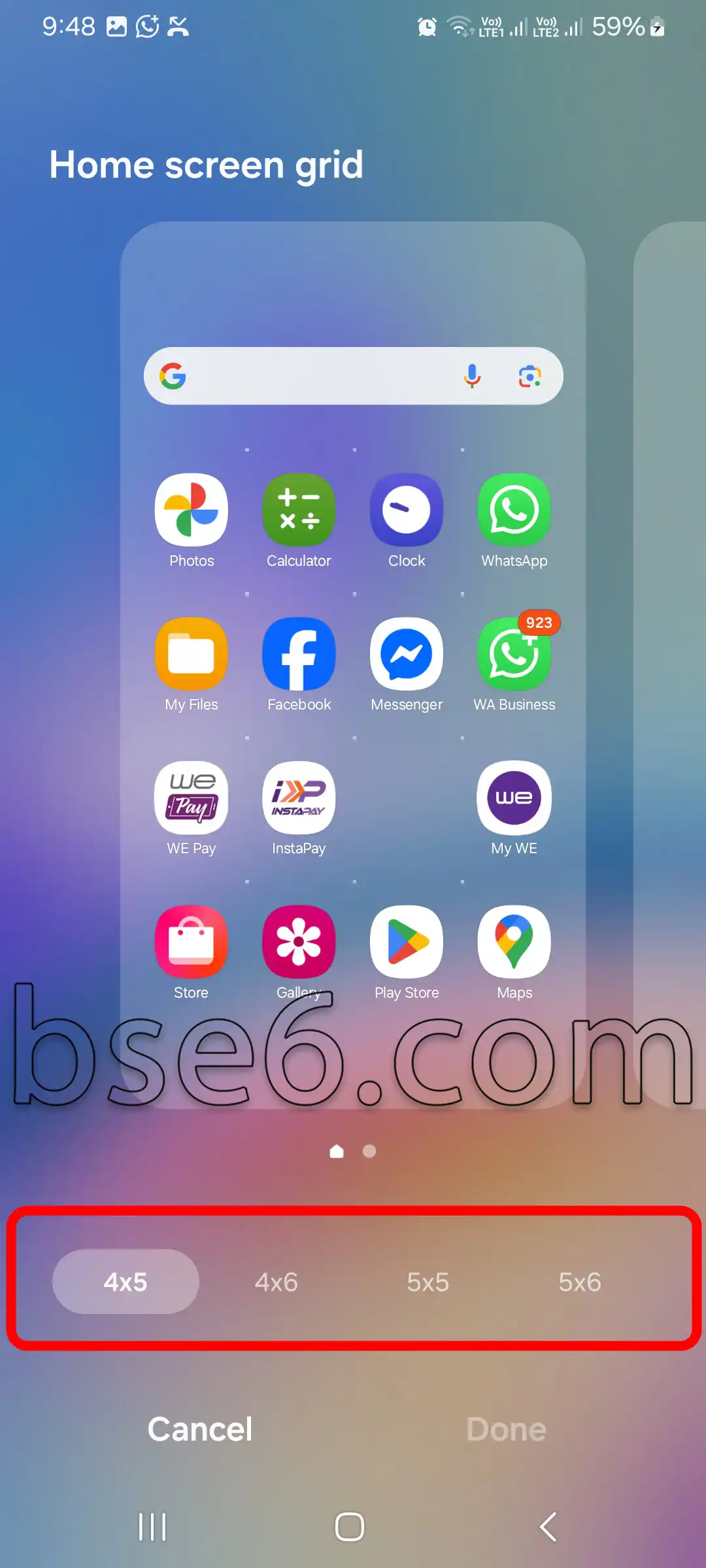
Home screen grid: You can change how many apps appear in each row and column, such as 4×5 or 5×5. Open Home screen grid, choose the option that suits you, and tap “Done.”
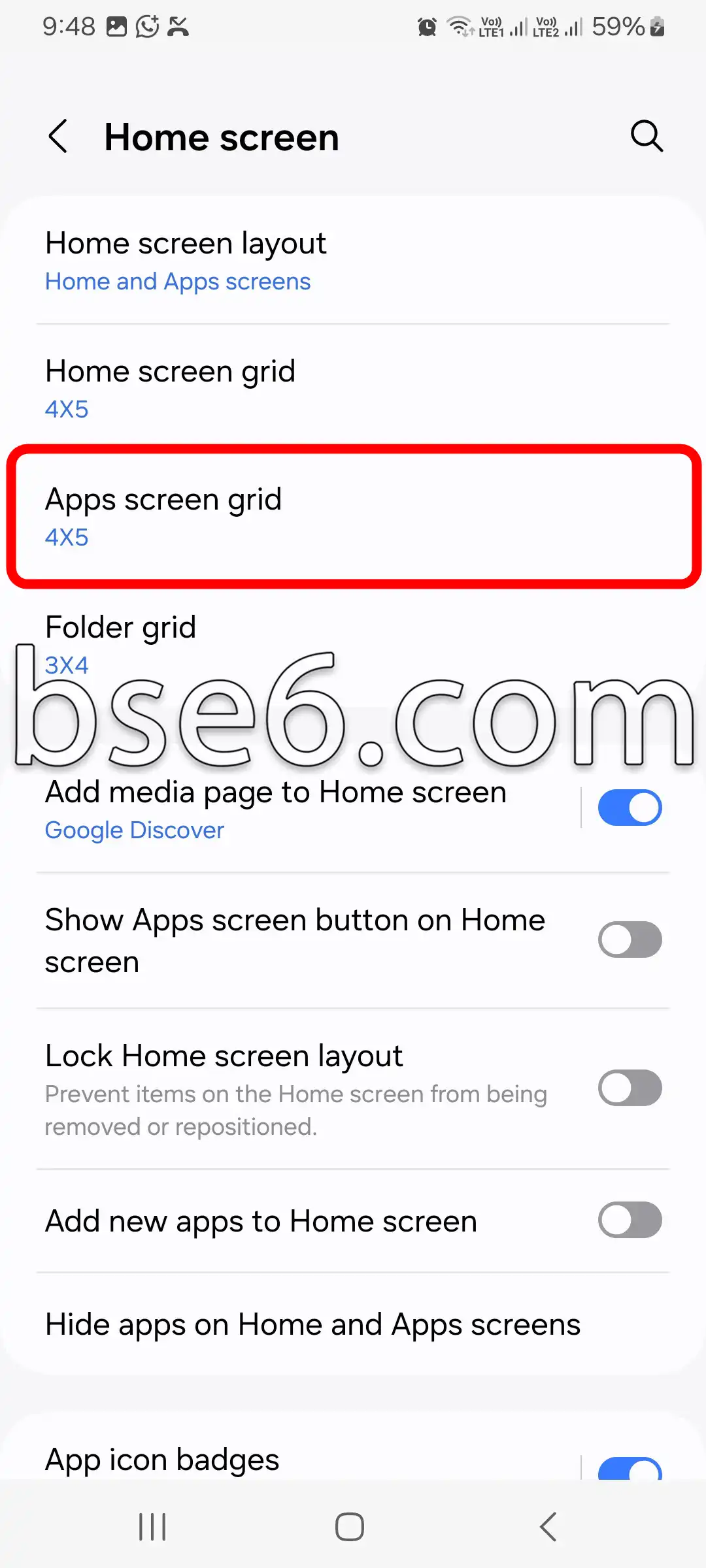
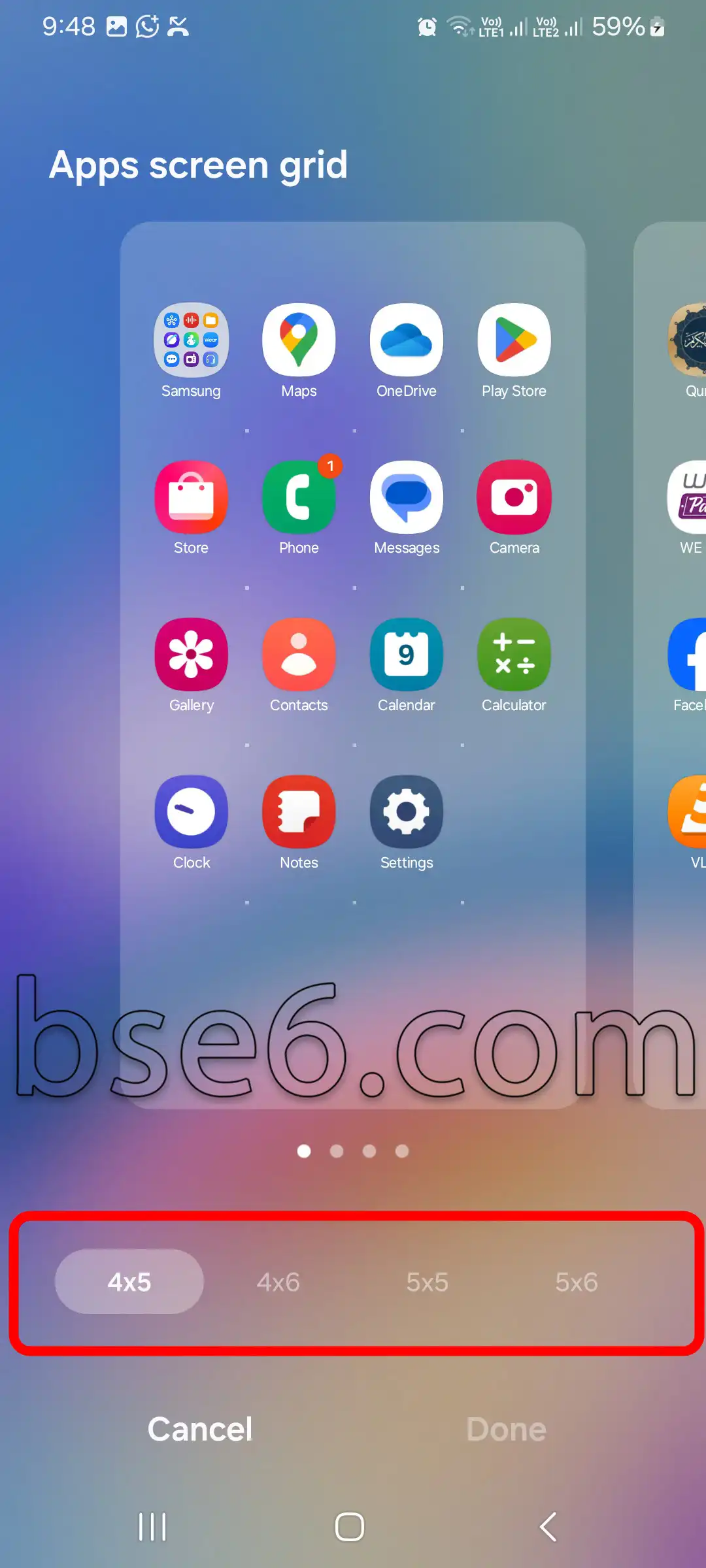
Apps screen grid: You can control the appearance and arrangement of apps in the app drawer. Go to the Apps screen grid, choose the option that suits you, and tap “Done.”
Automatically add apps to the Home screen (Add apps to Home screen): Enable this option if you want new apps to be added directly to the Home screen.
Best Ways to Customize the Home Screen Layout on Samsung Galaxy A57 5G
The Home screen layout is one of the standout features of the Samsung Galaxy A57 5G experience. Did you know that customizing this layout can boost your productivity and make the phone easier and more comfortable to use?
Customizing the Home screen layout is not difficult. You can improve icon organization, change their appearance, and customize widgets and the app drawer. In this article, we look at the best ways to customize the Home screen layout on this phone:
- Changing the order of icons and apps:
By long-pressing any app, you can drag it to the spot that works best for you. Rearranging icons makes it easier to quickly access what you use every day. - Customizing widgets (Widgets):
The Android system on the Galaxy A57 5G lets you add widgets, such as weather or calendar, with a long press on the Home screen and then tapping “Widgets.” Choose the ones that suit your needs and arrange them according to your priorities. - Adjust icon size and the grid:
Go to Home screen settings and choose “Home screen layout.” You can adjust the number of rows and columns according to your preferences, giving you more or less space for icons. - Using launcher apps:
If you want more customization, you can install launcher apps such as Nova Launcher or Microsoft Launcher, which offer extensive options for changing the look and layout of your phone.
The value of these options lies in the great flexibility they offer, as customizing the Home screen layout on the Samsung Galaxy A57 5G makes the phone better suited to each user’s needs. Always rely on trusted sources such as the official user guide or leading forums like the Samsung Community to get up-to-date and effective tips.