

Hide apps on your Samsung Galaxy A57 5G has become essential for maintaining privacy and keeping the Home screen organized. Did you know you can easily hide sensitive apps through the device settings without installing any third-party app? Hiding apps takes only a few simple but effective steps to keep what you choose away from prying eyes. In this guide, we’ll explain how to hide apps on the Samsung Galaxy A57 5G, with proven tips from tech experts on the safest methods, plus answers to the most common questions about phone performance after hiding an app. Read on to learn how to better protect your digital identity and improve your everyday user experience.
How to Hide Apps on the Samsung Galaxy A57 5G
Hiding apps is a task many smartphone users want to master, especially when they need to protect their privacy or organize the app drawer. If you own a Samsung Galaxy A57 5G, Android gives you effective ways to do this without complicated third-party apps or a separate app-hiding tool.
Steps to hide apps on the Samsung Galaxy A57 5G:
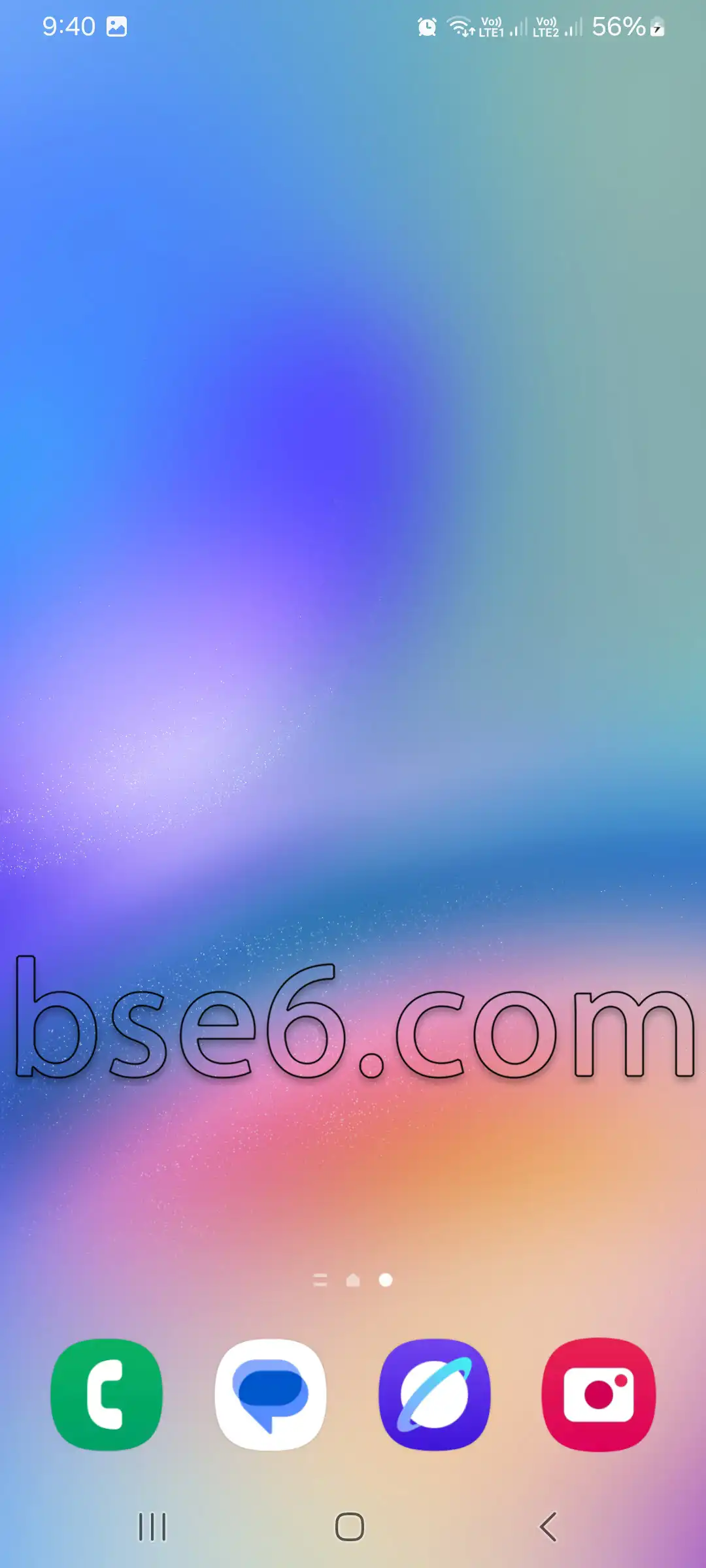
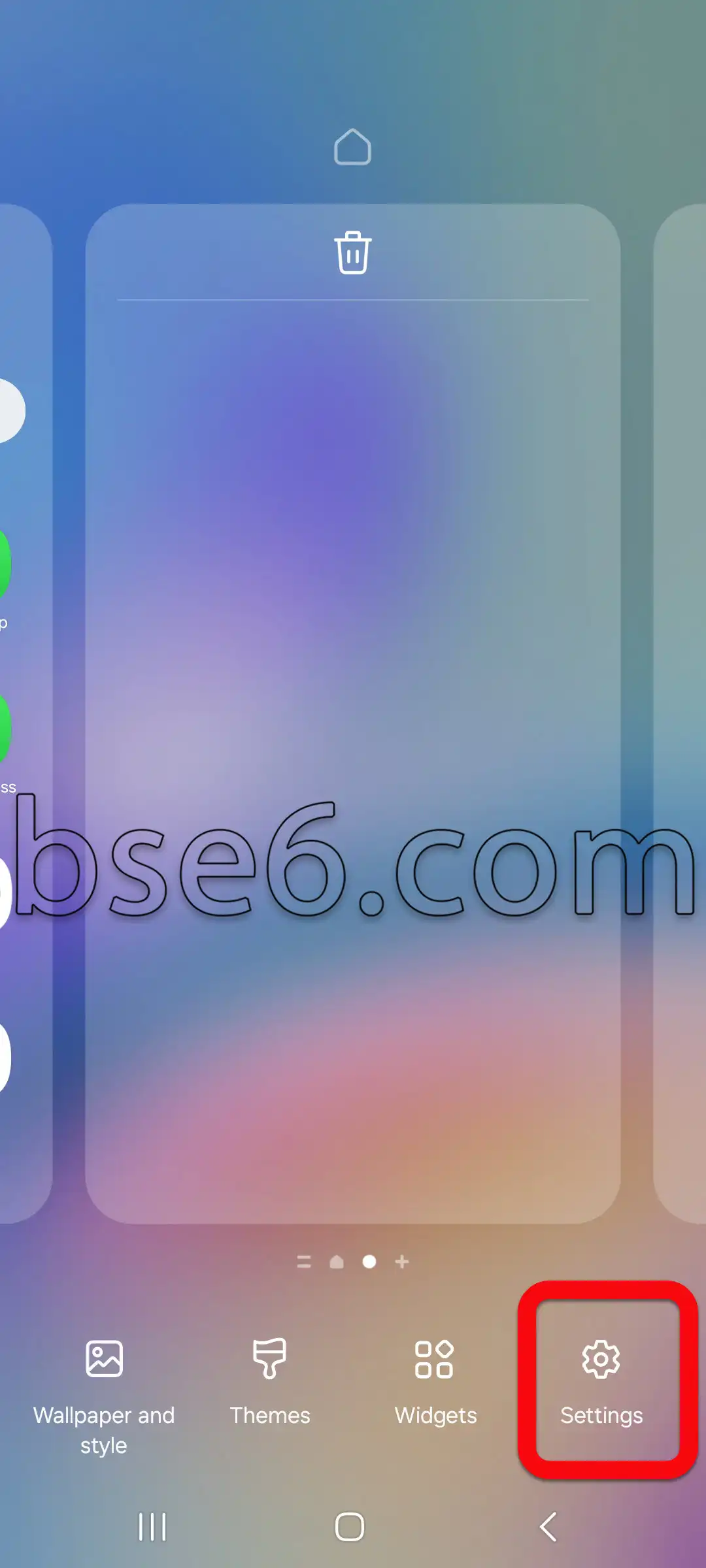
Go to the Home screen, touch and hold an empty area, then choose “Settings.”
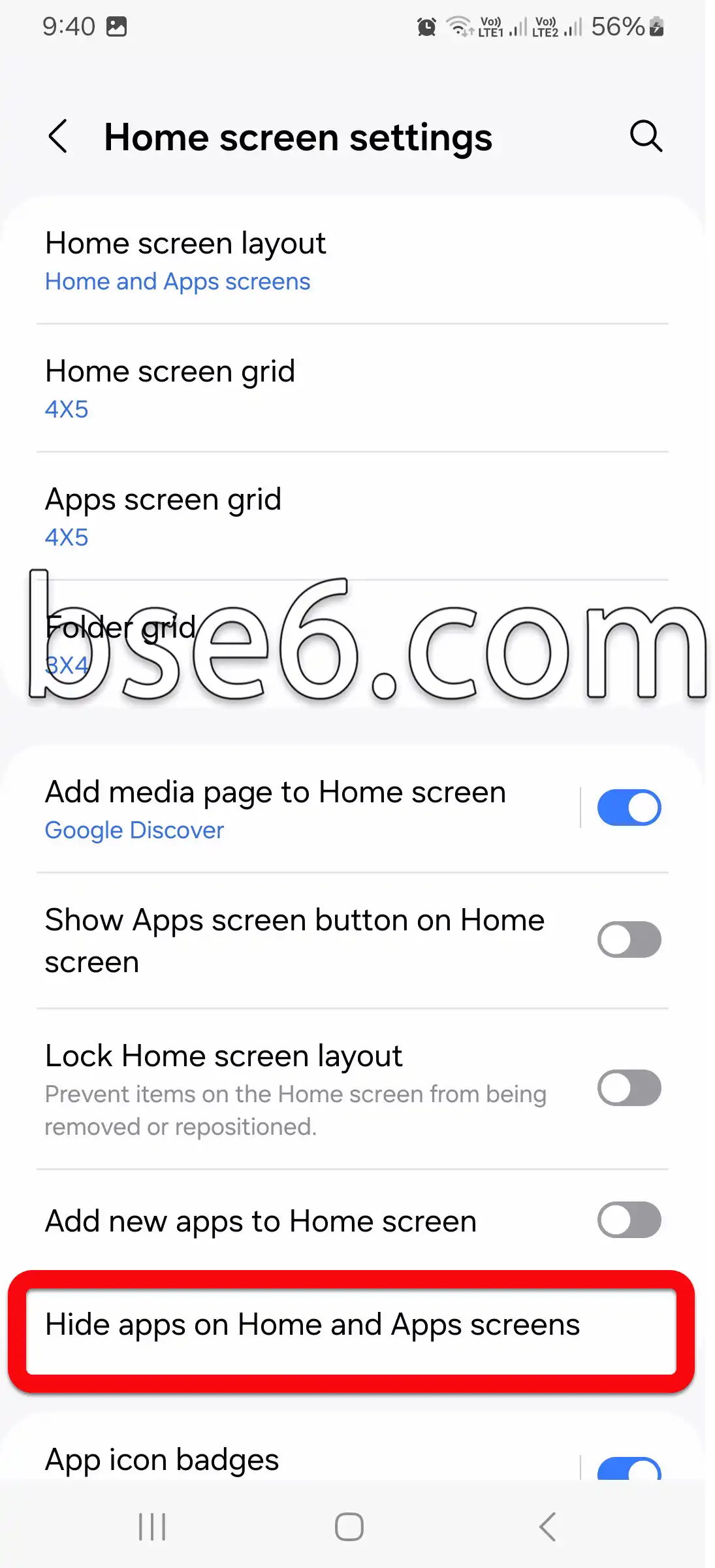
In the Home screen settings, look for “Hide apps on Home and Apps screens,” then tap it.
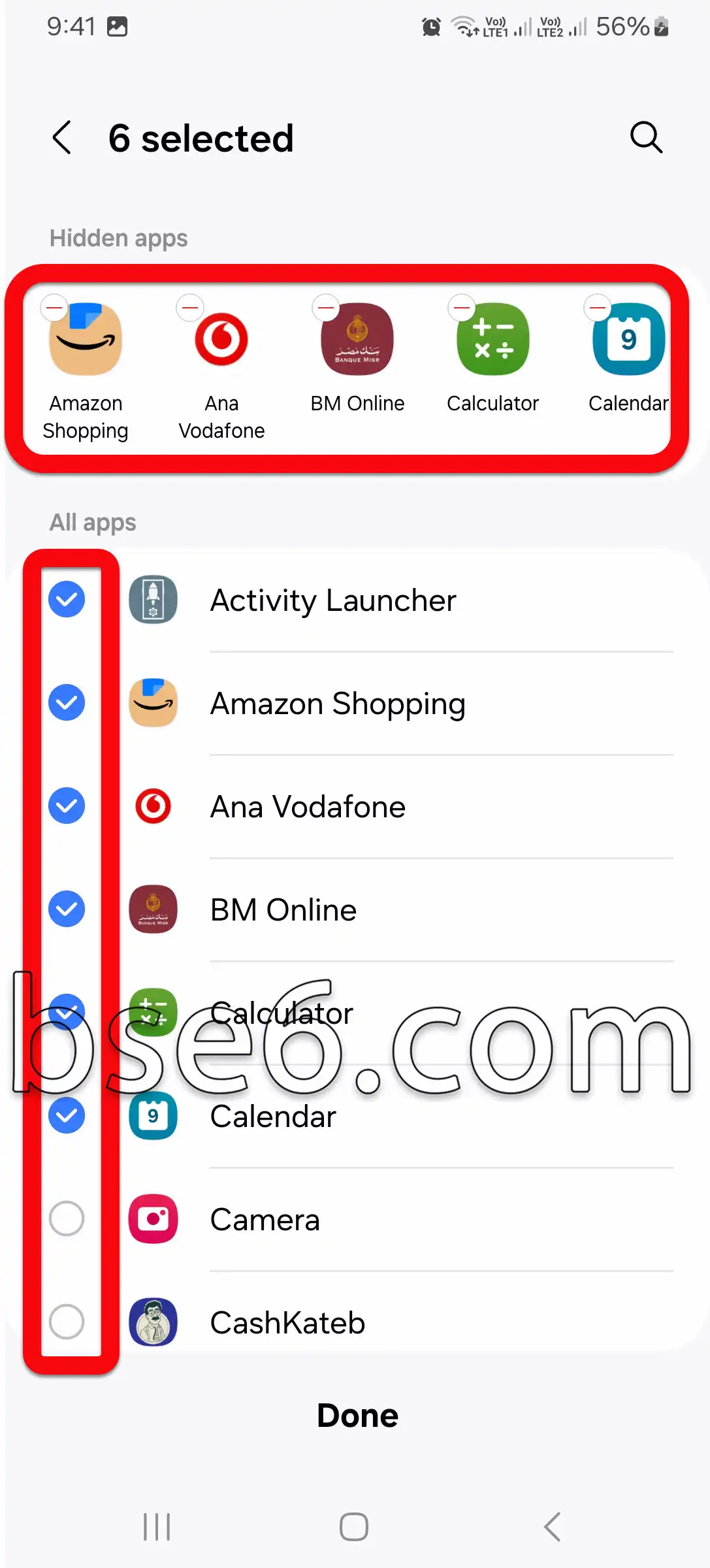
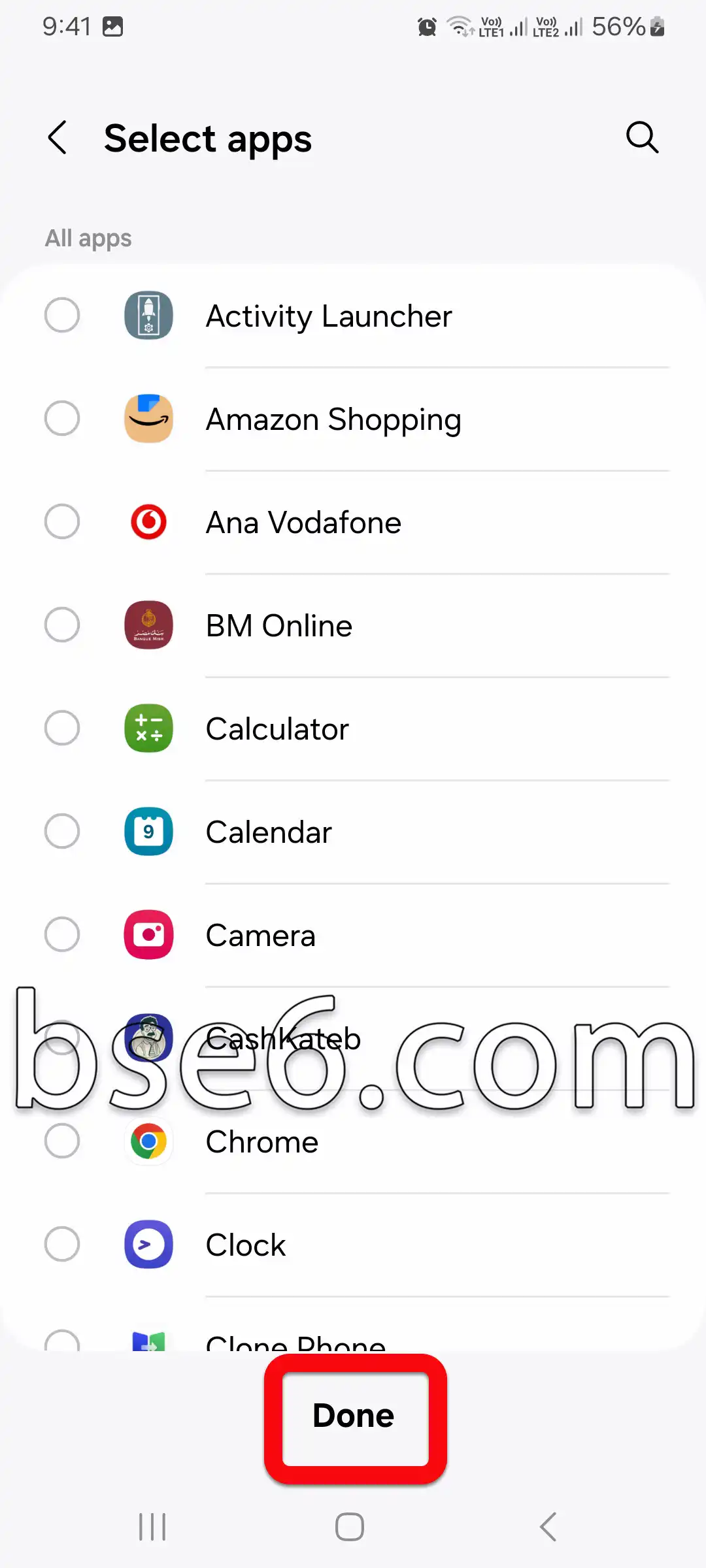
A list of all installed apps will appear. Simply tap the icon of the app you want to hide.
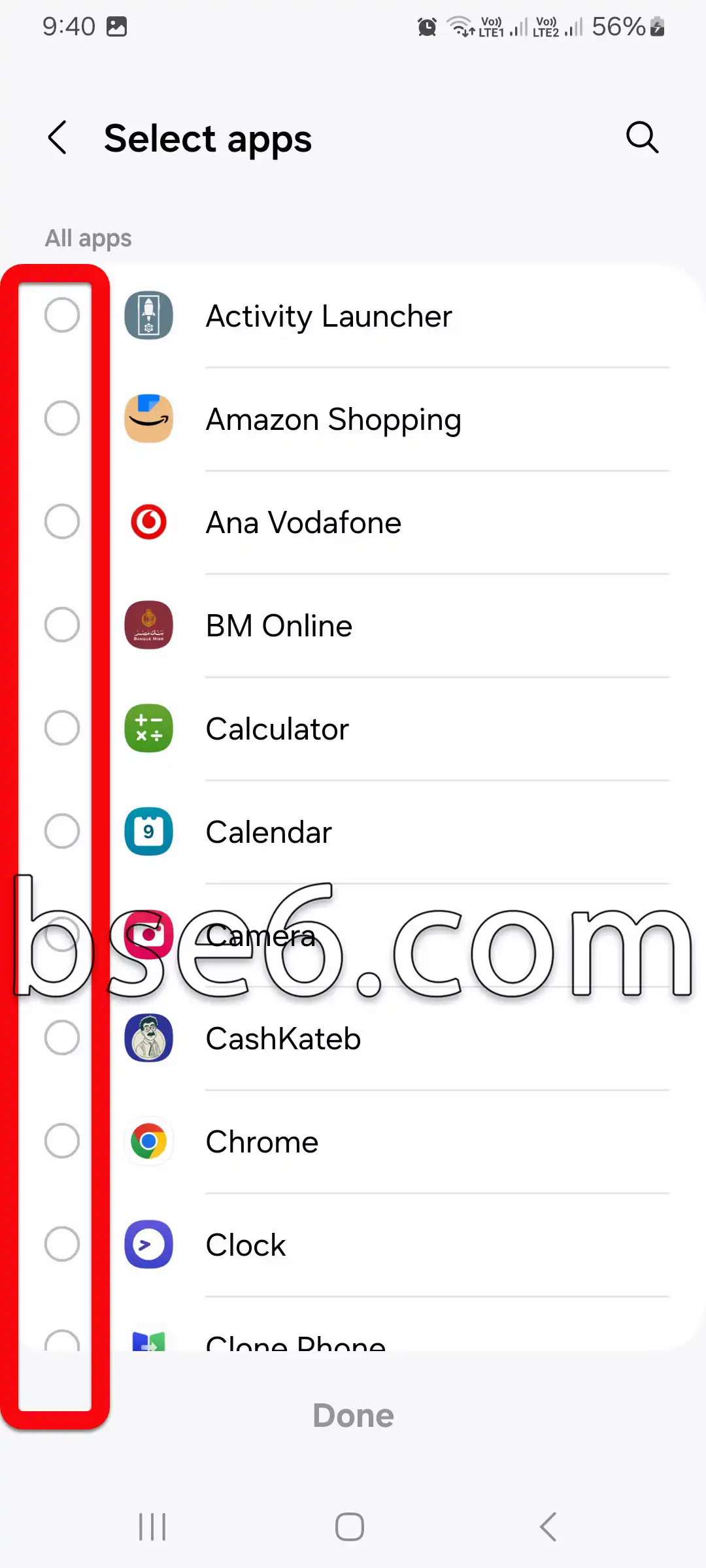
After selecting the apps, choose “Done” or “Save” to save your changes.
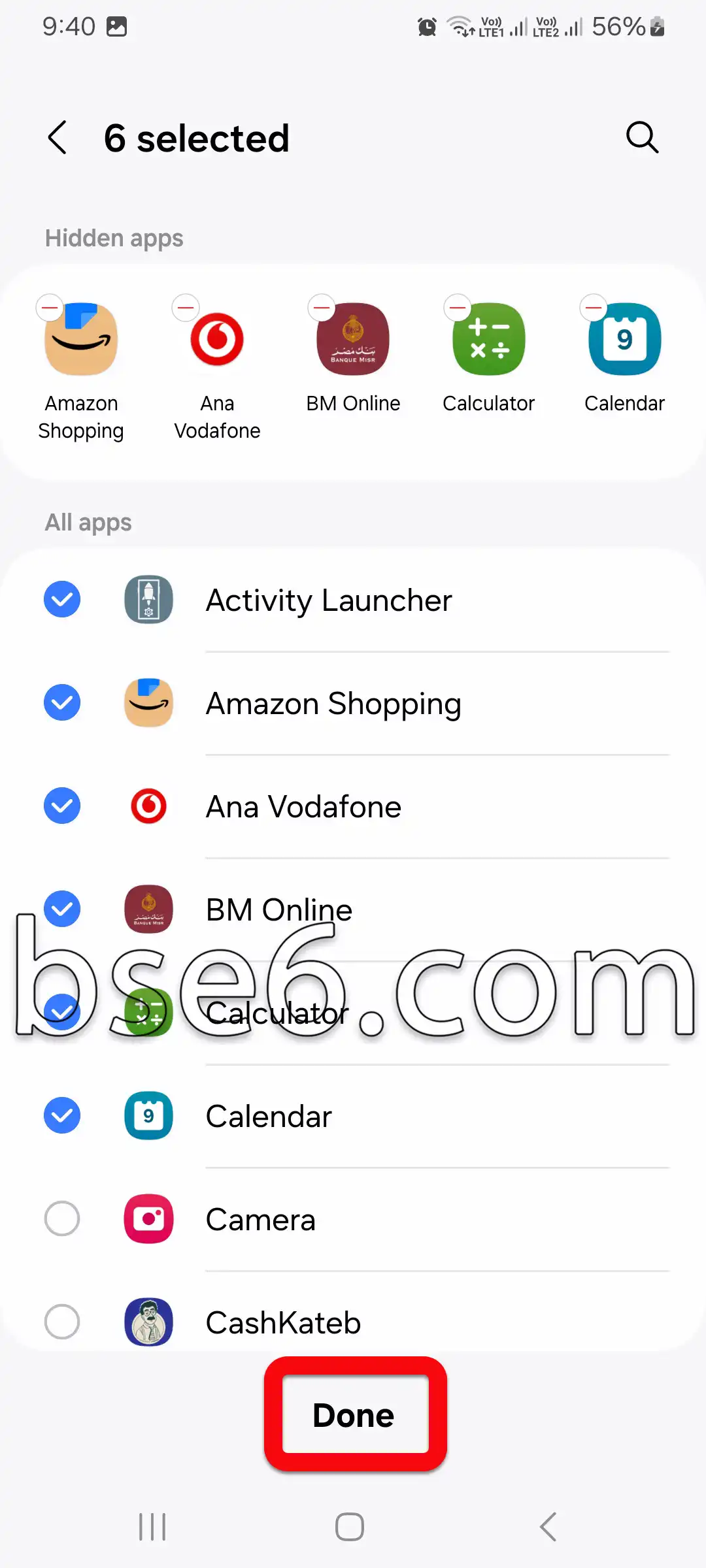
You will now notice that the selected apps have been removed from the Home screen and the app drawer.
You can go back and show hidden apps again by following the same steps, clearing the selection for the app you want, and tapping “Done” or “Save.” This process gives you extra privacy; without an additional password or third-party tool, the apps remain hidden from prying eyes.
Benefits and best practices:
- These steps help you organize your apps more effectively, especially if you want to reduce clutter or protect your information.
- This built-in method is better than third-party app-hider tools because it does not consume extra device resources or expose your phone to security risks.
- It is fully supported by Samsung and digital privacy experts, and it aligns with Android security policies.
By following these steps, you can improve the security of your device and make your experience more comfortable and private.
Why Hiding Apps Matters for Protecting Your Privacy
Hiding apps can be an essential step in protecting your privacy today. In a world where digital threats are increasing, the ability to hide an app from your phone’s screen has become an important security measure. Hiding apps helps keep sensitive data, such as photos and conversations, away from prying eyes.
Android, especially on Samsung Galaxy A57 5G devices, provides easy ways to hide apps from the main interface. You can simply open Settings, go to “Home screen,” and choose “Hide apps.” Once this option is enabled, the icons for the apps you selected will not appear to anyone using your device. Experts always recommend using this feature to protect banking accounts or social media apps.
Using this step improves phone security and gives users peace of mind. You can refer to Samsung’s guide or specialized data protection resources for more tips on hiding apps.
Detailed Steps to Hide Apps Through Settings
Hiding apps on Samsung Galaxy A57 5G phones has become essential for protecting your privacy and organizing important apps. The app-hiding feature allows users to protect their data from prying eyes. Here is how to hide apps easily through Settings:
- Open “Settings” and tap “Home screen.”
- Scroll down and select “Hide apps on Home and Apps screens.”
- A list of all installed apps will appear.
- Select the app you want to hide from the list.
- Tap “Apply” or “Done” to confirm your selection.
This feature helps Android users protect information and maintain personal privacy without disabling any app. Specialized sources such as the “official Samsung website” recommend using this feature to keep important apps private.
How to Easily Restore Hidden Apps
Hiding apps is a common way to protect your privacy, but you may sometimes need to restore an app that was hidden by mistake. On the Samsung Galaxy A57 5G, you can bring hidden apps back with a few simple, effective steps so they are easy to access again.
To do this, open the Apps screen, then tap “Home screen settings.” Next, select “Hide apps on Home and Apps screens,” then deselect the apps you want to restore. Tap “Done” to make the app appear again.
This built-in method is effective for hiding and restoring apps without losing your data. Android experts recommend reviewing your phone settings regularly to keep your apps organized and maintain privacy and security.