
How to Turn On Flash Alerts for Incoming Calls on Samsung Galaxy A57 5G
Flash notification when receiving callsFlash notification when receiving calls has become an essential feature for smartphone users, especially with so many notification sources. Do you want to turn on the flash for call alerts on Samsung Galaxy A57 5G? This feature helps you avoid missing any call, even in noisy places or when your phone is on silent. We’ll walk you through the steps to enable flash notifications through Settings, along with tips for adjusting the flash to avoid distraction, and fixes for common problems when flash notifications do not turn on.
Steps to enable flash notification when receiving calls on Samsung Galaxy A57 5G
Flash notification when receiving calls: Do you know how important it is?
Enabling flash notifications for incoming calls on a Samsung Galaxy A57 5G gives you an effective way to notice calls even in crowded places or when the phone is on silent. This feature uses the camera flash to alert you with a clear blinking light for each incoming call or new notification.
Steps to enable flash notification when receiving calls:
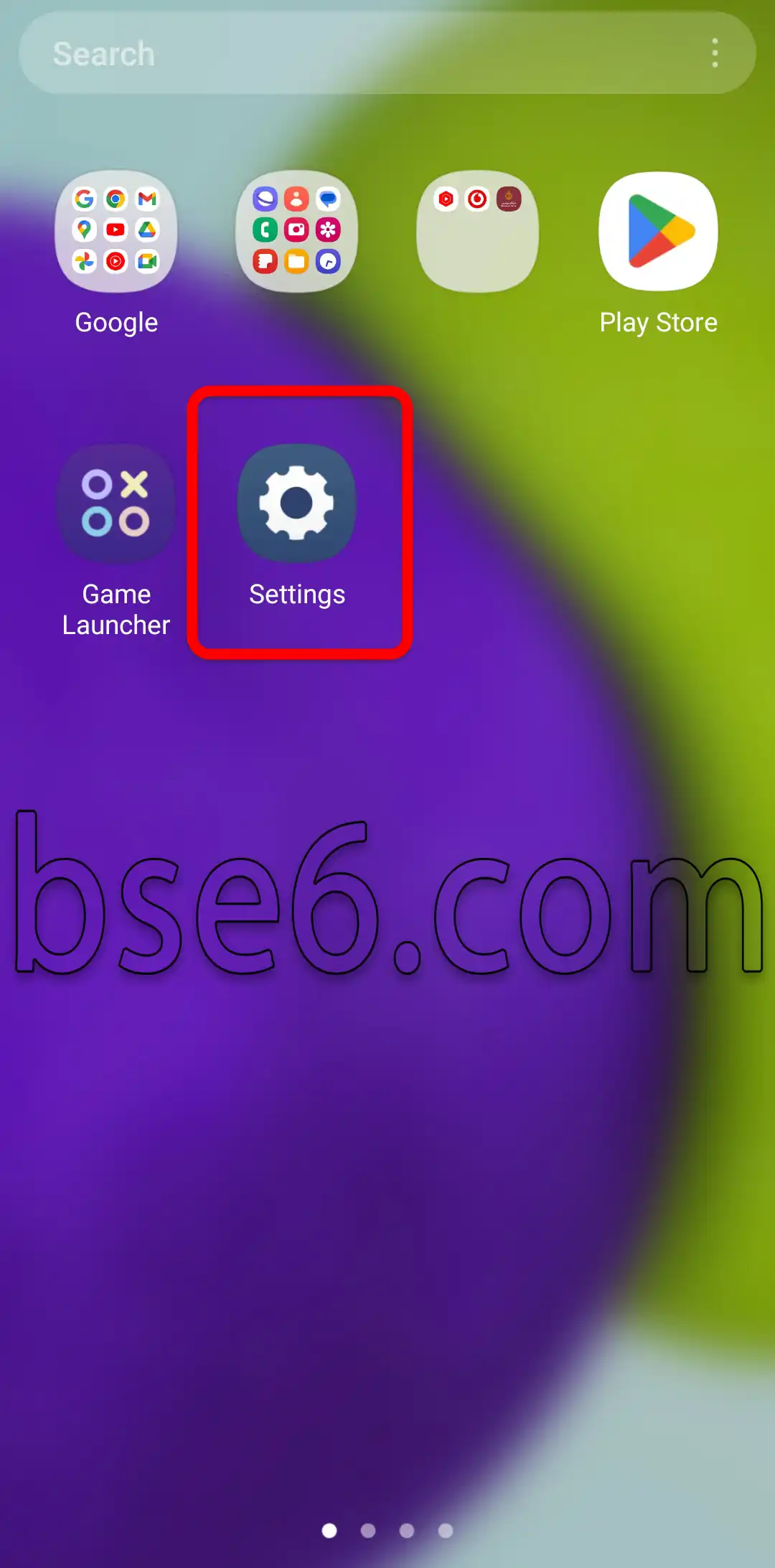
1- Open Settings
Go to the Settings app on your phone.
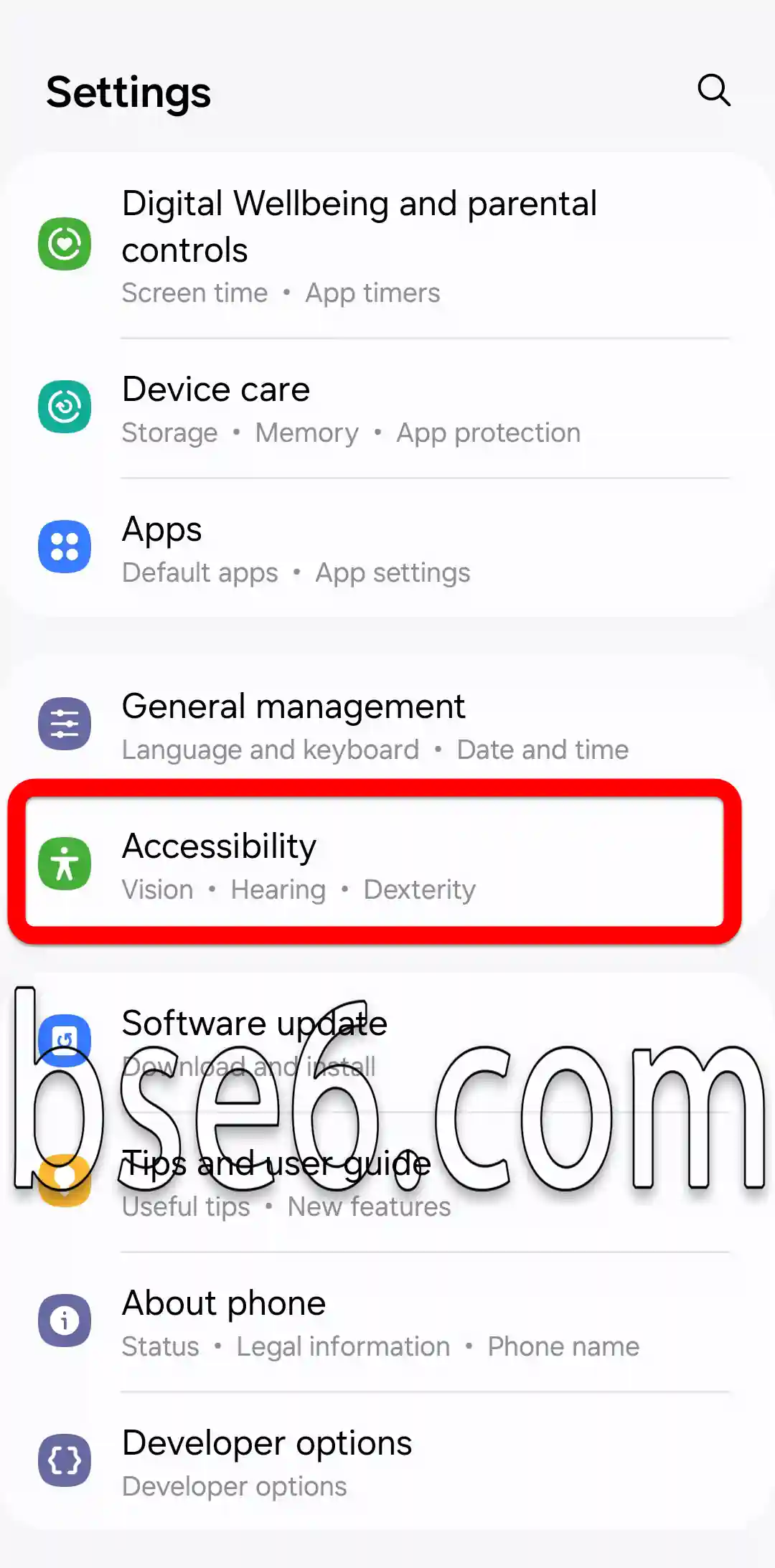
2- Open Accessibility
Look for the Accessibility section; you will usually find it in the main Settings menu near the bottom.
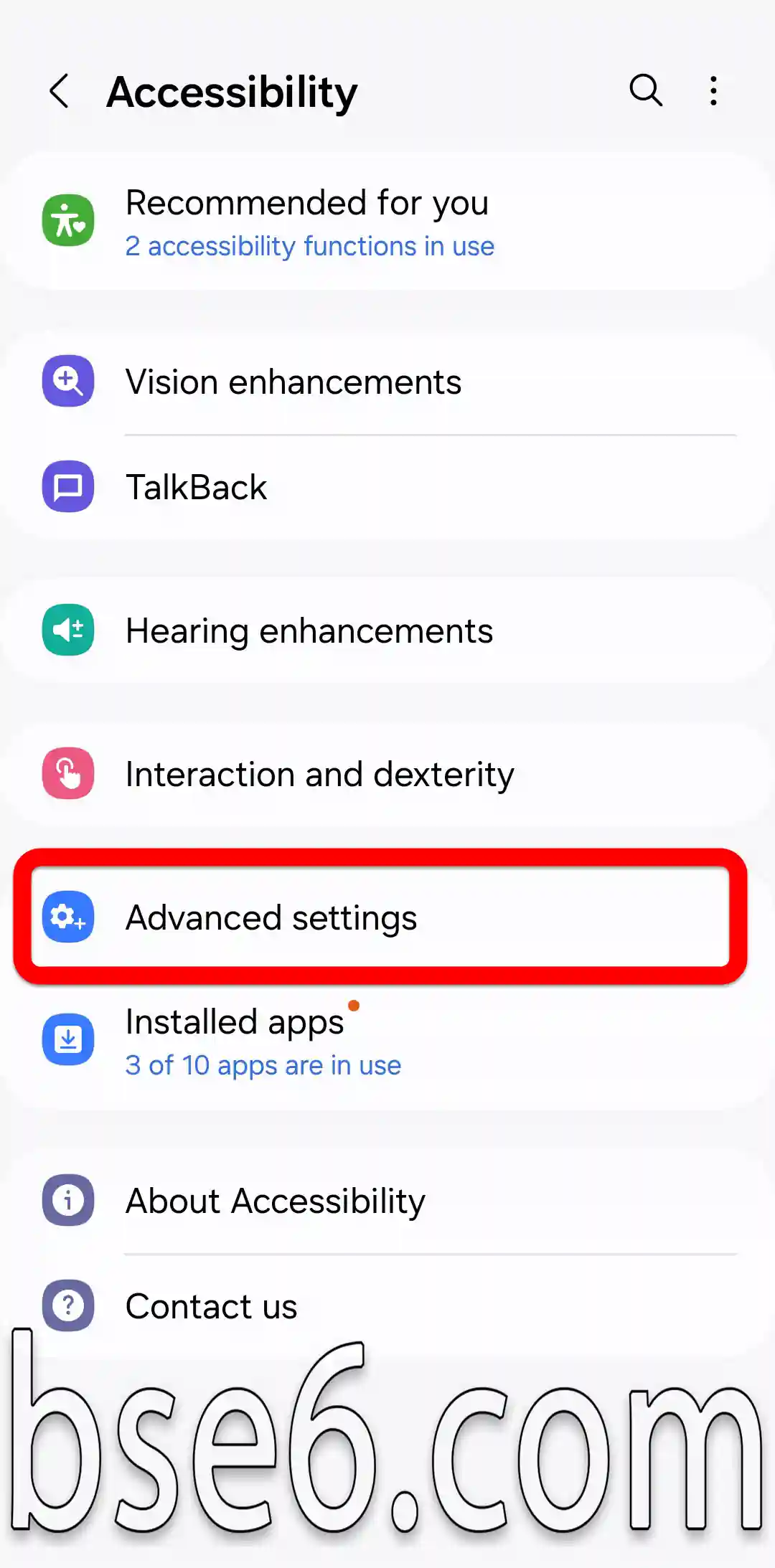
3- Open Advanced settings
Select “Advanced settings,” then “Flash notification.”
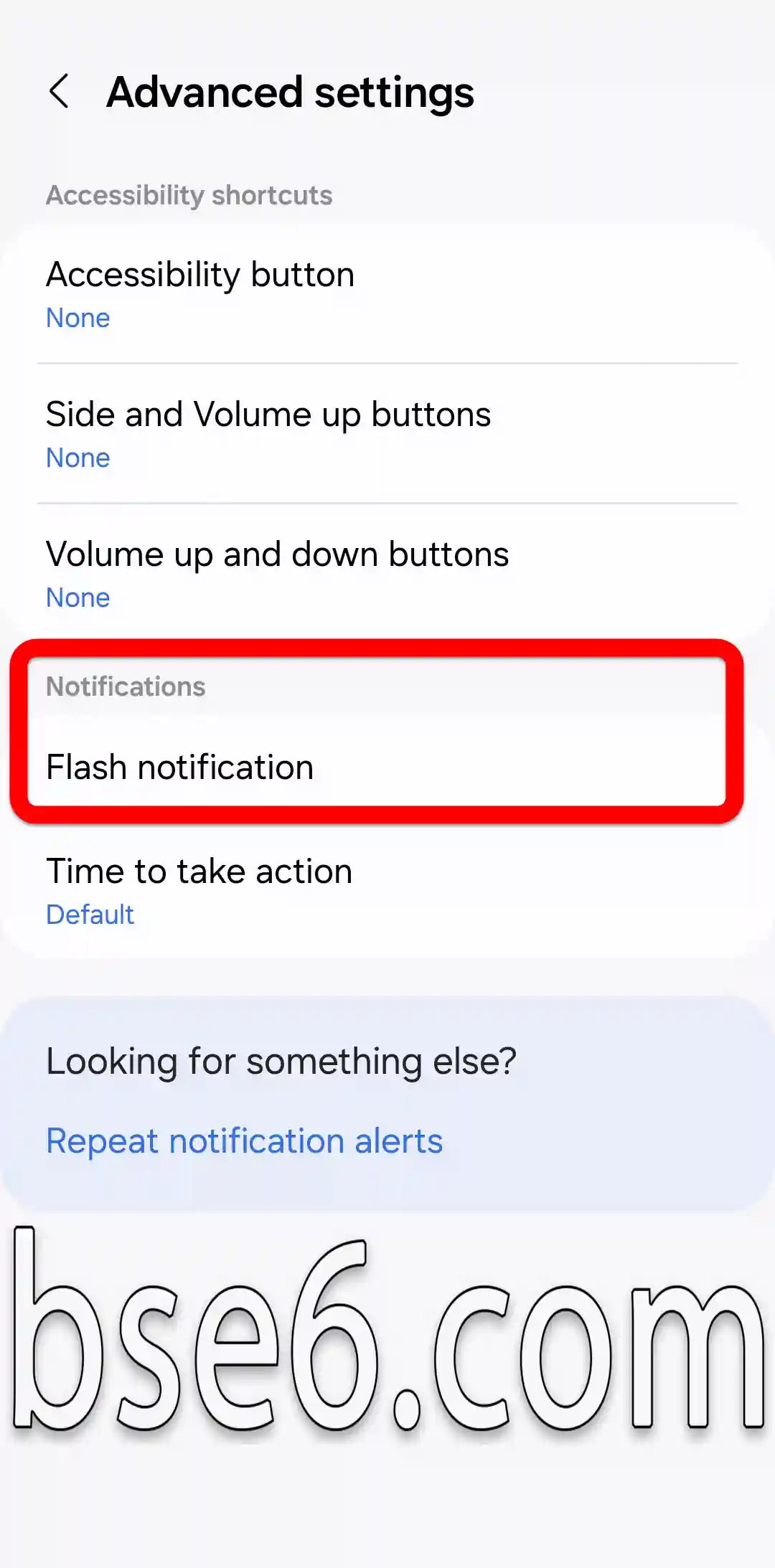
4- Here, you will see the option to make the camera flash blink when calls or notifications are received.
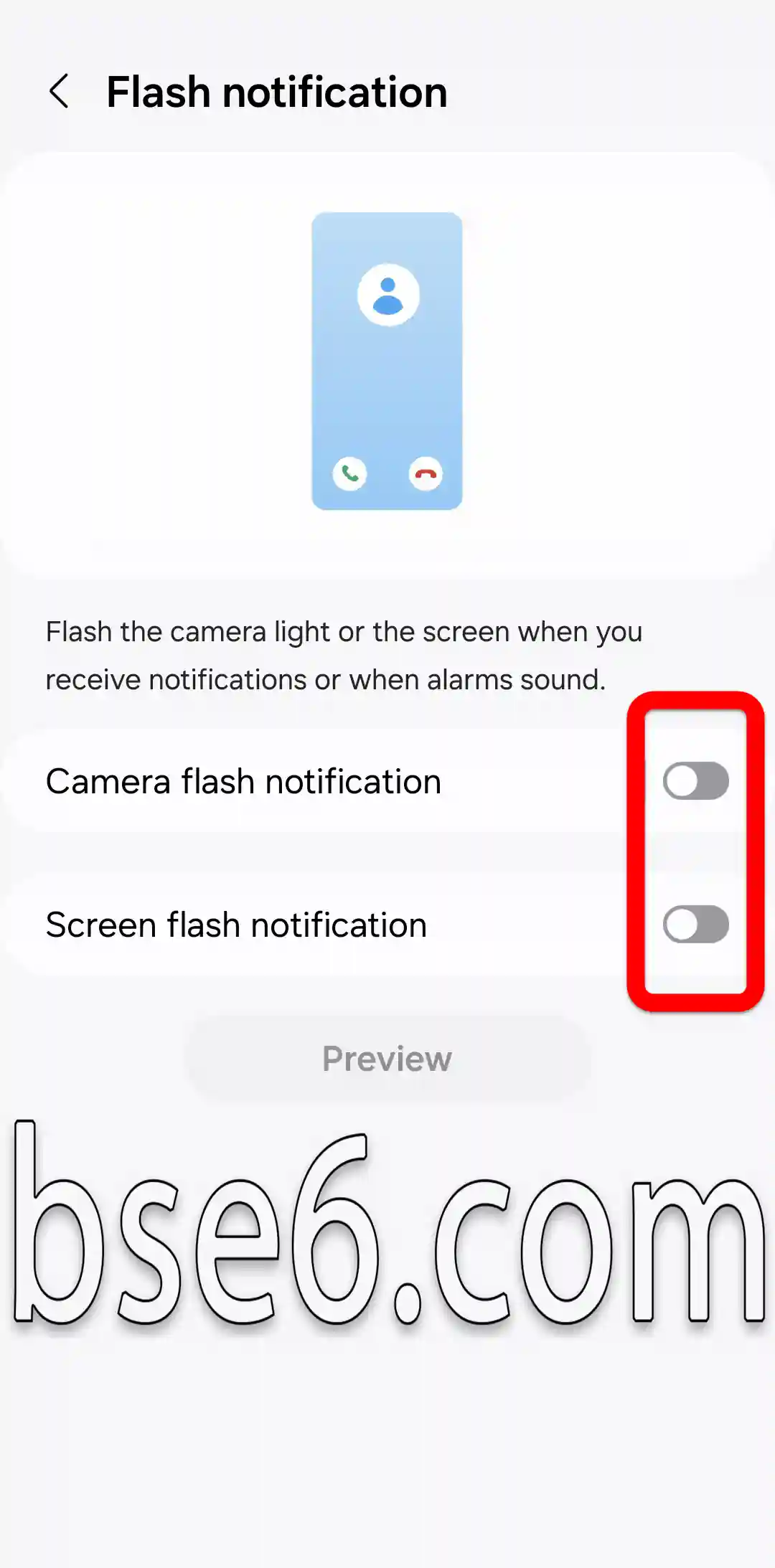
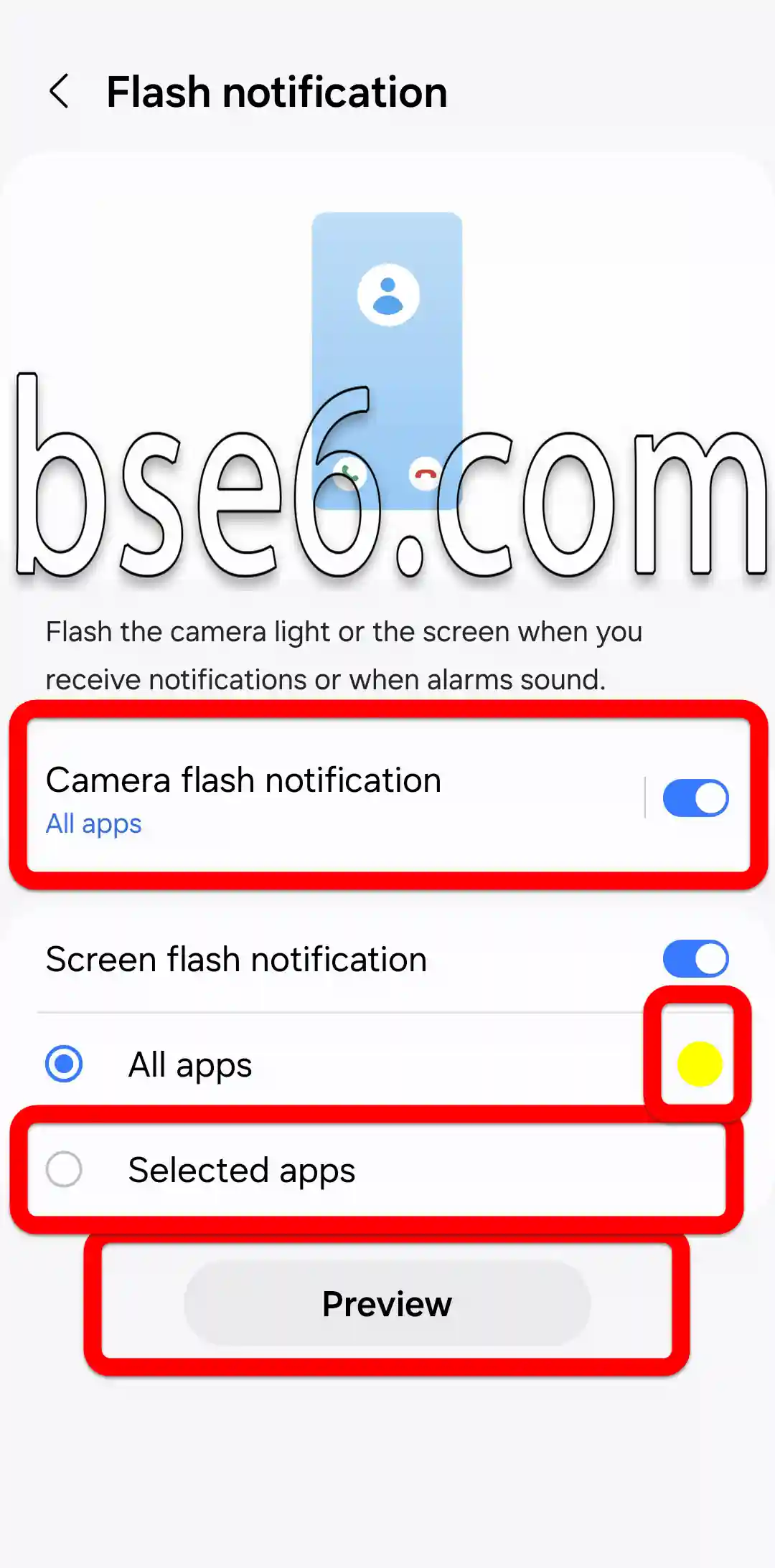
5- Choose the flash type
You can enable camera flash alerts for specific calls or for all incoming calls and notifications, then save and confirm the settings. Make sure your options are saved, and test the feature again by tapping “Preview” or making a test call.
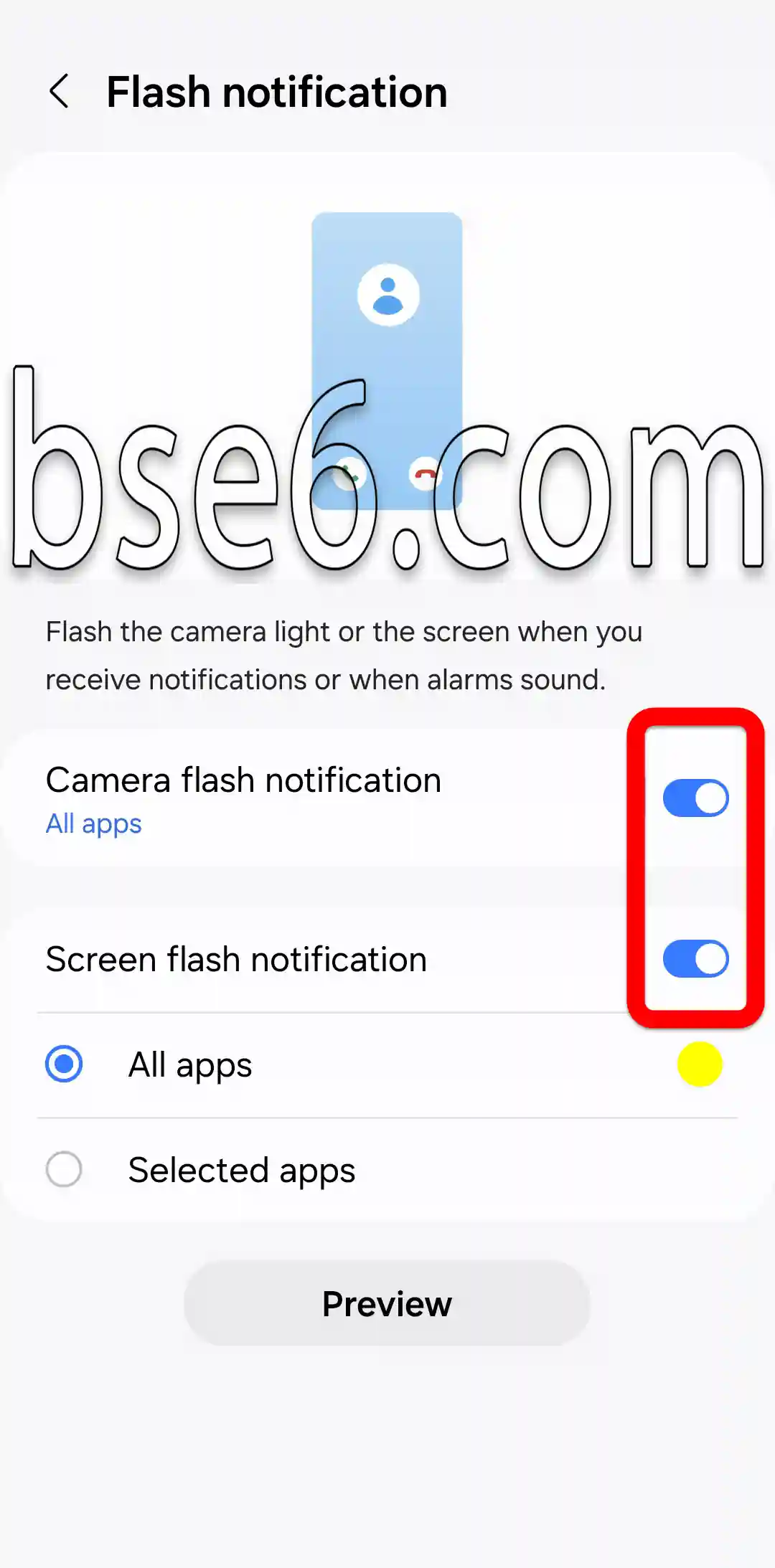
6- To turn off the flash when you receive calls or notifications, disable the selected options shown in the following image.
Benefits and practical uses
This feature is useful for people who work in noisy environments or who are hard of hearing. It also helps ensure you do not miss any important calls thanks to the clear flashing light produced by the camera flash. According to trusted tech sources such as Samsung Support, this is one of the most widely used ways to receive visual alerts.
Turning on the flash alert feature improves your ability to receive important notifications quickly without disturbing others with sound.
Set up flash alerts for incoming calls through the main settings
Flash alerts for incoming calls: How do you make the Samsung Galaxy A57 5G light up automatically?
Do you want to enable flash alerts for incoming calls on your Samsung Galaxy A57 5G? This feature helps you notice incoming calls with a bright flashing light, especially in busy or silent environments.
To turn on this feature:
- OpenSettingson your device.
- Go to theAccessibility.
- Select Advanced settings then Flash notifications.
- Enable the option Flash when calls are received.
The feature increases the chances of you not missing an important call, especially for professionals and people with special needs. According to Samsung, the flash provides an effective visual alert without any audible disturbance. This feature also helps during meetings or in crowded places where it is difficult to hear ringtones.