
Best ways to answer and end calls on Samsung Galaxy A57 5G
Are you looking for the easiest ways to answer and end calls on your Samsung Galaxy A57 5G? Effective call control is one of the biggest advantages of smartphones today. Discover the best options, from tap-to-answer or gesture-based answering, and how to enable auto-answerAlso, we’ll show apps that enhance the calling experience and make the phone easier to use every day.
How do you control the settings for answering and ending calls on the Samsung Galaxy A36 5G?
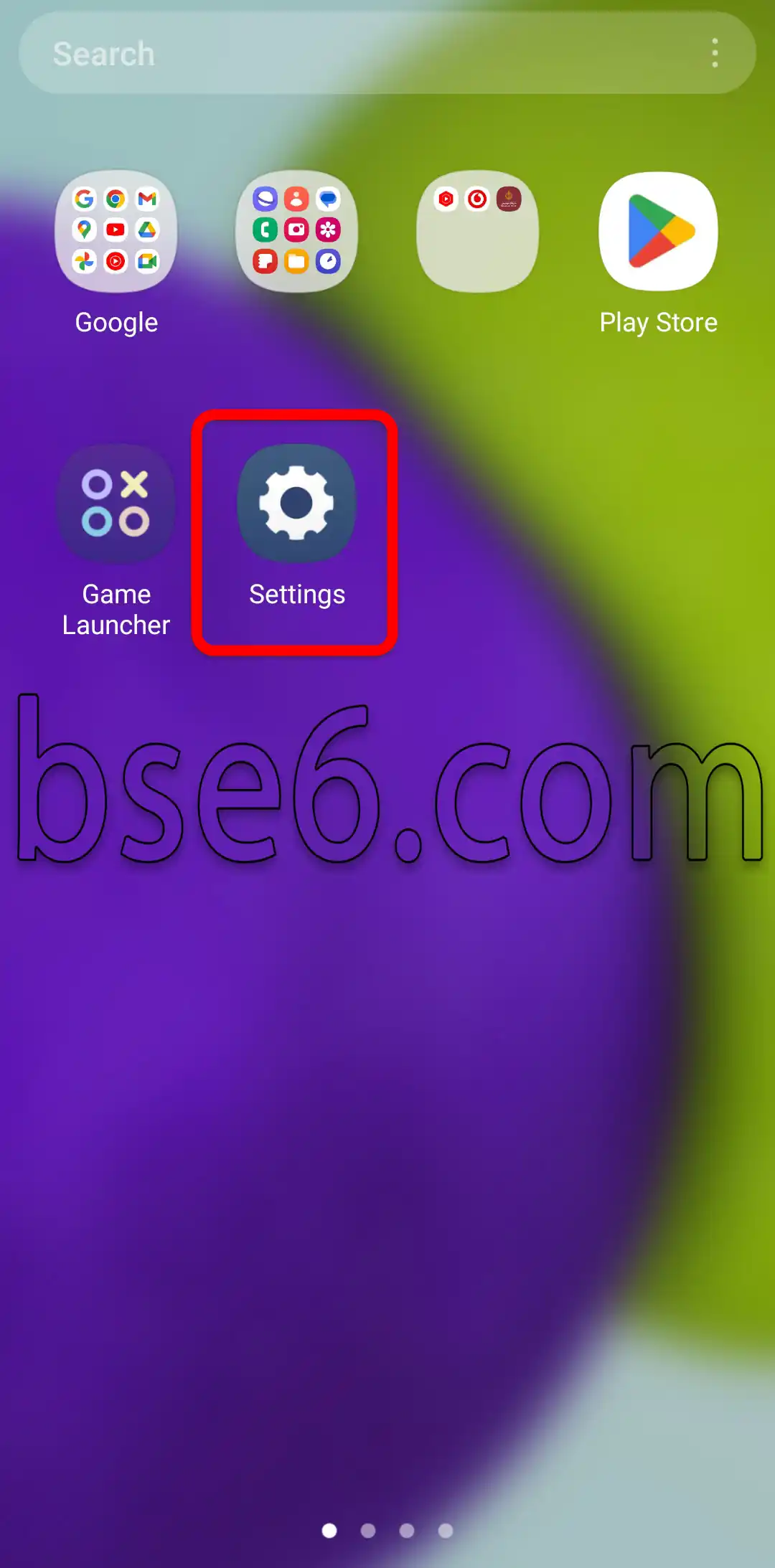
1- Go to “Settings.”
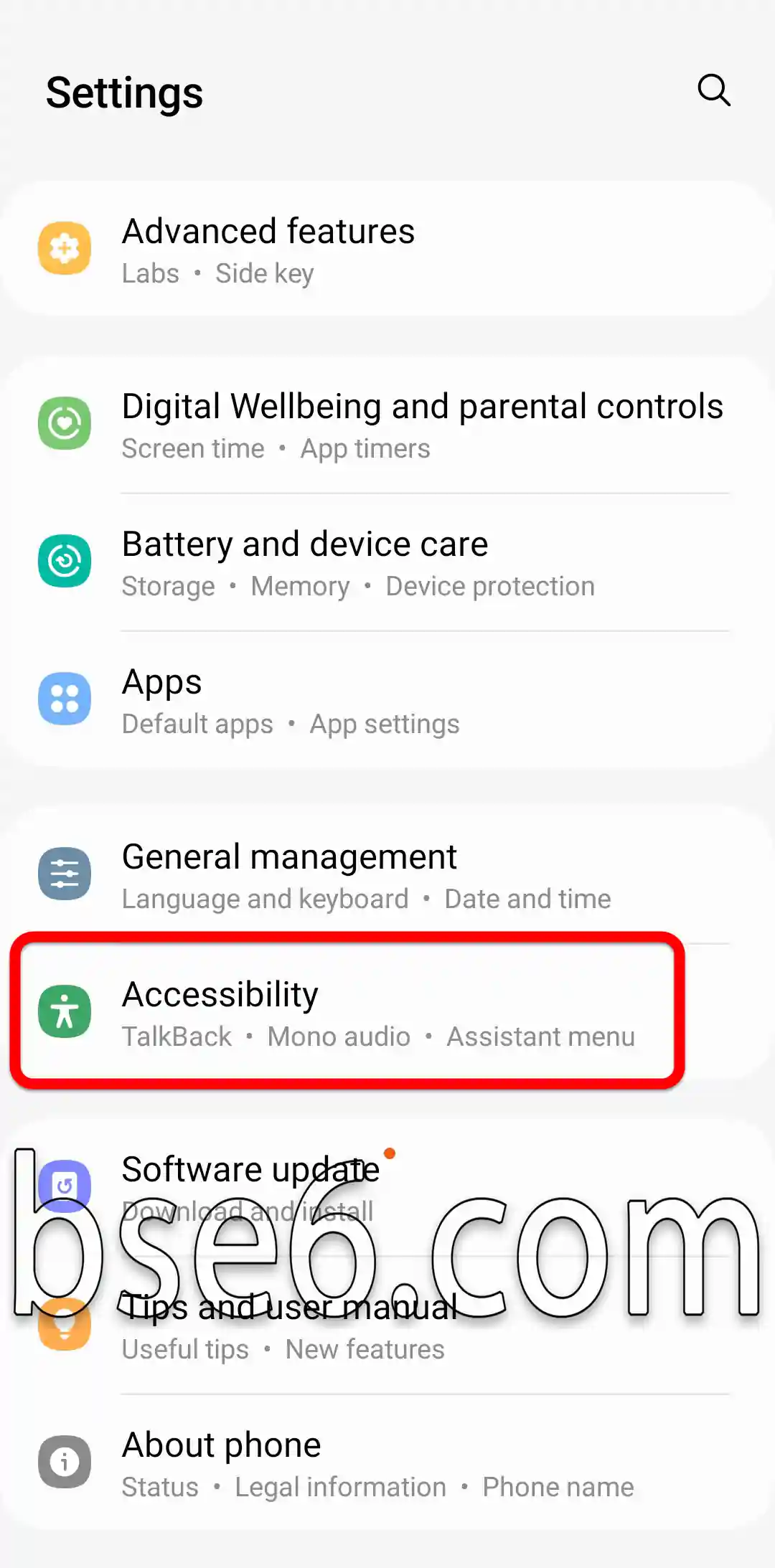
2- Scroll down and tap “Accessibility.”
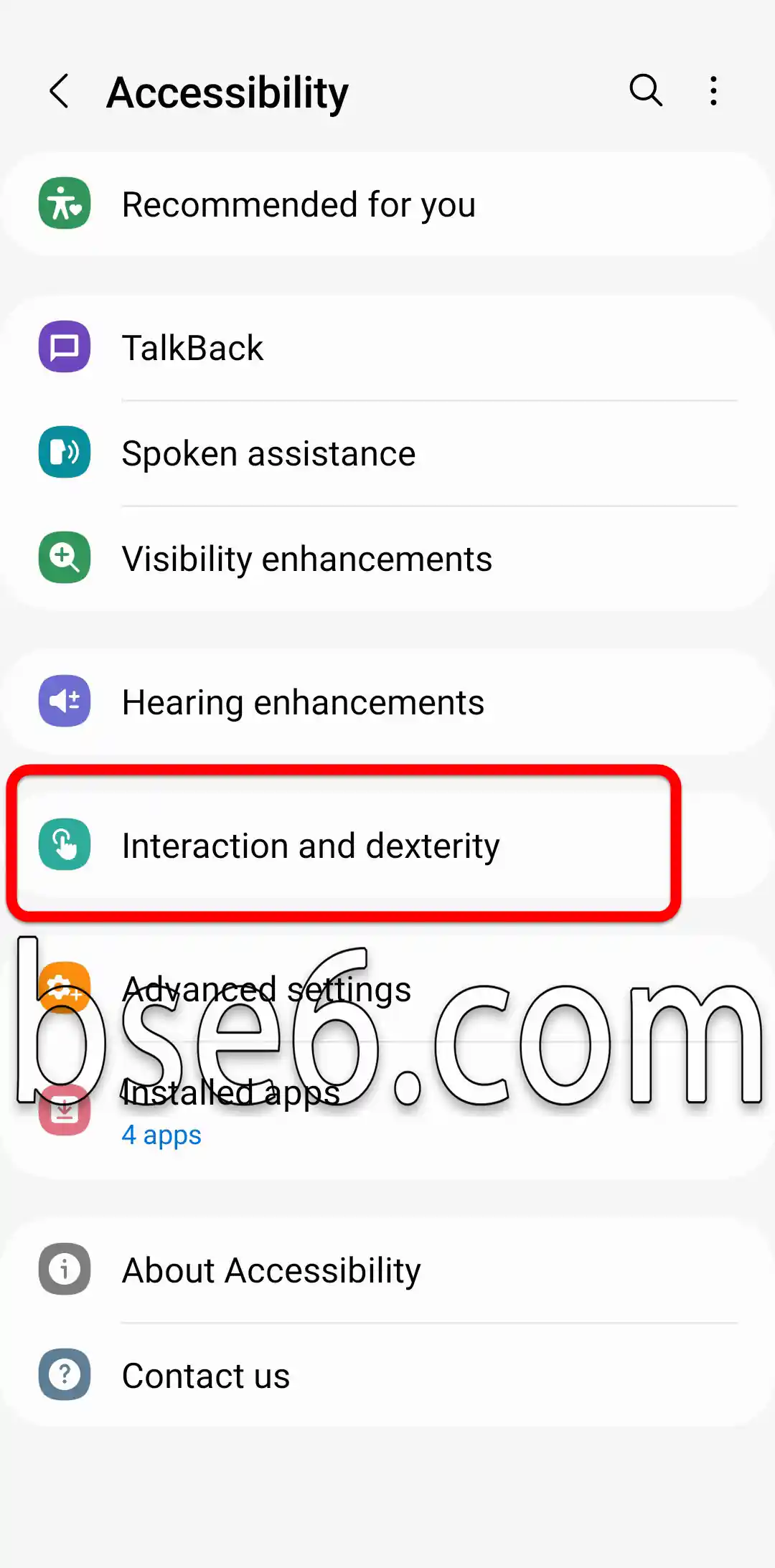
3- Tap “Interaction and dexterity.”
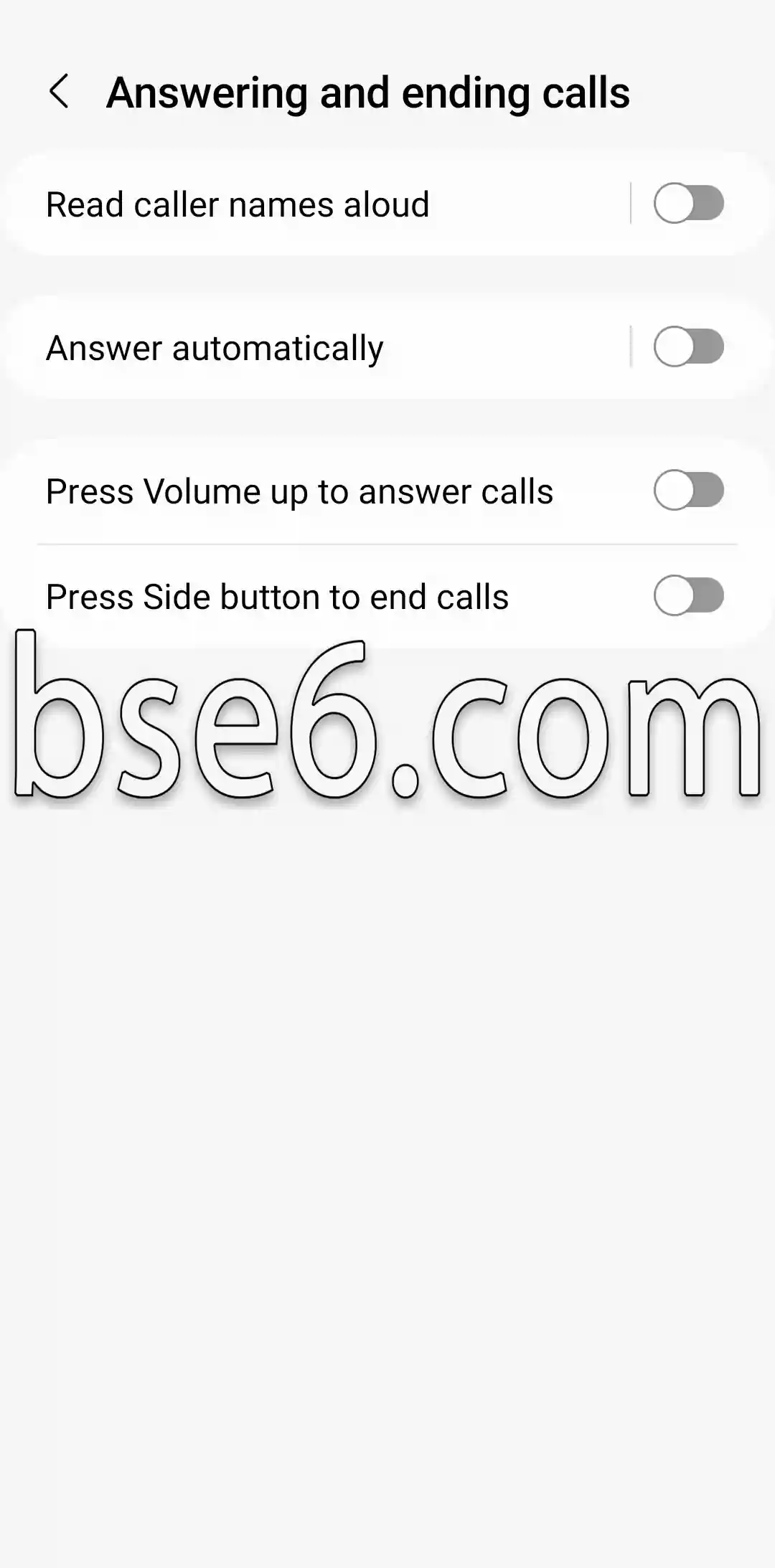
4- Open “Answering and ending calls.”
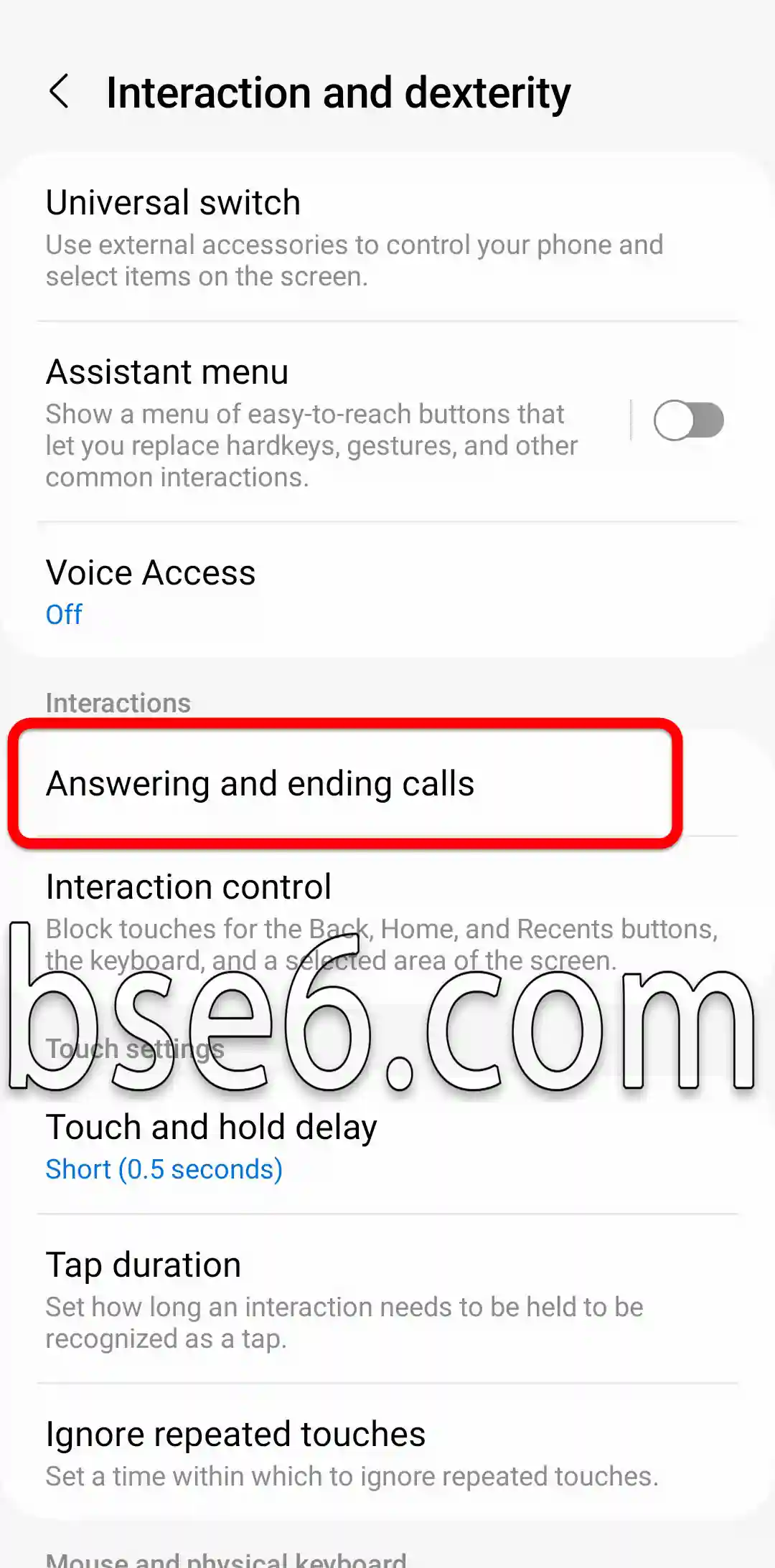
5- From the settings here, you can assign a button or button combination to answer incoming calls and end calls on your device.
The best ways to answer and end calls on the Samsung Galaxy A57 5G
Did you know that answering and ending calls quickly and efficiently on Samsung Galaxy A57 5G phones enhances the daily calling and overall user experience? Many users look for ways to make this process easier and avoid missing any important call.
Modern Samsung devices, including the Galaxy A57 5G, offer multiple options that let you answer and end calls with ease. Below is an overview of the most practical methods:
- On-Screen Answering
When a call comes in, clear answer and reject options appear on the screen. You can swipe up to answer or down to end the call without using physical buttons. - Side Buttons
From Settings, you can enable the option to answer calls by pressing the Volume Up button or end them with the Power button. This allows for faster interaction when you are busy or wearing gloves. - Gestures and Smart Motions
Galaxy A57 5G supports gesture-based actions, such as bringing the device close to your ear to answer automatically or shaking the phone to end a call. This feature is helpful while driving or cooking. - Using Headphones or Bluetooth
While exercising or driving, headphones or Bluetooth headsets let you answer or end a call with a single tap.
The information in this article was gathered from official Samsung support sources to ensure the details are accurate. Knowing how to take advantage of these options enhances everyday communication and significantly improves the user experience. Explore the settings, try the features that suit your needs, and stay connected easily and securely.
Touch and Motion Features for Answering and Ending Calls
Answering and ending calls has become easier thanks to touch and motion technology in modern phones. For example, the Samsung Galaxy A57 5G lets you answer incoming calls or end them with a simple tap or an easy hand gesture.
These features are very important because they allow users to control calls faster and more safely while driving or handling everyday tasks. With the help of the device’s smart sensors, you can reject or answer a call without pressing any physical button. These practical features improve convenience and make the phone easier to use, especially when receiving important calls or private messages.
Third-party apps to improve the experience of answering and ending calls
Answering and ending calls is an essential part of everyday phone use. Did you know that third-party apps can significantly enhance the calling experience? These apps offer innovative options such as call recording, blocking unwanted numbers, and even sending automatic messages when you are unable to answer. Some apps let you customize the call screen, making it easier to manage calls and end them quickly. They also provide solutions for protecting call privacy and improving sound quality. It is always recommended to choose trusted apps such as Truecaller or CallApp to improve your device’s efficiency and enhance security during calls.
How can automatic call answering be enabled on the Samsung Galaxy A57 5G?
Answering and ending calls is one of the important features for Samsung Galaxy A57 5G users.
To enable the automatic answer option for incoming calls, follow these steps:
- Open the Phone app on your device.
- Go to Settings from the options menu.
- Select Answering and ending calls from Advanced settings.
- Enable the Auto answer and set the appropriate delay time (for example, 2 or 5 seconds).
- Make sure auto answering is allowed for incoming calls through a headset or Bluetooth if needed.
These options make it easier for users to answer calls without touching the phone, especially while driving or when busy. Following the correct settings is part of safe and effective use of the Galaxy A57 5G. For more details, refer to Samsung’s official guide or trusted tutorial videos.
What is the fastest way to end calls without touching the screen?
Answering and ending calls may seem simple, but did you know that some Samsung Galaxy A57 5G phones let you end a call quickly using the Power button?
- You can enable this feature from the device’s Accessibility settings.
- Once enabled, you can press the Power button to end a call immediately without touching the screen.
- This method helps keep the screen clean and reduces mistakes when ending calls.
- This feature is especially useful when you are busy or wearing gloves.
- Phone experts recommend regular updates to get the most out of the device and receive updates on the latest features.
Are there custom shortcuts for answering calls on this phone?|
Did you know that answering and ending calls on the Samsung Galaxy A57 5G has become easier with custom shortcuts? The device lets you use standard options such as swiping on the screen or pressing the Power button to answer or end calls quickly. You can enable this feature through the phone’s Settings app, and you can customize how you answer calls based on your preferences. The device also offers the option to block numbers and reply to text messages directly during a call. Using these shortcuts contributes to a more flexible user experience and increases your daily productivity, according to Samsung’s official guide.
Answering and ending calls efficiently gives you a smooth experience on your Samsung Galaxy A57 5G. Discover the best options, from enabling auto-answer to ending a call quickly without touching the screen, as well as how to use third-party apps to improve call control and your ringtones. Try these methods today, share your thoughts, or learn more about managing blocked numbers on the Galaxy A57 5G in our comprehensive guide!