
How to enable Dark Mode on the Samsung Galaxy A57 5G Easily
Dark mode: Did you know that enabling Dark mode on your Samsung Galaxy A57 5G can dramatically change the user experience? This new look helps protect your eyes from light strain caused by excessive brightness, and helps extend battery life significantly. Many people wonder how to turn on Dark mode on Samsung devices. In this article, we’ll cover the basics of Dark mode on the Samsung Galaxy A57 5G, with a practical step-by-step guide to enabling it, plus tips for customizing your phone’s appearance and using it effectively to improve comfort and performance.
Basics of Dark Mode on the Samsung Galaxy A57 5G
Dark mode has become a popular option on smartphones, but did you know how it affects eye comfort during nighttime use? Enabling Dark Mode on the Samsung Galaxy A57 5G is a smart step to protect eye health and reduce strain, especially when using the phone for long periods or in low-light environments.
What is Dark Mode and why is it used?
Dark mode changes the appearance of the system and app interfaces to dark colors instead of bright white backgrounds. This shift not only adds an aesthetic touch, but also helps reduce battery consumption on AMOLED displays, such as the one in the Galaxy A57 5G.
How to enable Dark Mode on the Samsung Galaxy A57 5G:
1- Open “Settings”.
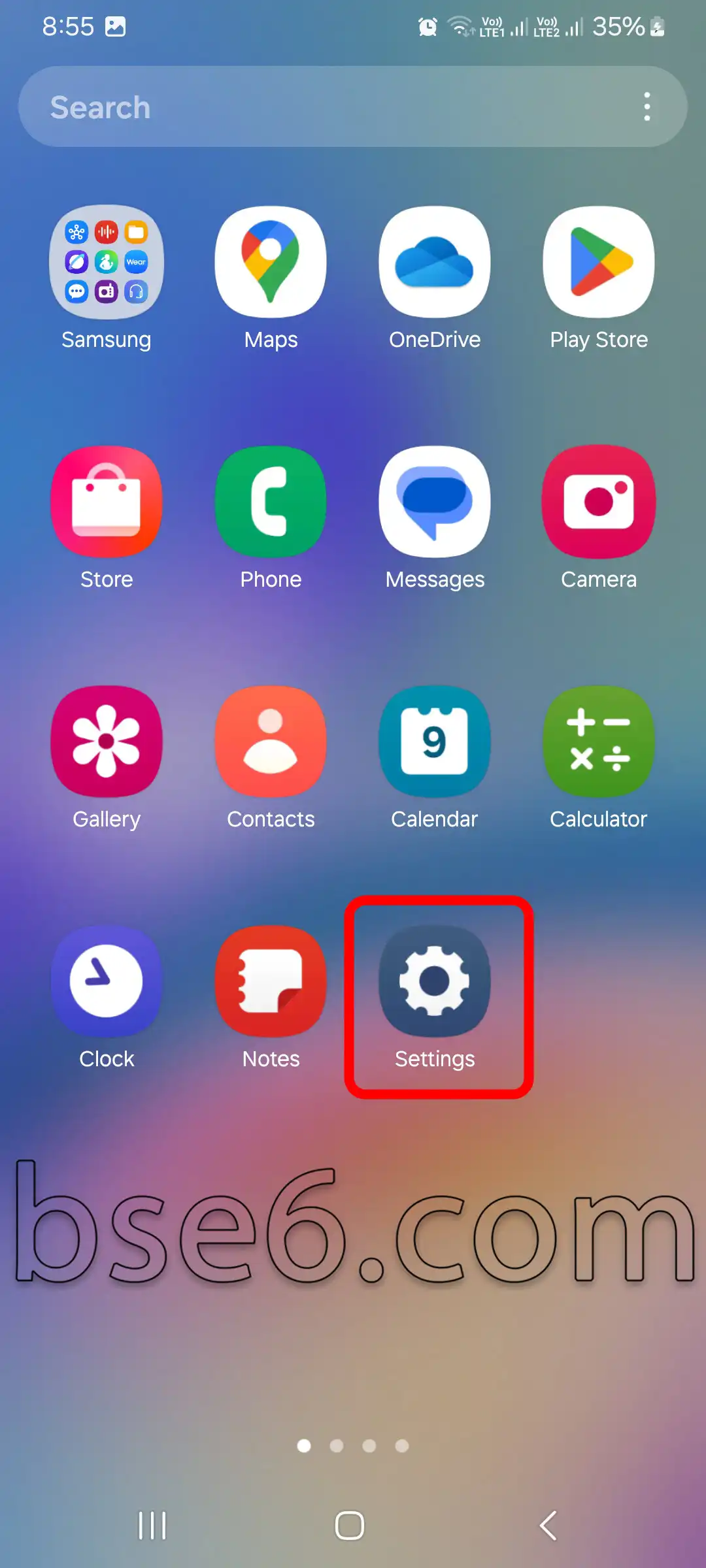
2- Tap “Display”.
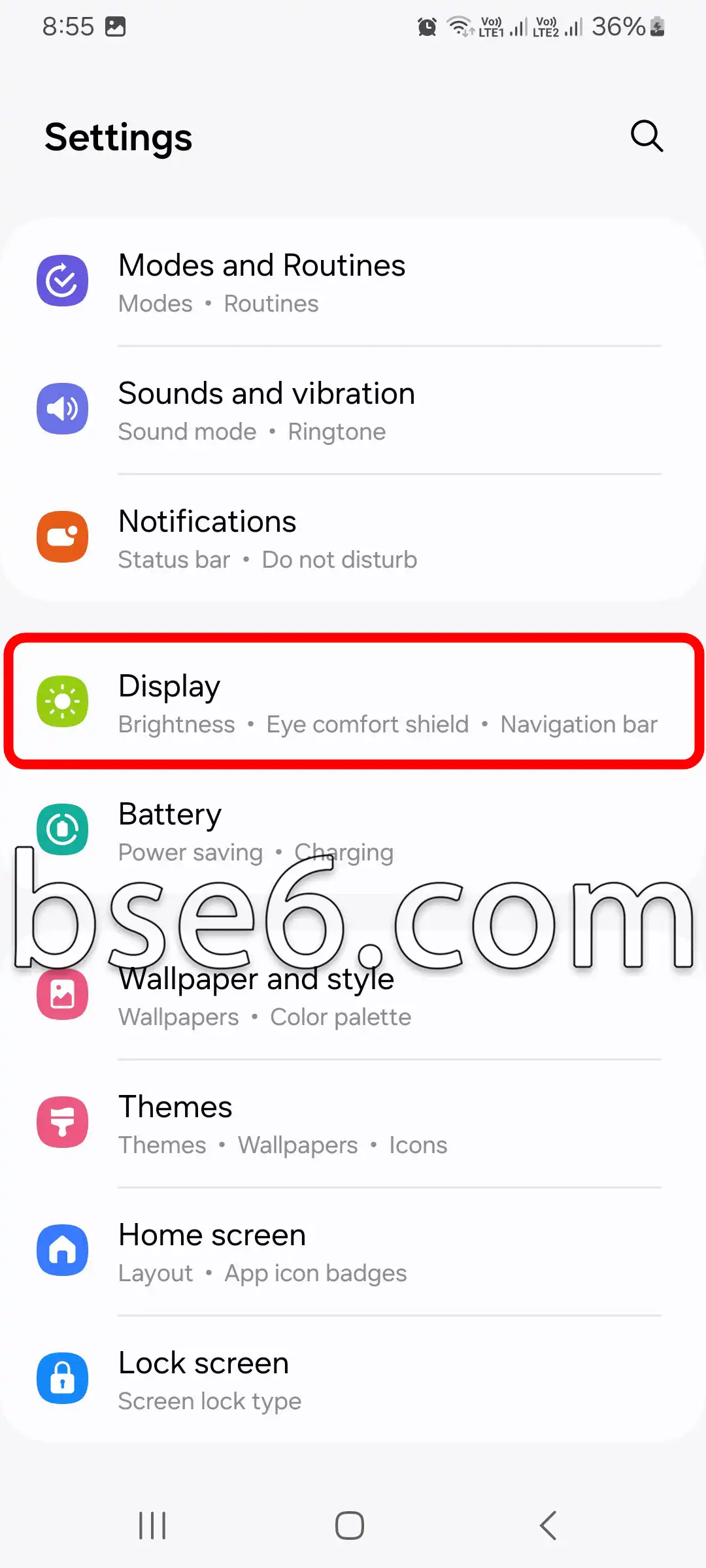
3- Tap “Dark mode”.
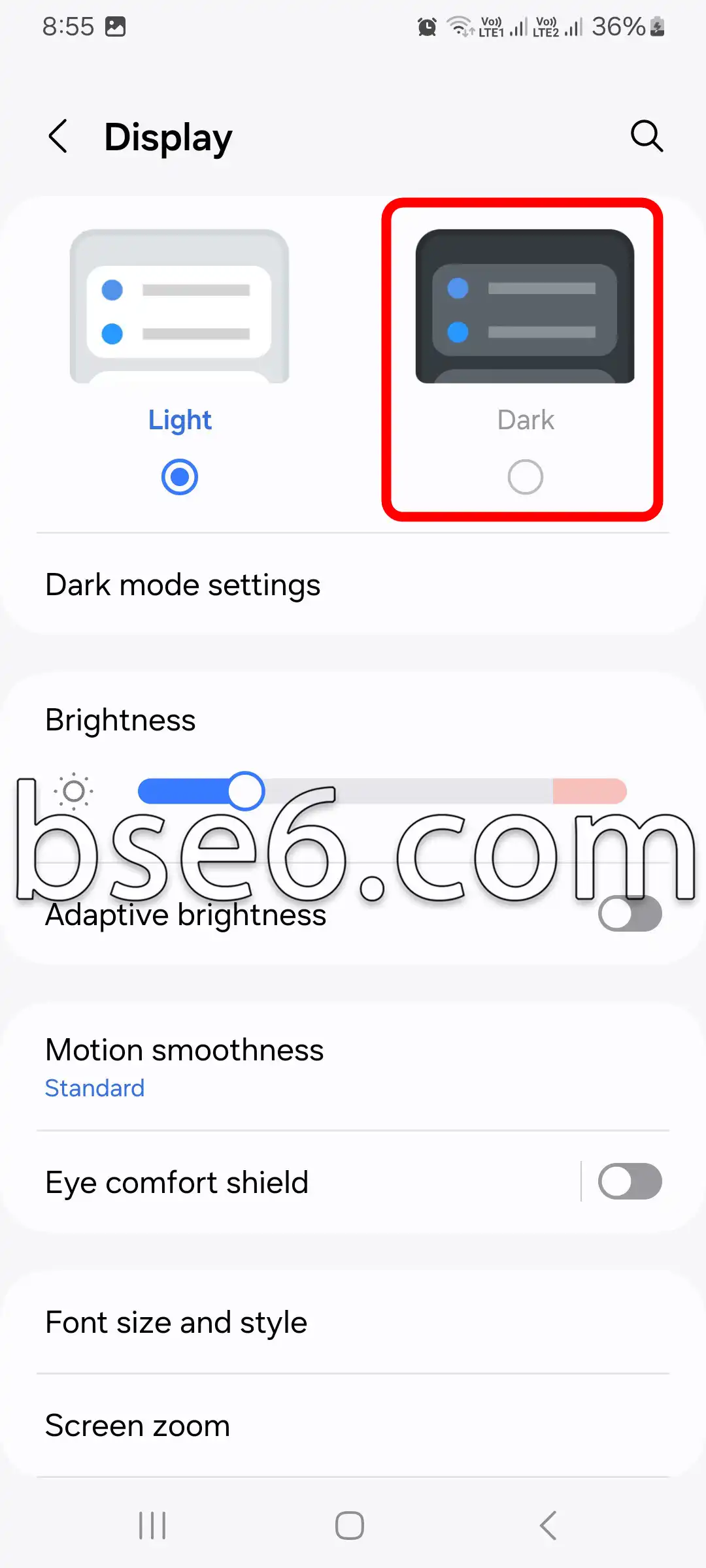
4- The phone and apps will be switched to dark or night mode.
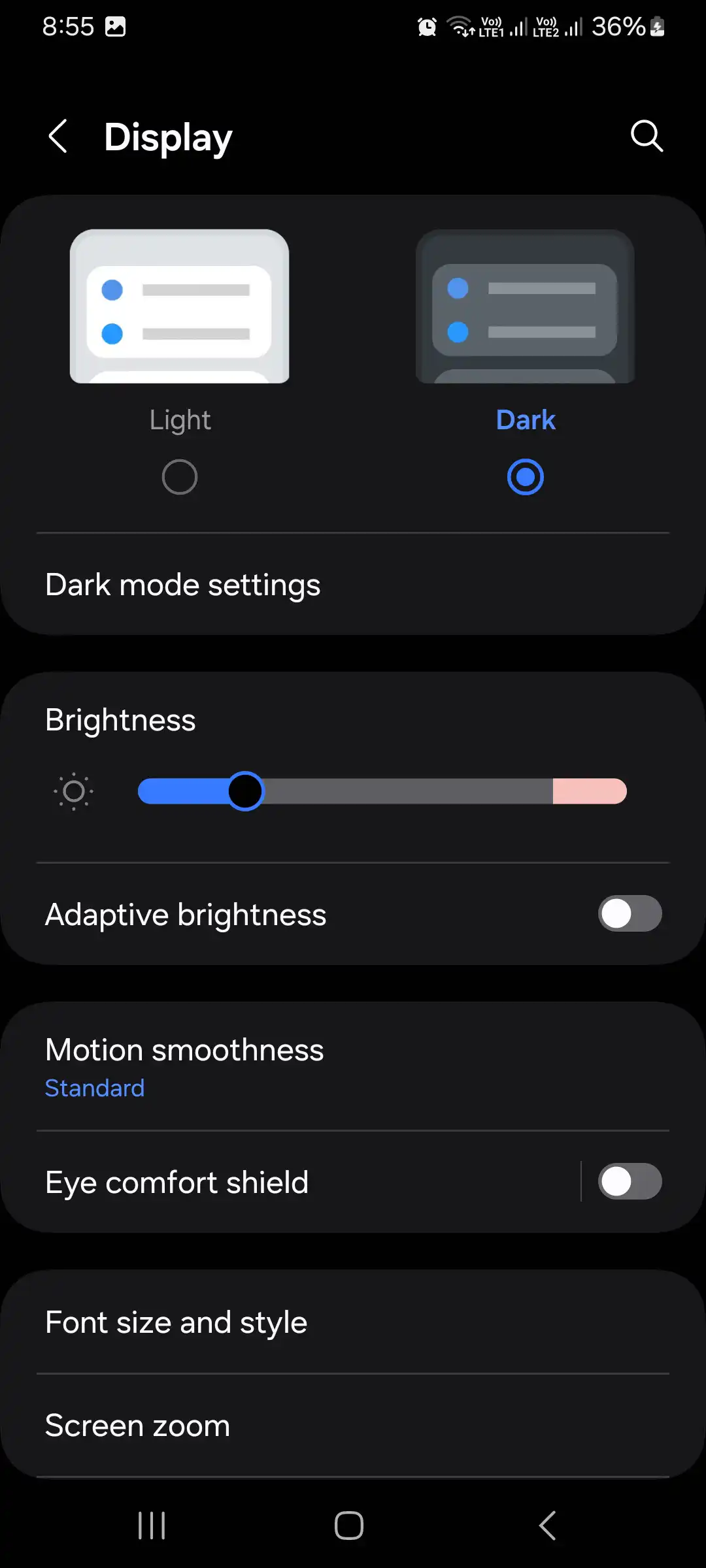
5- You can go to “Dark mode settings” and enable “Turn on as scheduled” so you can set a schedule for your phone to turn on dark mode automatically.
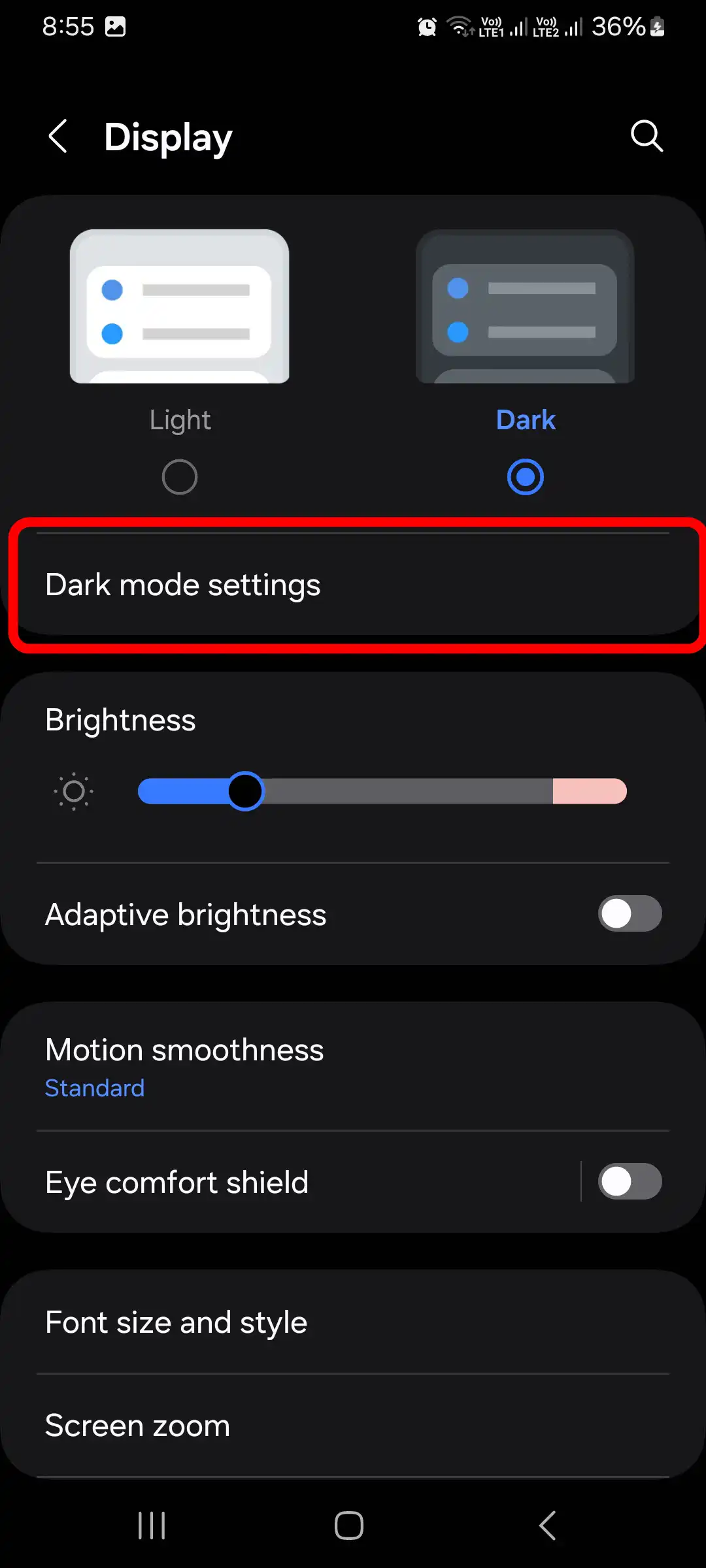
Benefits of Dark Mode:
- Eye comfort: Dark colors reduce glare and help protect your eyes from strain, especially in the evening.
- Battery life savings: Darker colors use less power and can improve battery life.
- Modern look: It gives the device a sleek appearance that appeals to many users.
Trusted sources such as the American Vision Health Foundation recommend reducing excessive brightness to avoid eye strain. Incorporating Dark Mode into your daily use provides a comfortable, modern experience.
مقالات مشابهة
- How to Enter Download Mode on Samsung Galaxy A57 5G
- How to Easily Enable Do Not Disturb Mode on Samsung Galaxy A57 5G
- Secrets and Effective Ways to Take Screenshots on Samsung Galaxy A57 5G
- How to Set Up the Screen Lock on Samsung Galaxy A57 5G
- Invert Colors on Samsung Galaxy A57 5G
- Everything You Need to Know About the Navigation Bar on Samsung Galaxy A57 5G
- How to enable Developer options on Samsung Galaxy A57 5G easily
- Guide to Easily Change Font Size on Samsung Galaxy A57 5G
- How to Enable Eye Comfort Shield on Samsung Galaxy A57 5G
- A Complete Guide to Enabling and Disabling TalkBack on Your Samsung Galaxy A57 5G
- What Is Recovery Mode on the Samsung Galaxy A57 5G?
- The Complete Guide to Enabling Power Saving Mode on Samsung Galaxy A57 5G
- Your complete guide to changing the ringtone on the Samsung Galaxy A57 5G
- How to Change the Phone Language on Samsung Galaxy A57 5G Easily
- How to Change the Screen Timeout on Samsung Galaxy A57 5G
- How to easily customize the Home screen layout on Samsung Galaxy A57 5G
- How to Adjust the Colors on Samsung Galaxy A57 5G Easily
- Best ways to update your Samsung Galaxy A57 5G step by step
- Best ways to answer and end calls on Samsung Galaxy A57 5G
- How to Easily Control System Vibration on the Samsung Galaxy A57 5G
- Steps to Show the Battery Percentage on Samsung Galaxy A57 5G
- How to Turn On Flash Alerts for Incoming Calls on Samsung Galaxy A57 5G
- How to Set a Different Language for Each App on the Samsung Galaxy A57 5G
- How to Easily Hide Apps on the Samsung Galaxy A57 5G
- Cloning apps on Samsung Galaxy A57 5G step by step
- Ways to Factory Reset Samsung Galaxy A57 5G Easily
- The Complete Guide to Enabling Power Saving Mode on Samsung Galaxy A9
- How to enable Dark Mode on the Samsung Galaxy A9 Easily
- How to Change the Phone Language on Samsung Galaxy A9 Easily
- How to Change the Screen Timeout on Samsung Galaxy A9
- How to easily customize the Home screen layout on Samsung Galaxy A9
- How to Adjust the Colors on Samsung Galaxy A9 Easily
- Best ways to update your Samsung Galaxy A9 step by step
- Best ways to answer and end calls on Samsung Galaxy A9
- How to Easily Control System Vibration on the Samsung Galaxy A9
- How to Turn On Flash Alerts for Incoming Calls on Samsung Galaxy A9
- How to Set a Different Language for Each App on the Samsung Galaxy A9
- Cloning apps on Samsung Galaxy A9 step by step
- The Complete Guide to Enabling Power Saving Mode on Samsung Galaxy A56 5G
- How to enable Dark Mode on the Samsung Galaxy A56 5G Easily
- How to Change the Phone Language on Samsung Galaxy A56 5G Easily
- How to Change the Screen Timeout on Samsung Galaxy A56 5G
- How to easily customize the Home screen layout on Samsung Galaxy A56 5G
- How to Adjust the Colors on Samsung Galaxy A56 5G Easily
- Best ways to update your Samsung Galaxy A56 5G step by step
- Best ways to answer and end calls on Samsung Galaxy A56 5G
- How to Easily Control System Vibration on the Samsung Galaxy A56 5G
- How to Turn On Flash Alerts for Incoming Calls on Samsung Galaxy A56 5G
- How to Set a Different Language for Each App on the Samsung Galaxy A56 5G
- Cloning apps on Samsung Galaxy A56 5G step by step
- The Complete Guide to Enabling Power Saving Mode on Samsung Galaxy A37 5G
- How to enable Dark Mode on the Samsung Galaxy A37 5G Easily
- How to Change the Phone Language on Samsung Galaxy A37 5G Easily
- How to Change the Screen Timeout on Samsung Galaxy A37 5G
- How to easily customize the Home screen layout on Samsung Galaxy A37 5G
- How to Adjust the Colors on Samsung Galaxy A37 5G Easily
- Best ways to update your Samsung Galaxy A37 5G step by step
- Best ways to answer and end calls on Samsung Galaxy A37 5G
- How to Easily Control System Vibration on the Samsung Galaxy A37 5G
- How to Turn On Flash Alerts for Incoming Calls on Samsung Galaxy A37 5G
- How to Set a Different Language for Each App on the Samsung Galaxy A37 5G
- Cloning apps on Samsung Galaxy A37 5G step by step
- The Complete Guide to Enabling Power Saving Mode on Samsung Galaxy S20 FE 5G
- How to enable Dark Mode on the Samsung Galaxy S20 FE 5G Easily
- How to Change the Screen Timeout on Samsung Galaxy S20 FE 5G
- How to easily customize the Home screen layout on Samsung Galaxy S20 FE 5G
- Best ways to update your Samsung Galaxy S20 FE 5G step by step
- How to Easily Control System Vibration on the Samsung Galaxy S20 FE 5G
- How to Turn On Flash Alerts for Incoming Calls on Samsung Galaxy S20 FE 5G
- How to Set a Different Language for Each App on the Samsung Galaxy S20 FE 5G
- The Complete Guide to Enabling Power Saving Mode on Samsung Galaxy A54 5G
- How to enable Dark Mode on the Samsung Galaxy A54 5G Easily
- How to Change the Phone Language on Samsung Galaxy A54 5G Easily
- How to Change the Screen Timeout on Samsung Galaxy A54 5G
- How to easily customize the Home screen layout on Samsung Galaxy A54 5G
- How to Adjust the Colors on Samsung Galaxy A54 5G Easily
- Best ways to update your Samsung Galaxy A54 5G step by step
- Best ways to answer and end calls on Samsung Galaxy A54 5G
- How to Easily Control System Vibration on the Samsung Galaxy A54 5G
- How to Turn On Flash Alerts for Incoming Calls on Samsung Galaxy A54 5G
- How to Set a Different Language for Each App on the Samsung Galaxy A54 5G
- Cloning apps on Samsung Galaxy A54 5G step by step
- The Complete Guide to Enabling Power Saving Mode on Samsung Galaxy S22
- How to enable Dark Mode on the Samsung Galaxy S22 Easily
- How to Change the Screen Timeout on Samsung Galaxy S22
- How to easily customize the Home screen layout on Samsung Galaxy S22
- Best ways to update your Samsung Galaxy S22 step by step
- How to Easily Control System Vibration on the Samsung Galaxy S22
- How to Turn On Flash Alerts for Incoming Calls on Samsung Galaxy S22
- How to Set a Different Language for Each App on the Samsung Galaxy S22
- The Complete Guide to Enabling Power Saving Mode on Samsung Galaxy A05S
- How to enable Dark Mode on the Samsung Galaxy A05S Easily
- How to Change the Screen Timeout on Samsung Galaxy A05S
- How to easily customize the Home screen layout on Samsung Galaxy A05S
- Best ways to update your Samsung Galaxy A05S step by step
- How to Easily Control System Vibration on the Samsung Galaxy A05S
- How to Turn On Flash Alerts for Incoming Calls on Samsung Galaxy A05S
- How to Set a Different Language for Each App on the Samsung Galaxy A05S
- The Complete Guide to Enabling Power Saving Mode on Samsung Galaxy A54
- How to enable Dark Mode on the Samsung Galaxy A54 Easily
- How to Change the Screen Timeout on Samsung Galaxy A54
- How to easily customize the Home screen layout on Samsung Galaxy A54
- Best ways to update your Samsung Galaxy A54 step by step
- How to Easily Control System Vibration on the Samsung Galaxy A54
- How to Turn On Flash Alerts for Incoming Calls on Samsung Galaxy A54
- How to Set a Different Language for Each App on the Samsung Galaxy A54
- The Complete Guide to Enabling Power Saving Mode on Samsung Galaxy A04E
- How to enable Dark Mode on the Samsung Galaxy A04E Easily
- How to Change the Phone Language on Samsung Galaxy A04E Easily
- How to Change the Screen Timeout on Samsung Galaxy A04E
- How to easily customize the Home screen layout on Samsung Galaxy A04E
- How to Adjust the Colors on Samsung Galaxy A04E Easily
- Best ways to update your Samsung Galaxy A04E step by step
- Best ways to answer and end calls on Samsung Galaxy A04E
- How to Easily Control System Vibration on the Samsung Galaxy A04E
- How to Turn On Flash Alerts for Incoming Calls on Samsung Galaxy A04E
- How to Set a Different Language for Each App on the Samsung Galaxy A04E
- Cloning apps on Samsung Galaxy A04E step by step
- The Complete Guide to Enabling Power Saving Mode on Samsung Galaxy A04S
- How to enable Dark Mode on the Samsung Galaxy A04S Easily
- How to Change the Phone Language on Samsung Galaxy A04S Easily
- How to Change the Screen Timeout on Samsung Galaxy A04S
- How to easily customize the Home screen layout on Samsung Galaxy A04S
- How to Adjust the Colors on Samsung Galaxy A04S Easily
- Best ways to update your Samsung Galaxy A04S step by step
- Best ways to answer and end calls on Samsung Galaxy A04S
- How to Easily Control System Vibration on the Samsung Galaxy A04S
- How to Turn On Flash Alerts for Incoming Calls on Samsung Galaxy A04S
- How to Set a Different Language for Each App on the Samsung Galaxy A04S
- Cloning apps on Samsung Galaxy A04S step by step
- The Complete Guide to Enabling Power Saving Mode on Samsung Galaxy A04
- How to enable Dark Mode on the Samsung Galaxy A04 Easily
- How to Change the Phone Language on Samsung Galaxy A04 Easily
- How to Change the Screen Timeout on Samsung Galaxy A04
- How to easily customize the Home screen layout on Samsung Galaxy A04
- How to Adjust the Colors on Samsung Galaxy A04 Easily
- Best ways to update your Samsung Galaxy A04 step by step
- Best ways to answer and end calls on Samsung Galaxy A04
- How to Easily Control System Vibration on the Samsung Galaxy A04
- How to Turn On Flash Alerts for Incoming Calls on Samsung Galaxy A04
- How to Set a Different Language for Each App on the Samsung Galaxy A04
- Cloning apps on Samsung Galaxy A04 step by step
- The Complete Guide to Enabling Power Saving Mode on Samsung Galaxy A10S
- How to enable Dark Mode on the Samsung Galaxy A10S Easily
- How to Change the Screen Timeout on Samsung Galaxy A10S
- How to easily customize the Home screen layout on Samsung Galaxy A10S
- Best ways to update your Samsung Galaxy A10S step by step
- How to Easily Control System Vibration on the Samsung Galaxy A10S
- How to Turn On Flash Alerts for Incoming Calls on Samsung Galaxy A10S
- How to Set a Different Language for Each App on the Samsung Galaxy A10S
- The Complete Guide to Enabling Power Saving Mode on Samsung Galaxy M02S
- How to enable Dark Mode on the Samsung Galaxy M02S Easily
- How to Change the Screen Timeout on Samsung Galaxy M02S
- How to easily customize the Home screen layout on Samsung Galaxy M02S
- Best ways to update your Samsung Galaxy M02S step by step
- How to Easily Control System Vibration on the Samsung Galaxy M02S
- How to Set a Different Language for Each App on the Samsung Galaxy M02S
- The Complete Guide to Enabling Power Saving Mode on Samsung Galaxy A20
- How to enable Dark Mode on the Samsung Galaxy A20 Easily
- How to Change the Screen Timeout on Samsung Galaxy A20
- How to easily customize the Home screen layout on Samsung Galaxy A20
- Best ways to update your Samsung Galaxy A20 step by step
- How to Easily Control System Vibration on the Samsung Galaxy A20
- How to Turn On Flash Alerts for Incoming Calls on Samsung Galaxy A20
- How to Set a Different Language for Each App on the Samsung Galaxy A20
- The Complete Guide to Enabling Power Saving Mode on Samsung Galaxy A52
- How to enable Dark Mode on the Samsung Galaxy A52 Easily
- How to Change the Screen Timeout on Samsung Galaxy A52
- How to easily customize the Home screen layout on Samsung Galaxy A52
- Best ways to update your Samsung Galaxy A52 step by step
- How to Easily Control System Vibration on the Samsung Galaxy A52
- How to Turn On Flash Alerts for Incoming Calls on Samsung Galaxy A52
- How to Set a Different Language for Each App on the Samsung Galaxy A52
- The Complete Guide to Enabling Power Saving Mode on Samsung Galaxy A36 5G
- How to enable Dark Mode on the Samsung Galaxy A36 5G Easily
- How to Change the Phone Language on Samsung Galaxy A36 5G Easily
- How to Change the Screen Timeout on Samsung Galaxy A36 5G
- How to easily customize the Home screen layout on Samsung Galaxy A36 5G
- How to Adjust the Colors on Samsung Galaxy A36 5G Easily
- Best ways to update your Samsung Galaxy A36 5G step by step
- Best ways to answer and end calls on Samsung Galaxy A36 5G
- How to Easily Control System Vibration on the Samsung Galaxy A36 5G
- How to Turn On Flash Alerts for Incoming Calls on Samsung Galaxy A36 5G
- Cloning apps on Samsung Galaxy A36 5G step by step
- How to Set a Different Language for Each App on the Samsung Galaxy A36 5G
- Best ways to answer and end calls on Samsung Galaxy A13
- How to Adjust the Colors on Samsung Galaxy A13 Easily
- How to Change the Phone Language on Samsung Galaxy A13 Easily
- How to Turn On Flash Alerts for Incoming Calls on Samsung Galaxy A13
- Cloning apps on Samsung Galaxy A13 step by step
- How to Change the Screen Timeout on Samsung Galaxy A13
- How to enable Dark Mode on the Samsung Galaxy A13 Easily
- How to Easily Control System Vibration on the Samsung Galaxy A13
- Best ways to update your Samsung Galaxy A13 step by step
- How to easily customize the Home screen layout on Samsung Galaxy A13
- How to Set a Different Language for Each App on the Samsung Galaxy A13
- The Complete Guide to Enabling Power Saving Mode on Samsung Galaxy A13
- Best ways to answer and end calls on Samsung Galaxy A12
- Cloning apps on Samsung Galaxy A12 step by step
- How to Adjust the Colors on Samsung Galaxy A12 Easily
- How to Change the Phone Language on Samsung Galaxy A12 Easily
- How to Turn On Flash Alerts for Incoming Calls on Samsung Galaxy A12
- How to enable Dark Mode on the Samsung Galaxy A12 Easily
- How to Set a Different Language for Each App on the Samsung Galaxy A12
- How to Change the Screen Timeout on Samsung Galaxy A12
- How to Easily Control System Vibration on the Samsung Galaxy A12
- Best ways to update your Samsung Galaxy A12 step by step
- How to easily customize the Home screen layout on Samsung Galaxy A12
- The Complete Guide to Enabling Power Saving Mode on Samsung Galaxy A12
- Best ways to update your Samsung Galaxy A15 step by step
- How to easily customize the Home screen layout on Samsung Galaxy A15
- How to Turn On Flash Alerts for Incoming Calls on Samsung Galaxy A15
- Cloning apps on Samsung Galaxy A15 step by step
- Best ways to answer and end calls on Samsung Galaxy A15
- How to Easily Control System Vibration on the Samsung Galaxy A15
- The Complete Guide to Enabling Power Saving Mode on Samsung Galaxy A15
- How to Set a Different Language for Each App on the Samsung Galaxy A15
- How to Change the Screen Timeout on Samsung Galaxy A15
- How to enable Dark Mode on the Samsung Galaxy A15 Easily
- How to Adjust the Colors on Samsung Galaxy A15 Easily
- How to Change the Phone Language on Samsung Galaxy A15 Easily
- How to easily customize the Home screen layout on Samsung Galaxy A14
- How to Easily Control System Vibration on the Samsung Galaxy A14
- Best ways to update your Samsung Galaxy A14 step by step
- The Complete Guide to Enabling Power Saving Mode on Samsung Galaxy A14
- How to Set a Different Language for Each App on the Samsung Galaxy A14
- How to Change the Screen Timeout on Samsung Galaxy A14
- How to Turn On Flash Alerts for Incoming Calls on Samsung Galaxy A14
- Cloning apps on Samsung Galaxy A14 step by step
- How to Adjust the Colors on Samsung Galaxy A14 Easily
- Best ways to answer and end calls on Samsung Galaxy A14
- How to enable Dark Mode on the Samsung Galaxy A14 Easily
- How to Change the Phone Language on Samsung Galaxy A14 Easily
- Best ways to answer and end calls on Samsung Galaxy A11
- How to Change the Phone Language on Samsung Galaxy A11 Easily
- How to Adjust the Colors on Samsung Galaxy A11 Easily
- Cloning apps on Samsung Galaxy A11 step by step
- How to Turn On Flash Alerts for Incoming Calls on Samsung Galaxy A11
- How to enable Dark Mode on the Samsung Galaxy A11 Easily
- How to Change the Screen Timeout on Samsung Galaxy A11
- How to Set a Different Language for Each App on the Samsung Galaxy A11
- How to easily customize the Home screen layout on Samsung Galaxy A11
- Best ways to update your Samsung Galaxy A11 step by step
- How to Easily Control System Vibration on the Samsung Galaxy A11
- The Complete Guide to Enabling Power Saving Mode on Samsung Galaxy A11
- The Complete Guide to Enabling Power Saving Mode on Samsung Galaxy A10
- How to Easily Control System Vibration on the Samsung Galaxy A10
- Best ways to update your Samsung Galaxy A10 step by step
- How to easily customize the Home screen layout on Samsung Galaxy A10
- How to Set a Different Language for Each App on the Samsung Galaxy A10
- How to Change the Screen Timeout on Samsung Galaxy A10
- How to enable Dark Mode on the Samsung Galaxy A10 Easily
- Cloning apps on Samsung Galaxy M02S step by step
- How to Adjust the Colors on Samsung Galaxy M02S Easily
- How to Change the Phone Language on Samsung Galaxy M02S Easily
- Best ways to answer and end calls on Samsung Galaxy M02S
- How to Turn On Flash Alerts for Incoming Calls on Samsung Galaxy A10
- How to Turn On Flash Alerts for Incoming Calls on Samsung Galaxy M02S
- Cloning apps on Samsung Galaxy A10 step by step
- How to Adjust the Colors on Samsung Galaxy A10 Easily
- How to Change the Phone Language on Samsung Galaxy A10 Easily
- Best ways to answer and end calls on Samsung Galaxy A10
- Best ways to answer and end calls on Samsung Galaxy S20 FE 5G
- How to Change the Phone Language on Samsung Galaxy S20 FE 5G Easily
- How to Adjust the Colors on Samsung Galaxy S20 FE 5G Easily
- Cloning apps on Samsung Galaxy S20 FE 5G step by step
- Best ways to answer and end calls on Samsung Galaxy S22
- How to Change the Phone Language on Samsung Galaxy S22 Easily
- How to Adjust the Colors on Samsung Galaxy S22 Easily
- Cloning apps on Samsung Galaxy S22 step by step
- Best ways to answer and end calls on Samsung Galaxy A05S
- How to Change the Phone Language on Samsung Galaxy A05S Easily
- How to Adjust the Colors on Samsung Galaxy A05S Easily
- Cloning apps on Samsung Galaxy A05S step by step
- Best ways to answer and end calls on Samsung Galaxy A54
- How to Change the Phone Language on Samsung Galaxy A54 Easily
- How to Adjust the Colors on Samsung Galaxy A54 Easily
- Cloning apps on Samsung Galaxy A54 step by step
- How to Change the Phone Language on Samsung Galaxy A20 Easily
- How to Adjust the Colors on Samsung Galaxy A20 Easily
- Best ways to answer and end calls on Samsung Galaxy A20
- Cloning apps on Samsung Galaxy A20 step by step
- Best ways to answer and end calls on Samsung Galaxy A10S
- Best ways to answer and end calls on Samsung Galaxy A52
- How to Change the Phone Language on Samsung Galaxy A10S Easily
- How to Adjust the Colors on Samsung Galaxy A10S Easily
- Cloning apps on Samsung Galaxy A10S step by step
- How to Change the Phone Language on Samsung Galaxy A52 Easily
- How to Adjust the Colors on Samsung Galaxy A52 Easily
- Cloning apps on Samsung Galaxy A52 step by step
Subscribe to our mailing list to get new updates!
####